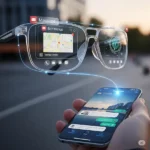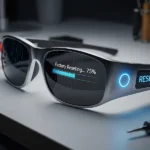
😎 Smart Glasses Not Pairing? Here’s How to Fix It (iPhone & Android)
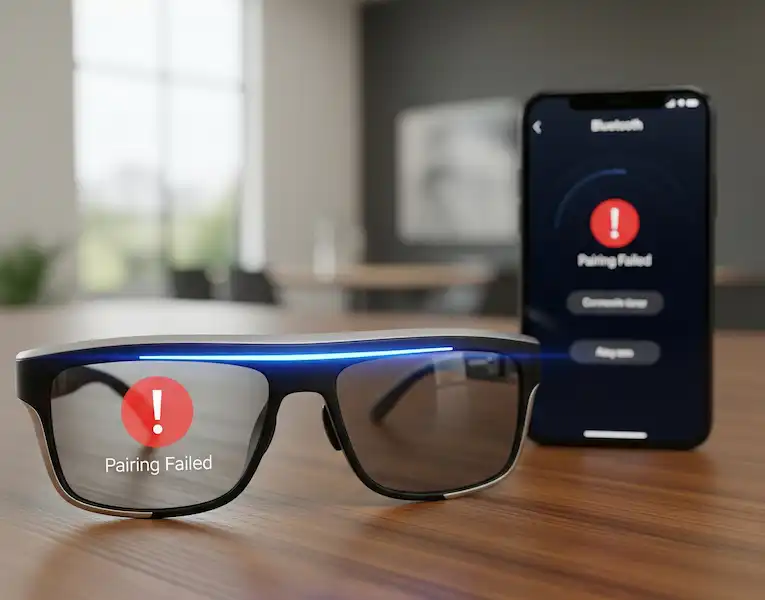
ILook, I’ve been there. You just unboxed a shiny new pair of smart glasses—maybe they’re the Ray-Ban Metas you’ve been eyeing or a pair of Xreal Airs for your “mobile office”—and you’re ready to live in the future. You put them on, open the app, and… nothing. Or worse, they connect for thirty seconds, whisper a glitchy “Hello,” and then vanish into the digital void.
After spending way too many hours wrestling with Bluetooth stacks and “searching for device” screens, I’ve realized that smart glasses aren’t just headphones with lenses; they are temperamental little computers sitting on your face.
If your smart glasses are acting like they don’t know your phone exists, or if the Bluetooth connection is choppier than a bad Zoom call, this guide is for you. I’ve pulled together every fix that actually works, moving past the “is it plugged in?” fluff to the deep-level resets that save your sanity.
The “Why Won’t You Love Me?” Guide to Smart Glasses Pairing
1. The “Ghost” Connection (When your phone thinks it’s paired, but it’s not)
This is the most common headache I encounter. My phone’s Bluetooth list says “Connected,” but the app says “Searching.” Usually, this happens because the Bluetooth Low Energy (BLE) handshake got interrupted.
The Fix: Go to your phone’s Bluetooth settings and “Forget This Device.” Don’t just disconnect it—nuke the relationship. Then, go back into your glasses’ companion app (like Meta View or Xreal Nebula) and start the pairing process from scratch. According to the Bluetooth Special Interest Group (SIG), BLE connections can sometimes hang in a “half-connected” state that only a clean slate can fix.
2. The “Case” Factor (The physical gatekeeper)
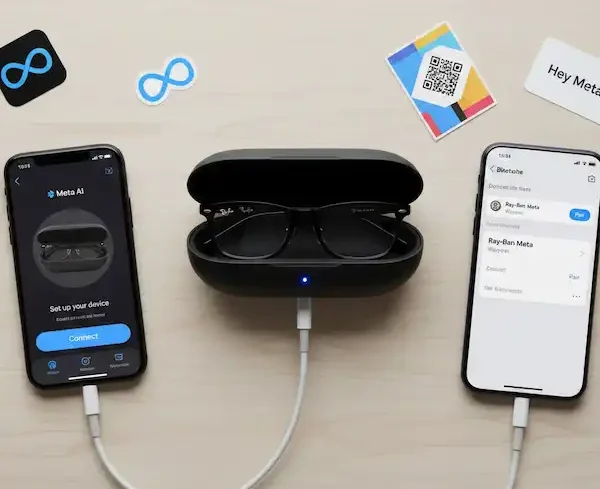
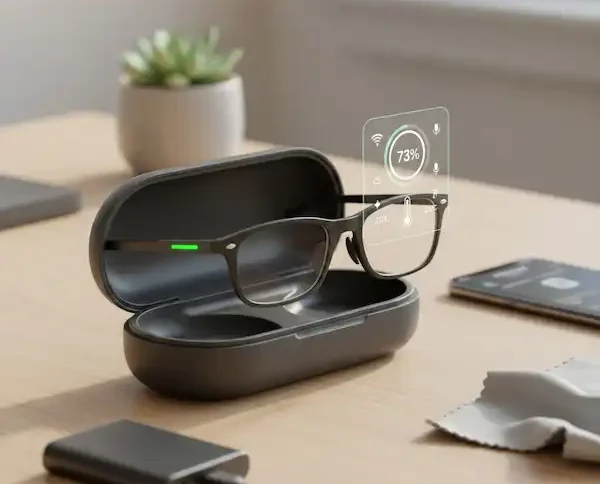
If you’re using Ray-Ban Meta or Bose Frames, the charging case isn’t just a battery—it’s the pairing hub. I once spent 20 minutes trying to pair my glasses while wearing them, only to realize they must be sitting in the case with the lid open to enter discovery mode.
- Pro Tip: Look for the light. On the Meta glasses, you have to hold the button on the back of the case until the LED on the front pulses blue. If it’s white or orange, you aren’t in pairing mode yet.
3. Software Ghosting (Update or Perish)
We often forget that smart glasses rely on a tiny piece of software called firmware. If your phone’s OS (iOS 17/18 or Android 14+) has updated but your glasses are running “launch day” firmware, they’re going to speak different languages.
I’ve found that even if the app says “Up to Date,” it’s worth checking the manufacturer’s support page. For example, Ray-Ban’s support portal often lists specific version numbers that the app might miss if your Wi-Fi is spotty.
The Advanced Bluetooth Fix: When Pairing Works, but Stability Fails
So, you’ve finally got them paired, but now the audio cuts out every time you turn your head. Or you try to take a photo and the app crashes. This is where we get into the “Bluetooth Fix” territory.
The “30-Foot Myth” and Interference
Bluetooth theoretically works up to 30 feet, but in reality? Your body is a giant bag of water that blocks 2.4GHz signals. If your phone is in your back left pocket and the Bluetooth receiver is in the right arm of your glasses, you might get “micro-stutters.”
- My Solution: Try moving your phone to a front pocket or a chest pocket. It sounds silly, but reducing the “body block” is a scientifically backed way to improve signal SNR (Signal-to-Noise Ratio).
The “Too Many Cooks” Problem
Are you wearing a smartwatch? Are your AirPods in your pocket? Is your car’s Bluetooth trying to grab the connection while you’re standing in the driveway? Smartphones have a limit on how many active high-bandwidth Bluetooth connections they can handle. If my Apple Watch is syncing a workout, my smart glasses audio almost always stutters. Turn off unused Bluetooth devices nearby to give your glasses the “clean air” they need.
The Nuclear Option: The Factory Reset
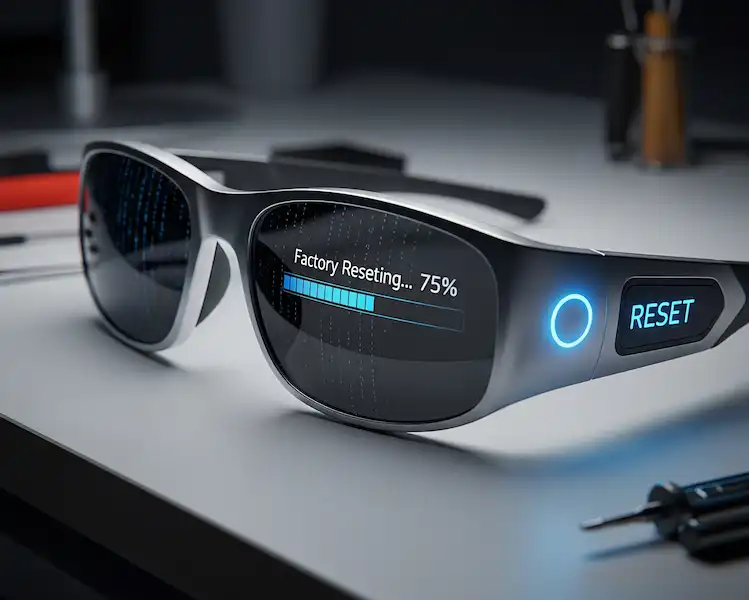
When all else fails, you have to go nuclear. For most glasses, this involves a specific physical button combo.
Warning: This will wipe any photos or videos you haven’t synced yet. Always “Dump the Glass” (sync your media) before you reset.
For Meta/Ray-Ban: Slide the power switch, hold the capture button, and wait for the LED to turn orange.
The Quick Fixes for Smart Glasses Not Pairing
Before you panic or attempt a factory reset, always start with these basic, almost universal checks. They solve the majority of problems.
| Troubleshooting Step | Why It Matters | What to Do |
| 1. Check the Battery | Low battery can prevent pairing. | Make sure both your glasses (or their case) and your phone are sufficiently charged. A lot of Bluetooth devices won’t pair if they’re nearly dead. |
| 2. Close the Distance | Bluetooth has a short range. | Keep your glasses and your phone within a few feet of each other—ideally, right next to each other. |
| 3. Turn It Off and On Again | A simple reboot clears glitches. | Restart your phone and power cycle your smart glasses (turn them off, then back on). This is the classic tech solution for a reason! |
| 4. Check Phone Bluetooth | Is your phone even looking for devices? | Double-check your phone’s settings to ensure Bluetooth is actually turned ON. You’d be surprised! |
Troubleshooting for Your Phone (Android & iPhone)
When your smart glasses not pairing, if the basics don’t work, the issue might be on your phone’s side. The steps are slightly different depending on if you’re rocking an iPhone or an Android.
🍎Glasses Not Pairing – iPhone & iOS Users
On an iPhone, when smart glasses not pairing, one of the most common issues is that a previous, corrupted connection is blocking the new one. You need to tell your phone to “forget” the glasses entirely.
- Go to Settings > Bluetooth.
- Find your smart glasses in the list (they might appear as a previous model name, like “Ray-Ban Stories”).
- Tap the Information icon (i) next to the name.
- Select “Forget This Device.” Confirm your choice.
- Restart your glasses and put them into pairing mode (check your glasses manual for this specific button press—it’s often a button on the case).
- Go back to your iPhone’s Bluetooth list and try pairing them as a brand-new device.
🤖 Glasses Not Pairing – Android Users
Android’s open nature means there’s a little more going on, but when smart glasses not pairing, the fix is similar to the iPhone process:
- Go to Settings > Connected devices > Connection preferences > Bluetooth.
- Find your smart glasses under “Previously connected devices.”
- Tap the Settings icon (gear) next to the device name.
- Tap “Forget” or “Unpair.”
- Restart your phone, then restart your glasses and put them into pairing mode.
- In your phone’s Bluetooth settings, tap “Pair new device” and select your glasses from the list.
Pro Tip: Make sure you don’t have too many Bluetooth devices connected or paired at the same time. Other devices (like headphones, smartwatches, or speakers) can sometimes cause interference!
🔄 The Heavy-Duty Fix: Reset Everything!
If you’re still stuck, and your smart glasses not pairing, it’s time to bring out the big guns: a full reset. This is the last resort because it will typically wipe any stored data (like photos or videos) that were on the glasses, so make sure you sync or back up anything important first!
1. Update the App and Firmware
Often, a connection bug has already been fixed by the company.
- Check the Glasses’ Companion App: Open the app (like Meta View, etc.) on your phone and make sure it’s fully updated from the App Store or Google Play.
- Check Firmware: If you can get the glasses to connect at all for a second, check the app’s settings for a “Firmware Update” option. This resolves over 70% of connection problems!
2. Factory Reset Your Glasses (Last Resort!)
Smart Glasses Not Pairing – A factory reset forces the glasses to wipe all memory and act like they just came out of the box, which is a fresh start for pairing.
- Warning: This deletes all media (photos, video) stored on the glasses! Back it up first!
- How-To Example (Common for many models):
- Make sure the glasses are charged.
- Fold the arms closed.
- Find the main control/capture button on the frames.
- Press and hold this button for a long time—sometimes 12 to 16 seconds—until an LED light flashes through a series of colors (often white then orange).
- Once the reset is done (it can take 30 seconds or more), the glasses will usually enter pairing mode automatically (often shown by a pulsing blue light).
3. Uninstall and Reinstall the App
Completely delete the glasses’ companion app from your phone, then reinstall it and log back in. Now, try to pair the glasses again using the app’s setup process.
❓ Helpful Content & FAQ
Why do my glasses keep disconnecting after they finally pair?
This is often a firmware or battery optimization issue.
- Check for Firmware: Ensure your glasses have the latest software (via the companion app).
- Check Phone Battery Settings: On Android, check that your phone is not automatically “optimizing” (i.e., killing) the smart glasses app in the background to save battery. Make sure the app has permission to run in the background.
I see the glasses in my Bluetooth settings but the app can’t find them. What gives?
This is a common issue! It means the basic Bluetooth audio connection is there, but the companion app’s data connection is blocked.
- Forget the device in your phone’s Bluetooth settings (see steps above).
- Open the app first, then follow the app’s instructions to find and pair the glasses. You want the app to handle the initial handshake, not just the phone’s basic Bluetooth menu.
Is it different for Android and iPhone?
Yes, but only slightly. iPhones tend to be stricter about which apps can do what, so often “Forgetting the Device” in the iOS Bluetooth settings is the key fix. Android can have more background interference from other apps, so checking for software updates and background app permissions is often more important.
🔗Additional helpful information
- How to connect your smart glasses to a phone? How to Connect Smart Glasses to Phone?
- More information about solving Bluetooth issues – Smart Glasses Bluetooth Fix: Ultimate Guide to Pairing & Stability
- Are you have problems charging your smart glasses? Smart Glasses Charging Problems
Authoritative Resources
- General Bluetooth troubleshooting for Android devices.
- For Ray-Ban Meta/Stories glasses, check the official Meta View App Support.
- General Bluetooth device connectivity support for Apple devices.