
Ray-Ban Meta Smart Glasses: Common Problems, Solutions, and Alternatives
The Ray-Ban Meta Smart Glasses offer a fascinating blend of classic style and cutting-edge technology, allowing users to capture photos and videos, listen to audio, and even livestream, all while staying connected. However, like any new tech, they can present their own set of challenges. This in-depth guide will explore common Ray-Ban Meta problems faced by users, provide practical solutions, and offer alternative options for those seeking different smart eyewear experiences.
Understanding the Ray-Ban Meta Smart Glasses
First, let’s briefly recap what makes these glasses unique.
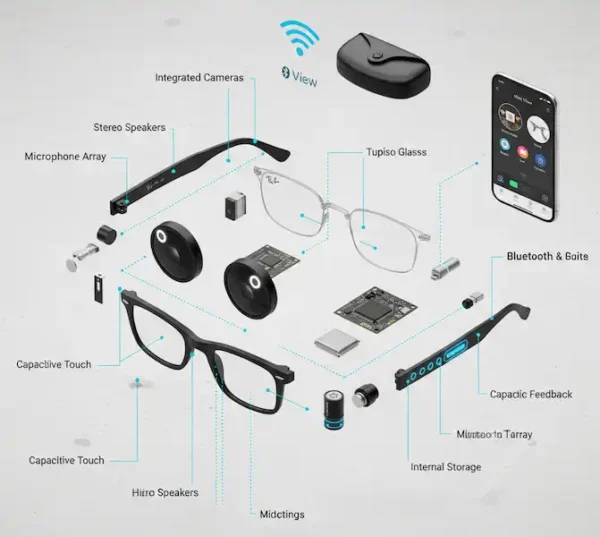
Source: Meta Blog (image adapted)
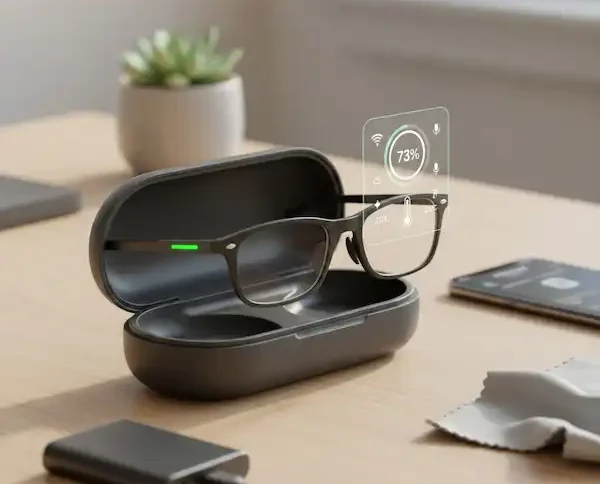
These glasses integrate:
- Dual 12MP cameras: For high-quality photos and 1080p videos.
- Open-ear audio: Discreet speakers allow you to listen to music and calls without blocking your ears.
- Five-microphone array: Enhances audio quality for calls and voice commands.
- Touch controls: For playback, volume, and camera activation.
- Meta AI integration: For hands-free assistance.
- Charging case: Provides on-the-go power.
Common Ray-Ban Meta Problems and Solutions
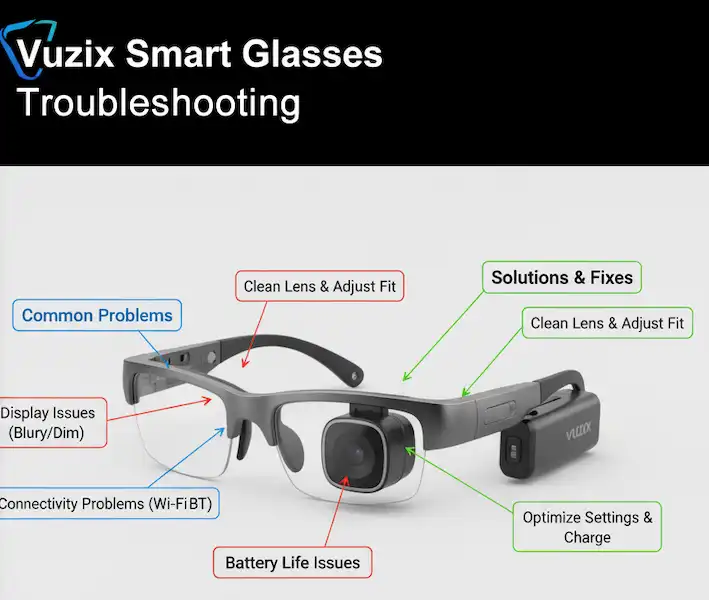
Let’s dive into some of the most frequently reported Ray-Ban Meta problems and how to troubleshoot them effectively.
1. Connectivity Issues (Bluetooth & Wi-Fi)
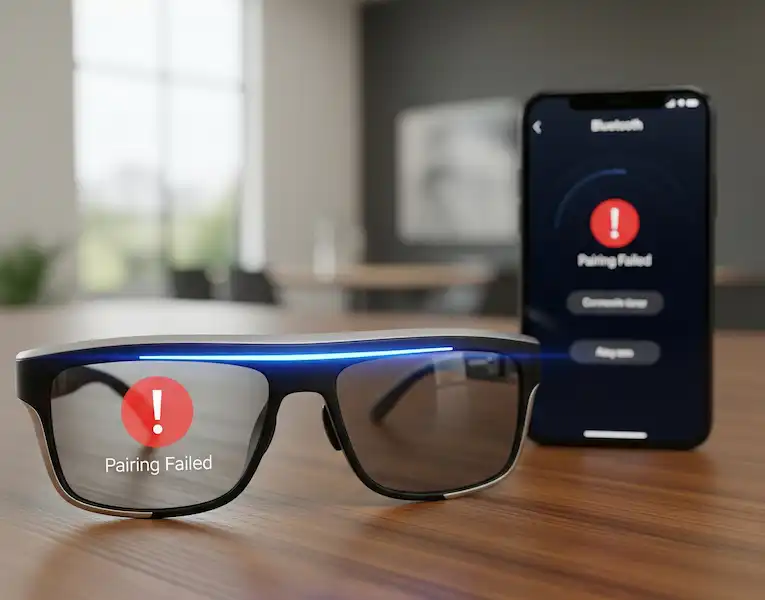
Problem: Users often experience difficulties pairing their glasses with their smartphone, or maintaining a stable connection, especially when transferring media or using livestreaming features.
Examples:
- Glasses won’t appear in the Meta View app’s device list.
- Media transfer is slow or fails repeatedly.
- Livestreaming constantly buffers or disconnects.
Solutions:
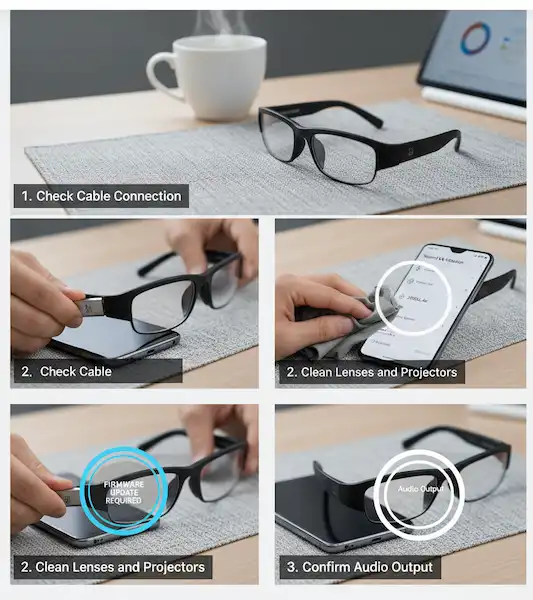
- Restart Everything: The classic tech fix. Restart your Ray-Ban Meta glasses (hold the power button for 8 seconds), your smartphone, and even your Wi-Fi router if you’re experiencing app-related Wi-Fi issues.
- Check Bluetooth Settings:
- Ensure Bluetooth is enabled on your phone.
- Forget and re-pair the device in your phone’s Bluetooth settings.
- Ensure no other devices are trying to connect to the glasses simultaneously.
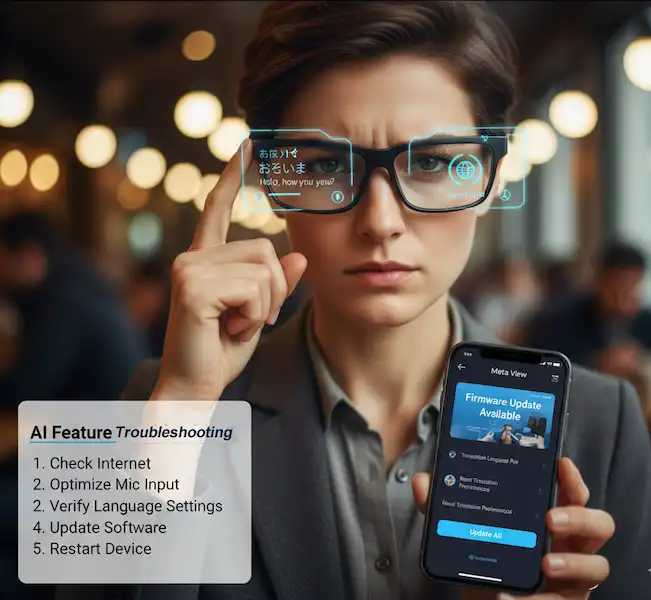
- Update Meta View App: Outdated app versions can cause compatibility problems. Check your app store for the latest version.
- Reset Network Settings (Phone): On your smartphone, go to network settings and reset Wi-Fi, mobile, and Bluetooth settings. This can often clear stubborn connectivity glitches. (Note: You’ll have to re-enter Wi-Fi passwords).
- Factory Reset Glasses: As a last resort, a factory reset of the glasses can resolve deep-seated connectivity issues. Warning: This will erase all stored media and settings on the glasses. To do this, ensure the glasses are fully charged, then hold the capture button and the power button for approximately 12 seconds until the indicator light flashes orange, then white.
2. Battery Life Concerns
Problem: While Meta advertises “up to 4 hours” of continuous use, intensive tasks like video recording or livestreaming can drain the battery much faster than expected.
Examples:
- Glasses die unexpectedly during a recording session.
- The charging case doesn’t seem to charge the glasses fully.
Solutions:
- Optimize Usage:
- Shorten Video Clips: Instead of one long video, record multiple shorter clips.
- Reduce Livestreaming Duration: Livestreaming is a significant power drain.
- Turn Off When Not In Use: Don’t leave the glasses on standby if you’re not actively using them.
- Check Charging Connection:
- Ensure the glasses are properly seated in the charging case.
- Verify the charging case itself is adequately charged (check its indicator light).
- Try a different USB-C cable and power adapter for the charging case.
- Software Updates: Firmware updates for the glasses can sometimes include battery optimization improvements. Keep your glasses updated via the Meta View app.
- Monitor App Usage: Some background processes in the Meta View app on your phone could also contribute to perceived battery drain, though this is less common.
3. Media Transfer and Storage Issues
Problem: Users might struggle with transferring photos and videos to their phone, or encounter storage full messages on the glasses.
Examples:
- Photos and videos fail to import to the Meta View app.
- “Storage Full” error appears even after deleting some media.
- Media files appear corrupted after transfer.
Solutions:
- Free Up Space on Glasses: Regularly import media to your phone and then delete it from the glasses to free up internal storage.
- Stable Wi-Fi Connection: For large media transfers, ensure both your phone and glasses are on a strong, stable Wi-Fi network (if using Wi-Fi sync).
- Check Phone Storage: Ensure your smartphone has enough available storage to receive the media.
- Restart Meta View App: Force close and reopen the app.
- Clear App Cache (Android): On Android, you can go to your phone’s app settings, find Meta View, and clear its cache. This can sometimes resolve data transfer issues.
- Reinstall Meta View App: If all else fails, uninstalling and reinstalling the app can clear any corrupted app data.
4. Audio Quality and Microphone Performance
Problem: Users may report issues with audio playback being too quiet or tinny, or their voice sounding unclear during calls.
Examples:
- Music sounds distorted or lacks bass.
- Call recipients struggle to hear the user.
- Meta AI struggles to understand voice commands.
Solutions:
- Adjust Volume: Use the touch controls on the glasses or your phone’s volume settings to adjust audio levels.
- Check Fit: Ensure the glasses are sitting comfortably and correctly on your face. The open-ear speakers rely on bone conduction or near-ear audio, and positioning can impact sound quality.
- Clean Speakers/Microphones: Dust or debris can obstruct the small speaker and microphone openings. Gently clean them with a soft, dry brush or a cotton swab.
- Test in Quiet Environment: Test microphone performance in a quieter environment to rule out excessive background noise as the cause.
- Software Updates: As with other issues, firmware updates can sometimes improve audio algorithms and microphone performance.
5. Overheating
Problem: During extended use, especially with video recording or livestreaming, the glasses may become noticeably warm.
Examples:
- Glasses feel hot to the touch.
- An overheating warning appears in the Meta View app.
- Glasses automatically shut down.
Solutions:
- Take Breaks: If you’re using the glasses for intensive tasks, take regular breaks to allow them to cool down.
- Avoid Direct Sunlight: Prolonged exposure to direct sunlight can exacerbate heating issues.
- Reduce Intensive Usage: If possible, limit continuous video recording or livestreaming sessions, especially in warm environments.
- Ensure Good Airflow: Don’t cover the glasses with hats or scarves during use.
- Check for Background Processes: While less common, ensure the Meta View app isn’t running any intensive background tasks on your phone that might be communicating excessively with the glasses.
Alternative Smart Eyewear Solutions
If the Ray-Ban Meta glasses aren’t quite meeting your needs, or if you’re looking for different features, here are some notable alternatives in the smart eyewear market.
1. Bose Frames (Discontinued, but still available used)
Bose Frames focused purely on audio, offering discreet open-ear speakers for music and calls without the camera functionality.
- Pros: Excellent audio quality for their class, stylish designs, comfortable.
- Cons: No camera, limited smart features, discontinued (may impact future support).
- Best For: Audiophiles who prioritize sound in a stylish form factor and don’t need cameras.
2. Amazon Echo Frames
Echo Frames integrate Alexa for hands-free voice assistance, calls, and audio.
- Pros: Deep Alexa integration, lightweight, open-ear audio, prescription lens compatible.
- Cons: No camera, audio quality generally good but not exceptional.
- Best For: Users deeply embedded in the Amazon ecosystem who want hands-free Alexa access and audio on the go.
3. Snapchat Spectacles (Various Generations)
Snapchat’s offerings have evolved from simple camera glasses to more advanced AR experiences in their latest (developer-focused) versions.
- Pros: Fun, social-first camera, innovative AR features in newer models.
- Cons: Primarily tied to the Snapchat ecosystem, design might be too “techy” for some, availability varies.
- Best For: Snapchat enthusiasts and developers interested in augmented reality experimentation.
4. Smart Audio Glasses (Various Brands: Fauna, JLAB, etc.)
Many smaller brands offer smart glasses that focus purely on open-ear audio for music and calls, often without cameras or voice assistants.
- Pros: More affordable, discreet designs, good for basic audio needs.
- Cons: No cameras, limited smart features, audio quality can vary widely.
- Best For: Budget-conscious users who want basic audio functionality in a glasses form factor.
Feature Comparison Chart
| Feature | Ray-Ban Meta Smart Glasses | Amazon Echo Frames | Snapchat Spectacles (e.g., Spectacles 3) | Bose Frames (Audio) | Generic Smart Audio Glasses |
| Camera | Yes (Photo/Video) | No | Yes (Photo/Video) | No | No |
| Voice Assistant | Meta AI | Alexa | No (tied to app features) | Yes (via phone) | No (via phone) |
| Audio | Open-ear Speakers | Open-ear Speakers | Open-ear Speakers | Open-ear Speakers | Open-ear Speakers |
| Livestreaming | Yes | No | No | No | No |
| AR Capabilities | Limited (voice commands) | No | Yes (newer developer models) | No | No |
| Design Focus | Fashion + Tech | Discreet Tech | Social/Fun | Fashion + Audio | Basic Audio |
| Price Range | Mid-High | Mid | Mid-High | Mid (used) | Low-Mid |
Expert Tips for Maximizing Your Ray-Ban Meta Glasses Experience
- Stay Updated: Regularly check for firmware updates for your glasses and app updates for the Meta View app. These often include performance improvements, bug fixes, and new features.
- Practice Voice Commands: Get comfortable with Meta AI commands. The more you use them, the more natural and efficient your interactions will become.
- Be Mindful of Privacy: Always be aware of your surroundings and the privacy of others when recording. The LED indicator light on the glasses is crucial for alerting others when you’re recording.
- Clean Regularly: Keep the lenses, camera, and microphone areas clean to ensure optimal performance and media quality.
- Protect Your Investment: Use the charging case and handle your glasses with care to prevent accidental damage.
How to Factory Reset Your Meta Glasses
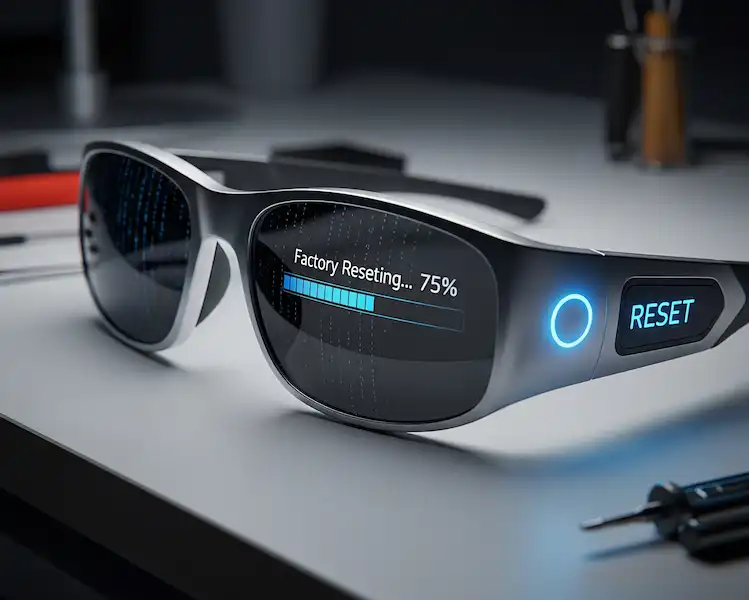
When standard troubleshooting—like restarting your glasses or updating the app—fails to resolve persistent connectivity or software issues, a Factory Reset is your best bet. Think of this as a fresh start for your device’s “brain.”
⚠️ Important: Read Before Proceeding
A factory reset permanently deletes all photos and videos currently stored on your glasses that haven’t been synced to the Meta View app. It also unpairs the glasses from your phone and restores all settings to default. Back up your media first!
Step-by-Step Reset Instructions
To perform a factory reset, ensure your glasses are turned on and out of the charging case.
- Press and Hold: Simultaneously press and hold the Capture Button (on top of the right temple) and the Power Switch (inside the left hinge).
- Watch the LED: Keep holding both for approximately 12 seconds.
- Identify the Signal: The internal notification LED will first blink orange, then turn to a solid white light.
- Release: Once the light turns solid white, release both the button and the switch.
- Completion: Your glasses will reboot. The reset is successful when the LED pulses blue, indicating they are back in “Pairing Mode.”
When should you Factory Reset?
| Scenario | Try Restart First? | Factory Reset Recommended? |
| App won’t find the glasses | Yes | Only if re-pairing fails |
| Continuous “Storage Full” errors | Yes | Yes (wipes internal memory) |
| Constant overheating on standby | Yes | Yes |
| Selling or gifting your glasses | No | Mandatory (protects your privacy) |
What’s Next?
After the reset, you must “Forget” the glasses in your phone’s Bluetooth settings and remove them from the Meta View app before attempting to pair them again as a “New Device.”
Additional Helpful Links for Ray-Ban Meta Problems
- Here are some details about smart glasses usability – Smart Glasses Usability and Accessibility Issues
- Details about how to set up Ray-Ban Meta smart glasses – Set Up Ray-Ban Meta Smart Glasses: Android & iPhone Guide
- Read about problems and solutions for Amazon Echo smart glasses – Amazon Echo Frames Problems
External Resources and Further Reading
- Ray-Ban Meta Smart Glasses Official Support: https://www.meta.com/help/ray-ban-met
- Ray-Ban Official Site: https://www.ray-ban.com/
By understanding common issues and their solutions, along with exploring the landscape of alternative smart eyewear, you can make the most of your Ray-Ban Meta Smart Glasses or find the perfect smart eyewear solution that fits your lifestyle.