An Android vs. iPhone Compatibility Deep Dive
I remember the first time I unboxed a pair of smart glasses. It was like Christmas morning for a tech nerd. I had visions of living in a sci-fi movie—maps floating in my field of vision, hands-free photos, and a secret digital assistant whispering in my ear. But within twenty minutes, I was staring at a “Connection Failed” screen on my phone, wondering if I’d just bought a very expensive pair of paperweights. Continue reading to learn more about Smart Glasses App Compatibility.
The truth is, the “compatibility” listed on the side of the box often tells only half the story. Whether you are an Android die-hard or an iPhone loyalist, your experience with smart glasses will be fundamentally different. It’s not just about whether the app downloads; it’s about how much of your “smart” life the glasses are allowed to access.
Why iOS and Android Feel Different
When we talk about Smart Glasses App Compatibility, we’re really talking about permission.
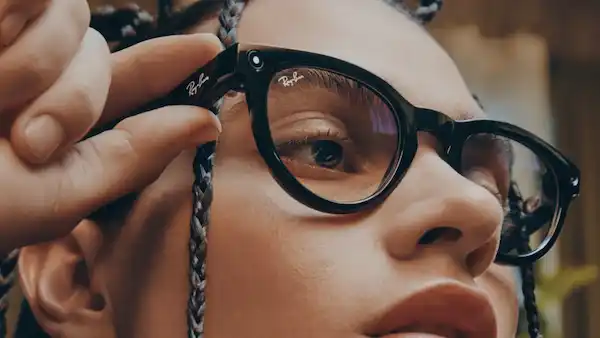
iPhone (iOS) is like a high-security apartment building. The glasses are a guest. Apple lets them in, but they can’t just go rummaging through the drawers. For example, with the Ray-Ban Meta glasses, the integration is incredibly slick, but if you want to use Apple Music instead of Spotify, you’ll find that the “Hey Meta” voice commands aren’t quite as deep. You can play and pause, but you can’t always ask for a specific niche playlist with the same fluidity you’d get on a HomePod.
Android, on the other hand, is like a house with the back door left unlocked. It’s more flexible, but sometimes that leads to “jank.” On my Pixel, I’ve found that background app refresh is much more aggressive. I rarely have to manually re-open the companion app to get my glasses to sync. On my partner’s iPhone, if she hasn’t opened the Meta View app in a few hours, the glasses sometimes “go to sleep,” requiring a quick tap on the phone to wake the connection back up.
Real-World Experiences – Smart Glasses App Compatibility
1. Ray-Ban Meta (The “Social” King)
I’ve worn these more than any other pair. They are the benchmark for what I call “lifestyle” smart glasses.
- Android Experience: On my Samsung Galaxy S24, the “Import” speed for photos is blistering. Android allows for better background Wi-Fi handshakes. I can take 50 photos during a walk, and by the time I get home, they are already sitting in my gallery.
- iPhone Experience: The app is arguably prettier on iOS. It feels more “native.” However, iOS is stingy with its camera permissions during calls. While I can live-stream to Instagram easily on both, I’ve noticed that if I’m on a standard WhatsApp video call, switching the camera feed to the glasses is occasionally more finicky on iPhone due to how Apple manages “Camera Source” hand-offs.
2. XREAL & Rokid (The “Display” Specialists)
These aren’t for taking photos; they are for watching movies on a 100-inch virtual screen. This is where the compatibility gap becomes a canyon.
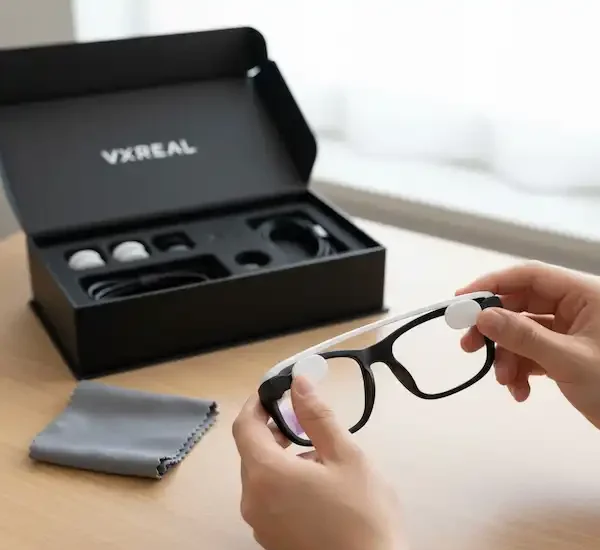
- The USB-C Trap: Most AR glasses like the XREAL Air 2 or Rokid Max require a phone with “DisplayPort Alt Mode” over USB-C. Most flagship Androids (Samsung S-series, Pixels) have this. Older iPhones? Forget it.
- The iPhone 15/16 Shift: When Apple finally moved to USB-C, it changed the game. I plugged my XREALs into an iPhone 15 Pro, and it worked instantly—but only as a “mirror.” If you want the cool spatial features (where the screen stays pinned in the air while you turn your head), you need the Nebula app. The Android version of Nebula is far more mature. On iPhone, it feels like a work-in-progress.
3. Vuzix & Enterprise Glass
I once used a pair of Vuzix Z100s for a week to see if I could replace my smartwatch. These are “heads-up display” glasses—monochrome, text-only.
- The Notification Struggle: On Android, you can “whitelist” exactly which apps send notifications to your glasses. Want Slack but not Gmail? Easy. On iOS, the Vuzix app has to piggyback off the system-wide notification settings. If you haven’t set up your “Focus Modes” correctly on your iPhone, your glasses will vibrate every time someone likes a tweet, which is a recipe for a headache.
Personal Anecdote: The “Update” Nightmare
Last summer, I was at a wedding and wanted to use my smart glasses to capture the couple’s entrance. I had an Android phone at the time. Five minutes before the ceremony, the companion app forced a firmware update. On Android, the update stalled because my phone tried to “smart switch” back to the venue’s Wi-Fi because the glasses’ Wi-Fi didn’t have internet.
I’ve learned the hard way: Always check for app updates before you leave the house. These devices rely on a constant three-way handshake between the glasses, the app, and the manufacturer’s servers. If one link in that chain is weak, the whole experience falls apart.
Pro-Tips
If you’re on the fence about which phone to use with your new specs, keep these “rules of the road” in mind:
- Check the Processor: For AR glasses (XREAL, Viture), the app compatibility isn’t just about the OS; it’s about the chip. Qualcomm-powered Androids usually have better “Spatial” tracking because the developers optimize for Snapdragon chips first.
- The “GMS” Factor: If you’re looking at more obscure or “enterprise” glasses, ensure they support Google Mobile Services (GMS). Some glasses run a fork of Android (AOSP) that can’t run the YouTube app or Google Maps natively. This is a huge “gotcha” for many.
- Battery Drain: Companion apps are notorious battery hogs. I’ve found that the Meta View app on iOS is slightly more efficient at idling, whereas the Android version tends to keep a “Persistent Notification” active to prevent the system from killing the process.
When Things Go Wrong: Troubleshooting Guide
We’ve all been there. You’re ready to show off your cool new specs, but they’ve decided to go on strike. Over the years, I’ve realized that 90% of smart glasses “app compatibility” issues aren’t actually about the app being broken—it’s usually a digital handshake that got sweaty.
Here is my personal triage list for when your glasses and phone stop speaking to each other.
1. The “Ghost in the Machine” (Connection Loops)
If your app says “Searching…” forever, your Bluetooth cache might be clogged.
- The Fix: Don’t just toggle Bluetooth off and on. Go into your phone’s Bluetooth settings and “Forget” the glasses entirely. Then, go into the glasses’ companion app and trigger the pairing from inside the app, not the phone’s system menu.
- Pro Tip: On Android, you can actually go to Settings > Apps > Bluetooth and “Clear Cache.” It sounds like overkill, but it’s fixed more connection issues for me than a factory reset ever has.
2. The Samsung “DeX” Conflict
If you’re using AR glasses like XREAL or Rokid with a Samsung phone, you might see a black screen or a weirdly distorted image.
- The Problem: Samsung DeX (which turns your phone into a desktop) often tries to “hijack” the glasses because it thinks they are a computer monitor.
- The Fix: You usually have to disable “Auto-start DeX when HDMI is connected” in your phone’s Advanced Features. Once DeX is out of the way, the Nebula or Rokid app can take control and give you that sweet AR interface.
3. The “Cable Snob” Issue
I once spent two hours trying to figure out why my XREALs wouldn’t show a picture, only to realize I was using my standard MacBook charging cable.
- The Reality: Most smart glasses require a “Video-Capable” USB-C cable (look for USB 3.1 Gen 2 or higher). Standard charging cables only move power and basic data; they don’t have the “pipes” for a video signal. Always use the braided cable that came in the box.
4. The Nuclear Option: Forced Restart
When the LED lights on your glasses are doing something unholy (like flashing orange and white), it’s time for a hard reboot.
- For Ray-Ban Meta: Slide and hold the power switch all the way to the right while holding the capture button for about 12 seconds. The LED will turn orange when the reset is triggered.
- Warning: A factory reset will usually wipe any photos still stored on the glasses’ internal memory. Sync your captures before you go nuclear!
5. Permission “Creep”
Sometimes, a phone update will silently revoke an app’s permissions. If your glasses can’t see your location or access your microphone, check the system settings.
- On iPhone: Go to Settings > [App Name] and ensure “Bluetooth,” “Local Network,” and “Background App Refresh” are all toggled ON.
- On Android: Ensure “Nearby Devices” and “Location” are set to “Allow all the time.”
Frequently Asked Questions (FAQ)
Q: Can I use smart glasses without a smartphone app? A: Mostly, no. While some glasses (like the Ray-Bans) can take photos offline, you can’t view them, share them, or update the device’s “brain” without the companion app. Think of the glasses as the monitor and the phone app as the computer.
Q: Do smart glasses work with iPads or Android Tablets? A: Technically, yes, but the apps are usually just “blown up” phone apps. If the tablet has the right USB-C port, you can use them for movies, but don’t expect a polished interface.
Q: Will my glasses stop working if the manufacturer stops updating the app? A: This is the “planned obsolescence” fear. If an app is pulled from the App Store or Google Play, and you get a new phone, you might lose the ability to pair your glasses. This happened with the original North Focals. It’s always safer to stick with bigger brands (Meta, XREAL) for long-term app support.
Q: Can I run “normal” Android apps like Netflix or TikTok on the glasses? A: On display-style glasses (XREAL, Rokid), you are essentially mirroring your phone. So if it runs on your phone, you can see it in your glasses. However, some streaming apps (like Disney+) have “DRM” (Digital Rights Management) that might black out the screen when you try to watch via a cable. Always check for HDCP compatibility before buying.
Additional Helpful Links
- Learn more about smart glasses comfort – Smart Glasses Comfort: Fit, Ergonomics & Wearability
- Here are top 5 essential apps for smart glasses – Top 5 Essential Smart Glasses Apps
External Links for Authoritative Sources:
- Bluetooth Technology Website: https://www.bluetooth.com/ – For understanding Bluetooth connectivity.
- Android Developers Documentation (Notifications): https://developer.android.com/guide/topics/ui/notifiers/notifications – For deeper technical understanding of Android notifications.
- Apple Developer Documentation (User Notifications): https://developer.apple.com/documentation/usernotifications – For deeper technical understanding of iOS notifications.