Smart Glasses AI Troubleshooting and App Ecosystem Troubleshooting
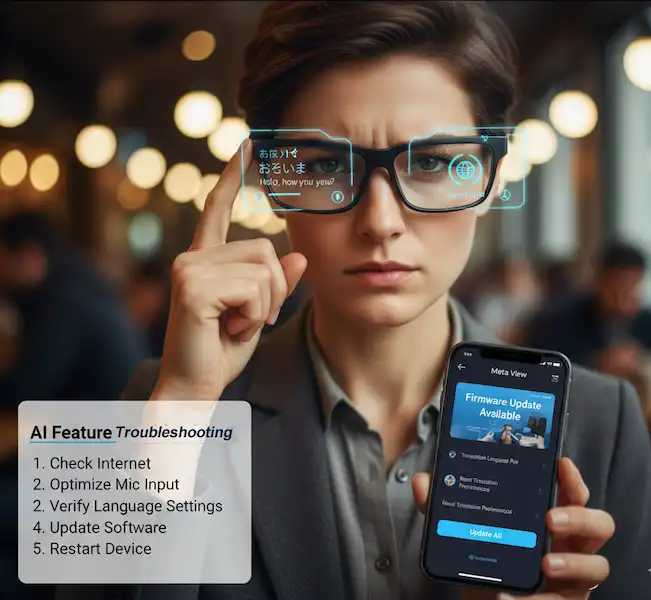
When I talk to friends about my smart glasses, they usually expect some Jarvis-like experience from the jump. The reality? Sometimes the “AI” feels more like a stubborn toddler who refuses to listen. Whether you are rocking the Ray-Ban Meta Wayfarers or a pair of Xreal AR shades, the Smart Glasses AI Troubleshooting process is less about being a tech genius and more about knowing which digital “reset button” to push.
This guide is born out of my own frustration—standing in the middle of a sunny park, yelling “Hey Meta” at my face while people stared, only to realize my Bluetooth had decided to take a nap. Here is how we fix the most common AI and connectivity headaches on Android and iPhone.
Why Your AI Won’t Talk Back – Smart Glasses AI Troubleshooting
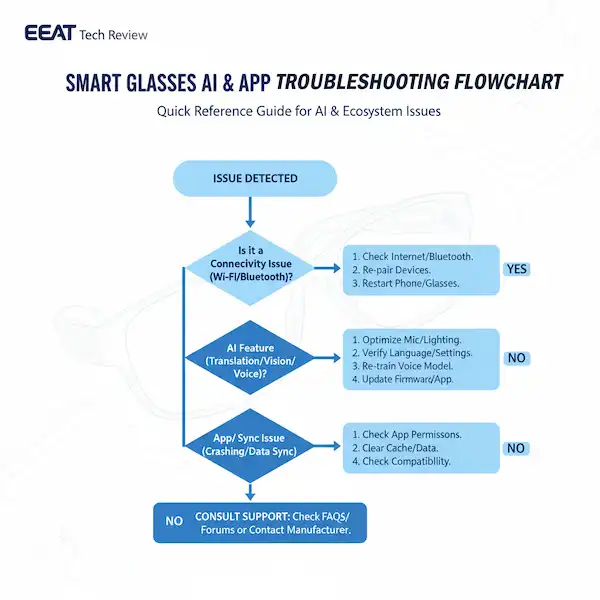
There is nothing more awkward than asking your glasses to “Look and tell me what this is” only to be met with a soul-crushing silence. In my experience, AI failure usually boils down to three culprits: the microphone being blocked, the app being “optimized” to death by your phone, or a simple server hiccup.
1. The Microphone “Mute” Mystery
Most smart glasses have tiny microphones hidden near the hinges or the bridge. I once spent twenty minutes trying to figure out why my AI couldn’t hear me, only to realize I had pushed my hair back in a way that perfectly covered the mic port.
- The Fix: Use a can of compressed air or a soft brush to clear out lint. If you’re wearing a beanie or a headband, make sure it isn’t overlapping the frame.
2. Android Battery Optimization (The AI Killer)
Android is notorious for “killing” background apps to save battery. If your glasses’ companion app (like Meta View or Nebula) is put to sleep, the AI won’t trigger.
- Smart Glasses AI Troubleshooting Fix: Go to Settings > Apps > [Your App Name] > Battery. Switch it from “Optimized” to “Unrestricted.” This ensures the phone doesn’t cut the cord on your AI mid-sentence.
3. iPhone’s “Listen for” Settings
On iOS, Siri can sometimes conflict with third-party AI voice triggers. I’ve found that if my iPhone thinks I’m talking to it, it might ignore the glasses.
- Smart Glasses AI Troubleshooting Fix:: Ensure your “Hey Meta” or specific voice trigger is enabled within the glasses’ app itself. Sometimes a simple toggle off-and-on in the settings menu is enough to wake the software up.
The Bluetooth Battlefield: Pairing and Connection Drops
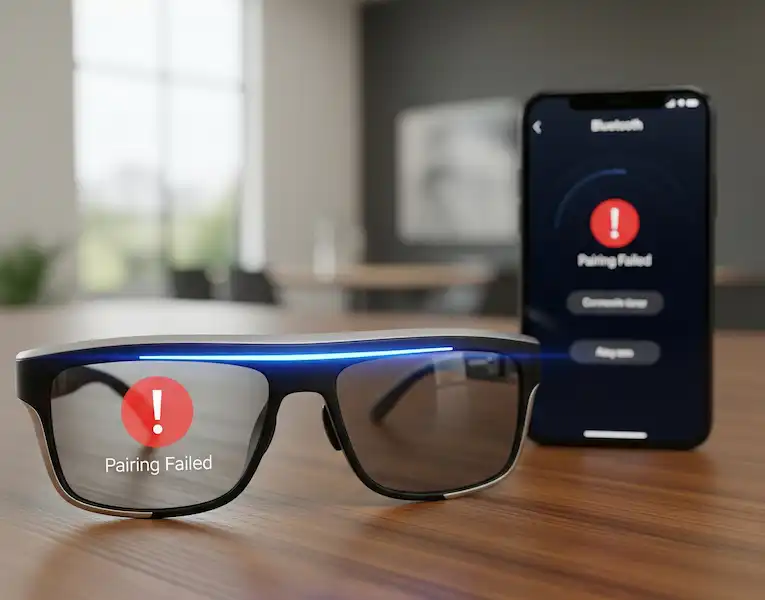
Smart Glasses AI Troubleshooting – We’ve all been there: the app says “Searching…” and you’re just standing there holding your glasses like a ritual offering. Bluetooth is the foundation of smart glasses, and it’s notoriously finicky.
For iPhone Users: The “Forget Me” Routine
Apple’s ecosystem is usually seamless, but when it breaks, it breaks hard. If your glasses show as “Connected” in Bluetooth settings but aren’t working in the app, the connection is “ghosting.”
- My Pro Tip: Don’t just turn Bluetooth off and on. Go to Settings > Bluetooth, tap the “i” next to your glasses, and select Forget This Device. Then, perform a “hard restart” on your glasses (usually by holding the capture/power button) before trying to pair again from scratch inside the app.
For Android Users: Clearing the Bluetooth Cache
Android gives you a bit more “under the hood” access, which is a lifesaver. If your glasses keep disconnecting, it might be a cluttered Bluetooth cache.
- The Fix: Go to Settings > Apps > Show System Apps > Bluetooth > Storage. Tap Clear Cache. This won’t delete your paired devices, but it clears the “junk” that causes connection stutters.
Audio Routing: When the Music Won’t Leave Your Phone
There is a specific kind of annoyance that happens when you put on your glasses to take a call, but the audio stays on your phone’s speaker. I once took an entire work call through my pocket because I couldn’t get the routing to switch.
- On iPhone: Swipe down to the Control Center, tap the AirPlay icon (the circles with the triangle), and manually select your glasses. Sometimes iOS defaults to “Automatic” routing, which can be hit-or-miss.
- On Android: In your Bluetooth settings, tap the gear icon next to your glasses. Make sure “Phone Calls” and “Media Audio” are both toggled ON. Sometimes a software update will randomly toggle these off.
Battery and Charging: The “Red Light of Death”
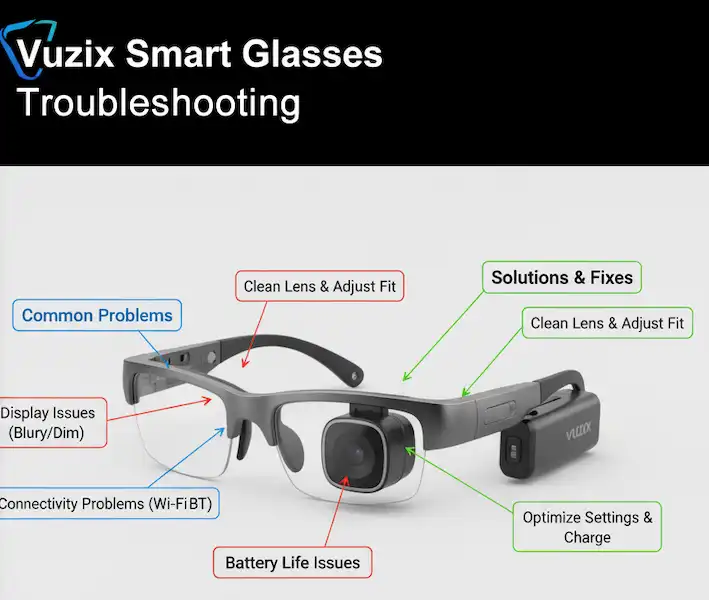
If your glasses are getting hot or refusing to charge, don’t panic. These frames are basically tiny computers strapped to your face, and they generate heat.
- The Overheating Issue: If you’re using AI features or recording video in direct sunlight, the glasses might shut down to protect the hardware. I’ve had this happen during a summer hike. The best fix is to pop them in their case and put them in the shade for 10 minutes.
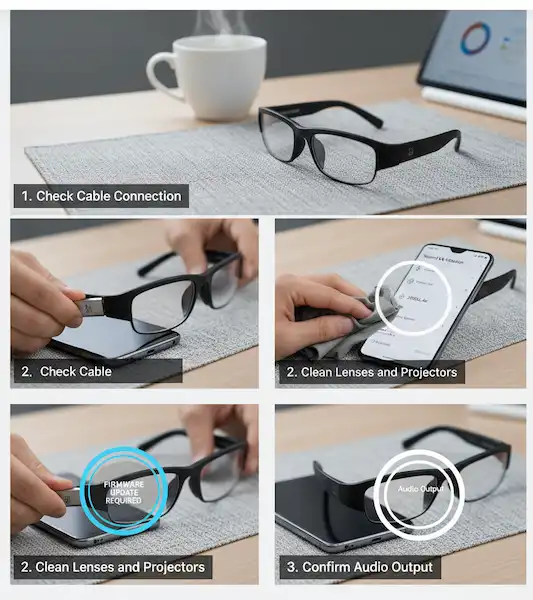
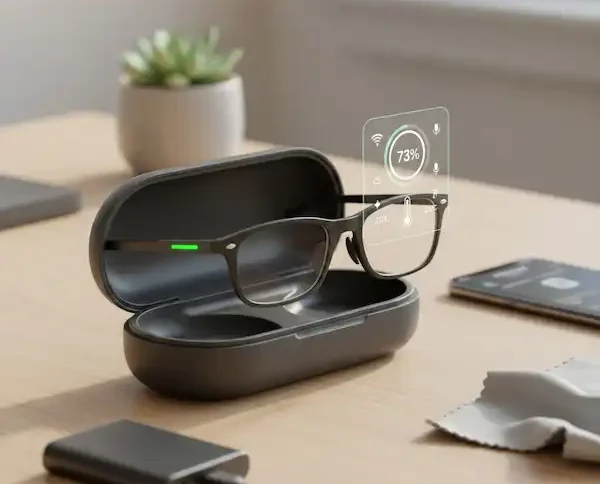
- The Charging Contact Grime: If they won’t charge, check the small gold pins on the glasses and the case. Skin oils and sweat build up there. A quick wipe with an alcohol prep pad or a microfiber cloth usually fixes the “won’t charge” bug instantly.
FAQ: Your Burning Questions
Q: My AI says “Internet connection lost” even though my phone has bars. Why? A: This is usually a “handshake” issue between the app and the server. I find that toggling Airplane Mode on and off on the phone forces the data connection to refresh and usually solves the AI’s “confusion.”
Q: Can I use these with two phones at once? A: Most smart glasses (like the Ray-Ban Meta) can only be actively paired to one account/phone at a time. If you want to switch, you usually have to “Forget” them on the first phone and re-pair on the second.
Q: Why is my video recording blurry? A: Before you blame the AI or the sensor, check the lens. Because these sit on your face, it is incredibly easy to get a fingerprint on the tiny camera lens. A quick wipe makes a world of difference.
Q: The glasses are “frozen”—none of the buttons work. Help! A: Look for the manual “Force Restart” combo. For Meta glasses, it’s usually holding the capture button while toggling the power switch. For others, it might be holding the power button for 10-15 seconds. It’s the “Ctrl+Alt+Del” for your face.
Closing Thoughts
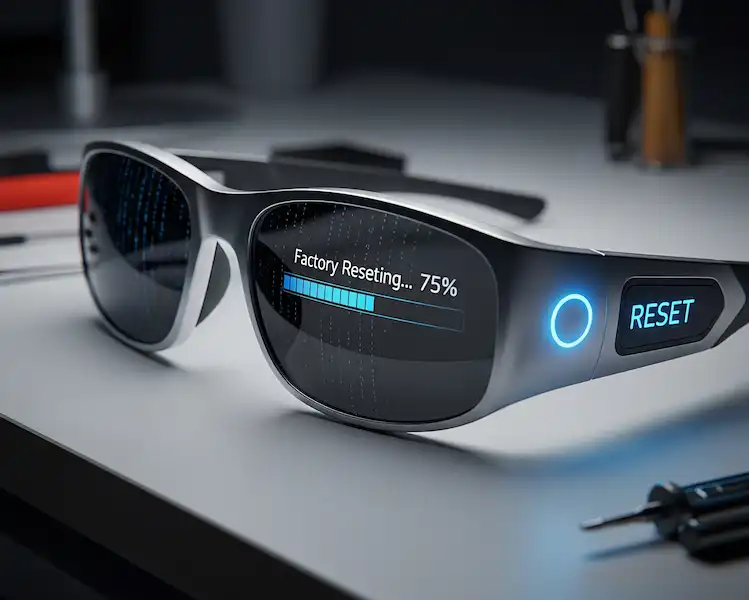
Smart glasses are still in their “awkward teenage years.” They are brilliant when they work, but they require a little patience. My biggest piece of advice? Keep your firmware updated. Manufacturers are pushing “over-the-air” fixes every few weeks that solve bugs you didn’t even know you had. If all else fails, a factory reset and a clean reinstall of the app is your best friend.
Stay smart, stay connected, and keep your lenses clean!
Additional Helpful Links
- Explore these common smart glasses issues – 5 Common Smart Glasses Problems: Fixes & Solutions
External Links & Authoritative Sources
- Meta View App Support: [Link to Meta View App Support page]
- Solos Smart Glasses Support: [Link to Solos Smart Glasses support page
- Google Assistant Help: [Link to Google Assistant Help
- Bluetooth SIG (Special Interest Group): [Resource for Bluetooth standards and troubleshooting
- Wi-Fi Alliance: [Resource for Wi-Fi standards and information
External Resources for Deeper Dives
- Meta’s Official Support Page – The best place for firmware-specific updates.
- Bluetooth SIG Troubleshooting – Understanding why your range might be limited.
- Android Central Wearables Guide – Great community-led fixes for Android-specific bugs.
- Apple Support: Bluetooth Connectivity – The definitive guide for iOS pairing issues.
By understanding these advanced troubleshooting techniques, you can ensure your smart glasses remain a reliable and helpful extension of your digital life, ready to assist with live translation, insightful vision analysis, and responsive voice commands.