A Deep Dive into Mastering Smart Glasses Input
I’ve spent years in product development labs and out in the real world testing these things, and if there is one thing I’ve learned, it’s that the “magic” of smart glasses isn’t in the tiny screens—it’s in how you actually talk to them without looking like a crazy person. I’ve worn everything from the early enterprise-grade monocles that felt like wearing a brick on your face to the latest sleek frames that look like standard Wayfarers. The learning curve is always about the interface. Learn more about Smart Glasses Input.
Controlling smart glasses on Android or iPhone isn’t just about tapping a screen; it’s about mastering a combination of whispers, swipes, and sometimes even a well-timed nod of the head. Here is the ground-level reality of how we interact with these devices today, reaching into the specific nuances that manufacturers often gloss over in their marketing glossies.
1. The Voice Revolution: More Than Just “Hey Siri”
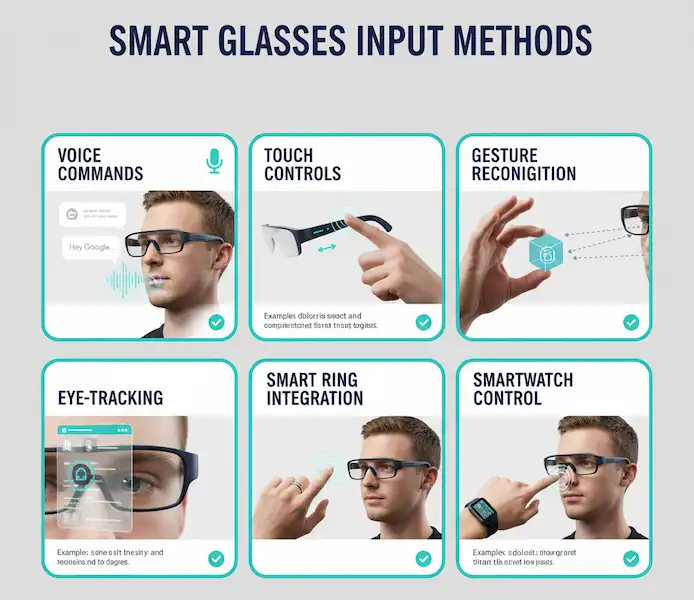
Voice is the king of smart glasses input, but it’s also the most misunderstood. In my experience, voice is your primary “hands-free” gateway, but there’s a difference between how a tech enthusiast uses it and how an industry insider uses it.
The “Whisper Threshold” and Beam-Forming
One thing the manuals don’t tell you is that modern smart glasses—especially the ones coming out of the Meta and Google ecosystems—use beam-forming microphones. These aren’t just standard omnidirectional mics like the ones in your old wired earbuds. They are arrays designed to create a “cone of silence” around your mouth.
I remember testing a pair of enterprise glasses in a loud machine shop. I was worried I’d have to scream over the lathes. Instead, I found that a low, directed whisper was actually more effective. Why? Because when you shout, the audio clips, and the processor has a harder time separating your voice from the background noise. If you speak at a conversational volume—or even just slightly above a mutter—the algorithms can isolate your speech patterns much better.
iPhone Integration: Navigating the Walled Garden
If you’re an iPhone user, you’re likely tethered to Siri. The integration is seamless for sending iMessages, but there’s a catch I see people fall into all the time: the “Active Listening” toggle. If your phone is buried in a thick leather bag or a heavy coat, the Bluetooth signal has to work harder.
On iOS, Siri acts as a gatekeeper. If you’re using third-party glasses like Xreal or Vuzix, you often have to bypass Siri to use the manufacturer’s native voice assistant. The trick here is the “Wake Word.”
Actual Smart Glasses Input Voice Examples for iPhone Users:
- “Hey Siri, send a message to Sarah saying I’ll be there in ten minutes.” (Essential for keeping your phone in your pocket while walking).
- “Hey Siri, read my last notification.” (Crucial for when you feel that buzz but don’t want to break stride).
- “Hey Meta, look and tell me what this sign says.” (If you’re using the multimodal AI features).
Android: The Flexibility of Offline Commands
Android is a different beast entirely. Many smart glasses built on Android (like the RealWear Navigator) allow for “Offline Voice Libraries.” This is huge. If you’re in a basement or a “dead zone” where cloud-based AI fails, your glasses will still work.
Actual Smart Glasses Input Voice Examples for Android Users:
- “Select Item Four” (This is how you navigate a visual menu without touching anything).
- “Mute Microphone” (A hardware-level command that usually works even if an app crashes).
- “Take a Picture” (Often a direct command that captures what you see instantly).
- “Show my Dashboard” (Used to pull up custom overlays).
The Insider Secret: The “Dual Assistant” Conflict I’ve spent months troubleshooting this: If you have Google Assistant active on your phone and a proprietary AI active on your glasses, they can fight for the microphone. I always recommend disabling the phone-side “Hey Google” detection while wearing glasses to ensure the frames get priority.
2. Master the Touch: The Temple Gesture Guide
If talking to yourself in public feels weird, the touch-sensitive temples are your best friend. Most Smart Glasses Input use the right-side temple as a multi-touch trackpad.
The Physics of the “Ghost Tap”
I’ve spent a lot of time in dev labs, and the most common support ticket we see is “unresponsive touch.” Usually, it’s not the tech—it’s the finger. These are capacitive sensors, meaning they rely on the electrical charge in your skin.
I’ve had days where my Smart Glasses Input wouldn’t respond to my swipes, and it wasn’t a software bug—it was just a humid day. If there’s a film of moisture on the temple, the sensors can’t track the “delta” (the change in electrical charge) of your finger. A quick wipe with a microfiber cloth usually fixes “broken” hardware. Similarly, if your fingers are bone-dry in the winter, the sensor might miss your touch. A quick “huff” of breath on your fingertip provides just enough moisture to bridge the connection.
The Universal Gesture Language
While every brand is slightly different, the industry has mostly settled on a standard Smart Glasses Input:
- The Single Tap: Your universal “Play/Pause” or “Select.”
- The Double Tap: Usually “Next Track” or “Answer Call.” On some Android builds, this is a “Back” button to exit a menu.
- Swipe Forward/Backward: This is almost always volume.
- The “Long Press”: In 90% of the devices I’ve tested, holding your finger on the temple for 2-3 seconds kills the current app or triggers the voice assistant.
Pro Tip: Use the pad of your finger, not the tip. The larger the surface area of your skin touching the temple, the more accurate the gesture recognition will be. If you “flick” with your fingernail, the glasses won’t know what you’re trying to do.
3. Head Gestures: The “Secret” Input
This is one of my favorite features for when my hands are literally full—like when I’m carrying groceries or working on my car. Modern glasses incorporate IMUs (Inertial Measurement Units)—tiny accelerometers and gyroscopes—that track your head movement.
The “Nod and Shake”
I’ve used systems where a sharp nod answers a call and a quick side-to-side shake rejects it. It feels incredibly natural once you get the hang of it, but there is a social cost. If you’re a “fidgety” person or someone who talks with their head a lot, you might find yourself accidentally hanging up on people.
Most “pro” users I know actually keep head gestures Smart Glasses Input turned off in the settings unless they are in a specific work environment. However, for accessibility—for users who might have limited hand mobility—this is a life-changing input method.
The “Look to Trigger”
Some high-end prototypes I’ve worked with use “Gaze Detection.” If you look at a specific smart light bulb in your house for more than two seconds, a menu pops up in your glasses allowing you to turn it off. This isn’t quite mainstream yet, but it’s the direction we are headed.
4. Air Gestures and Hand Tracking: The “Minority Report” Reality
We’re starting to see glasses that track your hands in the air (like the Xreal Air 2 Ultra). This sounds cool, but as an industry insider, I’ll tell you: it’s the hardest thing to get right.
The “Strike Zone”
The biggest mistake new users make with hand gestures is reaching too far out. The cameras that track your hands are mounted on the frames, and they have a specific Field of View (FoV). If your hands are down by your waist or way out to the side, the cameras can’t see them.
You have to keep your gesturing in what I call the “Strike Zone”—right in front of your chest.
- The Air Pinch: Used to select items in your vision. Imagine you’re pinching a tiny grape in the air.
- The Palm Wave: Often used to dismiss notifications.
The “Gorilla Arm” Warning
A word of caution: “Gorilla Arm” is a real Smart Glasses Input thing in the AR world. It’s the physical fatigue that comes from holding your arm up in the air to navigate menus. If you’re planning on browsing the web for 30 minutes, don’t use hand gestures. Use the phone-as-a-trackpad mode. Your shoulders will thank you.
5. Connectivity: The Android vs. iPhone Reality
While the glasses might look the same, the experience differs drastically based on the “brain” in your pocket.
iPhone (iOS): The Battle for Background Processes
Apple is notoriously protective of its battery life and security. If you’re using third-party smart glasses, you might find that your notifications are delayed unless the companion app is open in the background.
My personal hack? Set the app to “Always” for location permissions. It sounds counterintuitive, but it helps keep the background process alive so your glasses don’t “go to sleep.” Also, remember that iPhone’s Bluetooth stack is rock solid for audio, but it can be stingy with data. If you’re streaming a virtual desktop to your glasses, ensure you aren’t in “Low Data Mode” on your cellular plan.
Android: The “Intents” Advantage
Android is much more “talkative.” You can deeply integrate with automation tools. I’ve seen setups where walking into a specific GPS coordinate (like your office) automatically triggers a gesture-driven dashboard on the glasses. You just don’t get that level of “nerd-tinkering” on an iPhone.
Android also handles “Multipoint” connections better. I can have my glasses connected to my phone for data and my laptop for audio simultaneously—a feat that is still surprisingly hit-or-miss on the iPhone side of things.
6. The Social Ergonomics of Input
This is something manufacturers never talk about. How do you use these in public without being “that guy”?
The “Phone Fiddle” vs. The “Temple Tap”
When you’re in a meeting and your phone buzess, looking down at your wrist or pulling out your phone is a clear signal that you’re bored. However, a quick, subtle tap on your glasses temple is often misinterpreted as just adjusting your frames.
I’ve found that using the “Temple Tap” to dismiss notifications is the most socially acceptable way to stay connected during a dinner or a meeting. It’s discreet. On the flip side, voice commands are the least socially acceptable. Even with the “whisper hack,” people around you will wonder who you’re talking to.
The “Privacy LED”
Most glasses now have a recording LED. If you’re using a gesture to take a photo (like a double-tap on the frame), that light will turn on. I’ve had people ask me about it at parties. My advice? Be upfront. Tell them it’s a camera and show them how the gesture works. It demystifies the tech and makes people much more comfortable.
7. Practical Troubleshooting: Lessons from the Field
I’ve worn these things in rain, snow, and even through TSA checkpoints. Here is what actually goes wrong:
- Bluetooth Congestion: At tech conferences or crowded airports, my glasses often drop connection or the touch gestures lag. This isn’t a hardware flaw; it’s 2.4GHz interference. If your touch gestures aren’t responding, move 20 feet away from other electronics or toggle your phone’s Bluetooth.
- The “Glasses Fog” Issue: If your lenses fog up because of a temperature change, the sensors (especially eye-tracking sensors in high-end units) will fail. Use a specialized anti-fog cloth; never use harsh chemicals as they can eat through the specialized coatings on the sensors.
- The Proximity Sensor: Most smart glasses have a tiny sensor that detects if they are on your face. If your glasses are slightly too wide for your head, that sensor might lose contact. If the glasses think they aren’t being worn, they will disable the touchpads to save power. If your gestures stop working, try pushing the glasses closer to your face.
8. Detailed FAQ: Real Answers for New Users
Q: Do they record everything I say? A: In my experience with teardowns and dev kits, most consumer glasses only “listen” for the wake word locally. The actual recording and cloud processing only happen after you say the trigger phrase. If you’re worried, look for a physical “mute” button or check the app settings to disable “Always-On Listening.”
Q: Can I use them with gloves? A: Unless they are “conductive” touch-screen compatible gloves, no. If you’re a skier or a biker, you’ll have to rely entirely on voice commands. Some enterprise glasses have physical buttons specifically for this reason.
Q: Why does my temple feel hot? A: Processing voice, gestures, and AR visuals takes a lot of power. If you’re doing a lot of “AI” tasks, the temple (where the processor usually sits) will get warm. It’s normal, but if it becomes uncomfortable, it’s a sign the “compute” is working too hard—try closing some background apps on your phone.
Q: Can I remap the gestures? A: On iPhone, rarely. On Android, often. Brands like Solos and Vuzix are great about this, letting you change a “double tap” to trigger a specific app or action. Check your companion app’s “Settings” or “Labs” section.
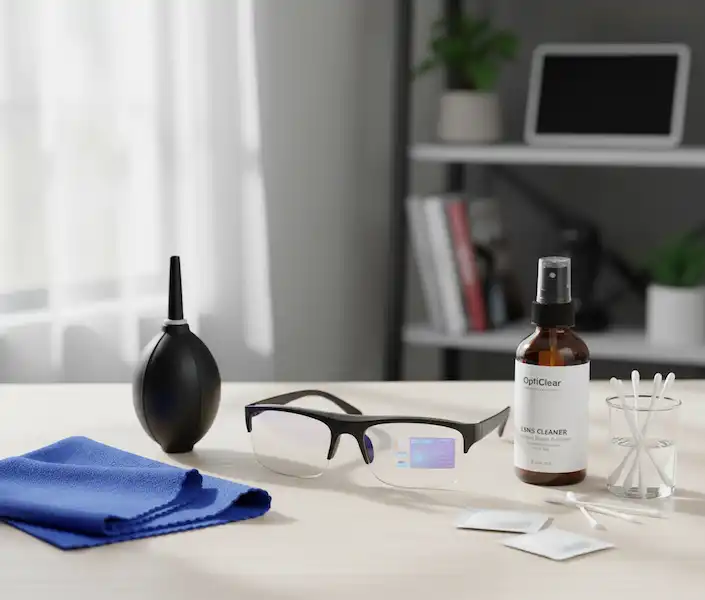
Q: How do I clean the touch sensors? A: Use a microfiber cloth and a tiny bit of water or lens cleaner. Avoid getting liquid into the hinges or the speaker ports. If skin oils build up on the temple, the gestures will become sluggish.
Q: Do smart glasses work with hearing aids? A: This is a big one. Many modern glasses use “Open-Ear” speakers or bone conduction. I’ve found that they actually work quite well with behind-the-ear hearing aids, but you might need to adjust the volume balance in your phone’s accessibility settings.
Q: What happens if I lose my connection? A: Most glasses will still function as “dumb” glasses and might even keep some basic features like local voice control for volume, but any AI-based features will stop working immediately.
9. The Insider Summary: Finding Your Rhythm
Mastering smart glasses is about finding the right balance. Use voice when you’re alone or in a car, use the touchpad when you’re in public, and save the hand gestures for when you’re at your desk.
The goal of smart glasses input is to get you to look up at the world, not down at your screen. Once you find that rhythm where a simple swipe changes your music and a whisper sends a text, you’ll find it very hard to go back to digging a glass slab out of your pocket every thirty seconds.
I’ve seen this tech evolve from “scary and awkward” to “sleek and invisible.” The better you understand how to talk to your glasses, the more they become an extension of yourself rather than just another gadget you have to manage.
Additional Helpful Links
- More details about using your voice with smart glasses – How to Use Voice Commands with Smart Glasses?
External Links for Authoritative Sources:
- MIT Technology Review on Wearables: https://www.technologyreview.com/topic/wearables/ (General insights into wearable technology trends)
- Google’s AI Blog: https://ai.googleblog.com/ (For advancements in voice recognition and natural language processing)
- IEEE Spectrum – Wearable Technology: https://spectrum.ieee.org/tag/wearable-tech (Technical articles on the engineering behind smart devices)
- Stanford University Human-Computer Interaction Group: https://hci.stanford.edu/ (Research into how humans interact with technology)
- Bluetooth SIG: The Evolution of Wearable Audio
- W3C: Standards for Voice and Multimodal Interaction
- Apple’s Human Interface Guidelines for Bluetooth Accessories
- Android Developer Documentation: Voice Interaction API
- Electronic Frontier Foundation: Wearable Privacy Guide
- Android Developer Guide for Voice Interaction
- Understanding Bluetooth Latency in Wearables
- The Ethics of Wearable Cameras and Privacy