
How to Install Smart Glasses Apps on Android and iPhone
I remember sitting in a dimly lit airport lounge three years ago, trying to get a pair of early-gen AR specs to talk to my phone. I had the cable, I had the “beta” app, and I had about forty minutes before my flight. I spent thirty-five of those minutes staring at a “Searching for Device” spinner. That moment changed how I look at wearable tech. It’s never just about the hardware; it’s about the bridge between the frame on your face and the slab in your pocket.
If you’ve just unboxed a pair of Ray-Ban Metas, XREALs, or a set of Vuzix, you’re likely realizing that the “manual” is basically a QR code and a prayer. Having spent years in the dev-side of wearables, I’ve learned that the “official” way to install apps is often only half the story. Here is how to install an app for Meta glasses and others.
How to Install Smart Glasses Apps, The “Must-Do” Prep
Trust me on this: do not try to set these up while you’re at a coffee shop or on a train. You need stable Wi-Fi and a full battery. Step-by-step instructions to install an AI glasses app.
- Charge Everything: Most glasses ship with about 30% battery. If you try to run a firmware update (which usually happens the moment you connect) with low battery, you risk “bricking” the device. Plug the glasses and your phone into a wall outlet.
- Update Your Phone OS: I once spent two hours wondering why my Ray-Bans wouldn’t pair, only to realize my iPhone was one sub-version behind the required iOS. Check Settings > General > Software Update on iPhone or Settings > System Update on Android.
- Permissions are Key: When you finally open the companion app, it’s going to ask for permission to use your Bluetooth, Location, Camera, and Microphone. Say yes to everything. If you deny “Location” on Android, many Bluetooth devices won’t even show up in the search list.
The First Rule of Smart Glasses: The Companion App is Everything
Before you can even think about “installing” anything on the glasses themselves, you have to understand that most consumer smart glasses are essentially “dumb” displays or sensors without their companion app.
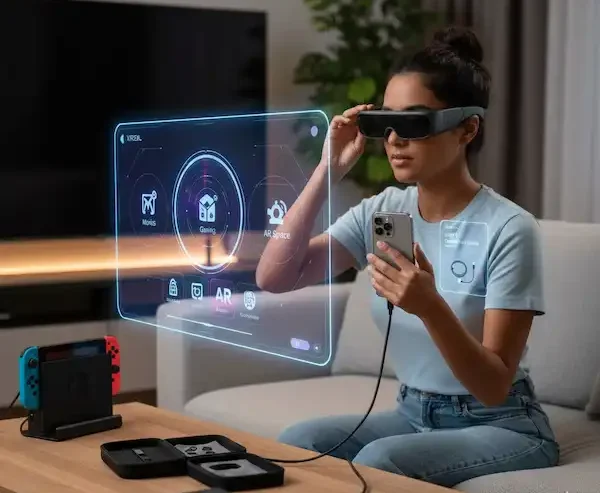
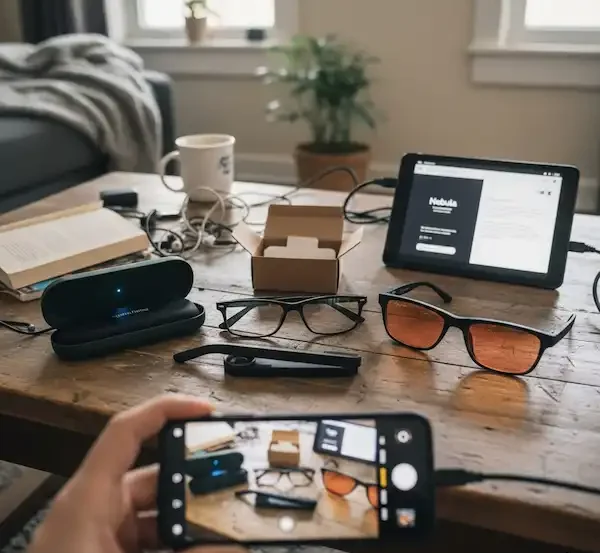
On an iPhone, this is usually a straightforward trip to the App Store. On Android, it’s a bit of a Wild West. For instance, when I set up my XREALs on a Samsung S24, I had to jump through hoops with “Nebula” because Samsung’s own “DeX” mode kept trying to hijack the connection.
How to Install Smart Glasses Apps successfully starts with identifying your specific ecosystem. Are you in a “closed” system like Meta, or an “open” one like Vuzix or RayNeo?
Setting Up on iPhone (The “It Just Works… Usually” Path)
iOS is the king of polished experiences, but it’s also a walled garden. When you’re using an iPhone, your smart glasses are strictly bound by what Apple allows through Bluetooth and AirPlay.
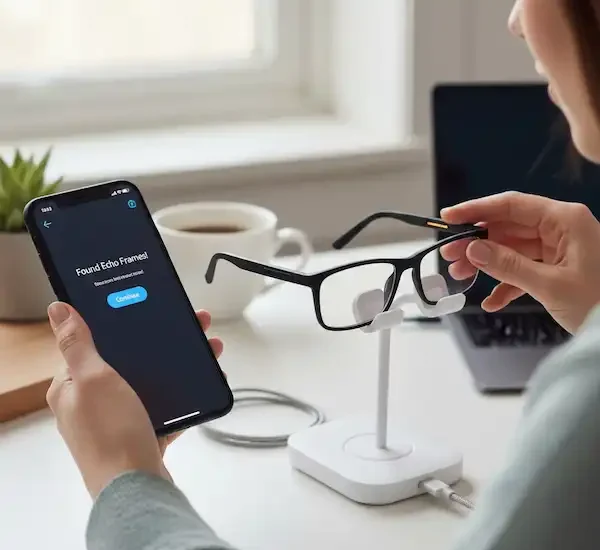
- The App Store Search: Search for the specific brand app (e.g., “Meta View” for Ray-Bans). Make sure you’re downloading the official one. There are a lot of “guide” apps out there that are just ad-farms.
- Permissions are Non-Negotiable: When that little pop-up asks for Bluetooth, Location, and Local Network access, say yes to all. I once spent two hours wondering why my glasses wouldn’t update, only to realize I’d denied “Local Network” access, which many glasses use to create a tiny Wi-Fi bridge for firmware transfers.
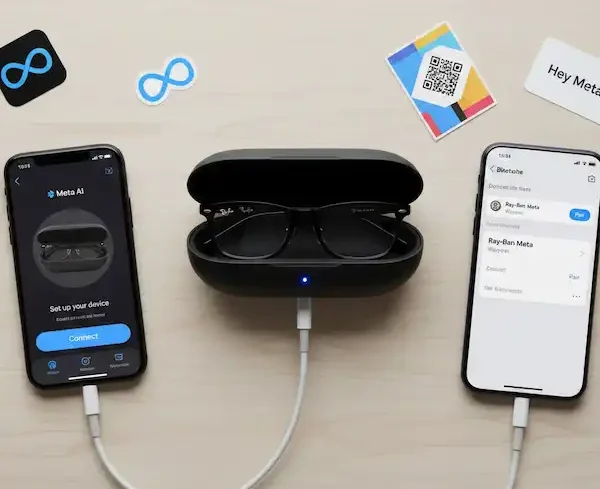
- The Pairing Dance: Most glasses require you to put them in the case or hold a specific temple button. For Ray-Ban Meta, it’s that tiny button on the back of the charging case. Wait for the blue pulse.
Setting Up on Android (The Power User’s Playground)
Android is where the real fun—and the real headaches—happen. Because Android allows for things like OTG (On-The-Go) data transfer and sideloading, you can do much more, but there’s more to break.
- Google Play vs. APKs: Most apps are on the Play Store. However, for some high-end AR glasses like the XREAL Air series, you might find yourself needing a specific version of an app that isn’t in your region. This is where sideloading comes in.
- OTG Support: This is the “secret sauce.” If your phone doesn’t have OTG (On-The-Go) enabled, your wired smart glasses will just stay dark. On many OnePlus or Oppo phones, you actually have to go into Settings > System and manually toggle “OTG Connection” on every single time you plug them in.
- Disabling Conflicts: If you’re a Samsung user, listen up. Samsung DeX is your enemy here. DeX tries to turn your glasses into a desktop computer. If you want to use the actual AR apps (like for 3D movies or space tracking), you must go into your phone settings and disable “Auto-start DeX when HDMI is connected.”
The Ray-Ban Meta Experience: A Special Note
How to Install Smart Glasses Apps, I use my Ray-Bans daily, and their app system is unique. You don’t “install” apps onto the glasses. Instead, you enable “Integrations” within the Meta View app for Meta glasses.
- Open Meta View > Settings > Communications.
- Here, you can link WhatsApp, Messenger, and Spotify.
- Once linked, the “app” functionality is handled by voice. You don’t click an icon; you just say, “Hey Meta, play my Discover Weekly on Spotify.”
Beyond the Basics: Installing “Internal” Apps
When people ask “How to Install Smart Glasses Apps,” they often mean “How do I get Netflix or YouTube to run inside the glasses?”
The Meta Ecosystem
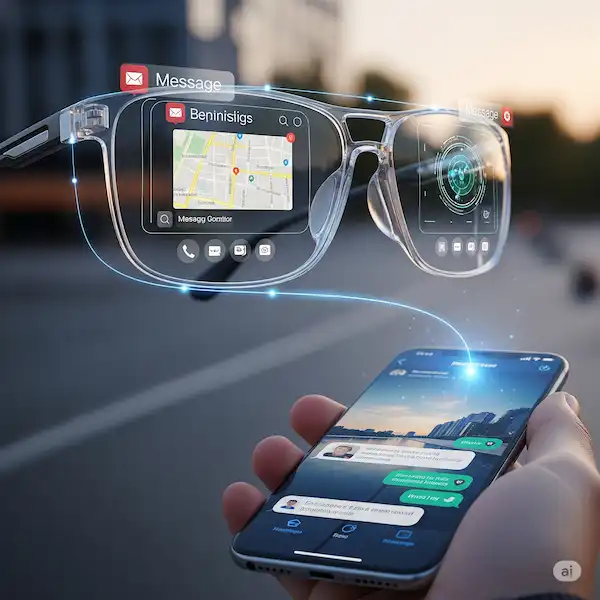
With the Ray-Ban Meta glasses, you don’t “install” apps on the glasses in the traditional sense. Instead, you integrate services. You go into the Meta View app, hit settings, and link your Spotify, WhatsApp, or Apple Music. The “app” is actually running on your phone, and the glasses are just the interface. It’s a bit like CarPlay for your face.
The XREAL and AR Space Method
For glasses like XREAL or Rokid, you use an “AR Space” or “Nebula” environment. Within that environment, you can often “pin” web browsers or specific apps.
- Pro Tip: Use the “Web App” feature if available. Instead of trying to find a native Netflix app for your glasses, just open the browser inside the AR space and navigate to Netflix. It usually runs smoother and drains less battery.
The Industrial/Pro Route (Vuzix & RealWear)
If you’re using something like the Vuzix Z100, you’re dealing with a different beast. These often have their own internal App Store accessible via a PC or a companion app.
- Connect the glasses to your Wi-Fi directly (via the glasses’ own menu).
- Log into the manufacturer’s web portal on your laptop.
- “Push” the app from the web portal to the glasses. It’s a weird, old-school way of doing things, but it’s very stable for enterprise use.
Sideloading: The Insider’s Secret
Sometimes the app you want isn’t “supported.” Early in my career, I wanted to see if I could get a basic weather radar app on a pair of glasses that only supported “notifications.”
On Android-based smart glasses (like many of the standalone Vuzix or older Google Glass units), you can use ADB (Android Debug Bridge).
- Enable “Developer Options” on the glasses (usually by tapping the “Build Number” in the settings menu seven times).
- Connect the glasses to your PC.
- Use the command
adb install your-app-name.apk. Warning: Doing this can void warranties and, more importantly, can make the glasses run incredibly hot. These frames aren’t designed to dissipate heat like a phone.
Troubleshooting the “Device Not Found” Nightmare
We’ve all been there. You’re holding the button, the light is blinking, but the phone sees nothing. How to Install Smart Glasses Apps.
- Toggle Bluetooth: Turn it off for 10 seconds, then back on.
- Clear Bluetooth Cache (Android Only): Go to Settings > Apps > System Apps > Bluetooth > Storage > Clear Cache. This is a magic fix 90% of the time.
- The “Hard Reset”: Most glasses have a pinhole or a specific button combo (like holding the power button for 12 seconds). It feels scary, but it won’t delete your photos; it just reboots the “brain” of the frames.
Expert Tips for Better App Performance
- Kill Background Apps: Smart glasses apps are resource-heavy. If you’re trying to run an AR game while 40 other apps are open, you’ll get lag.
- Thermal Management: If your glasses get hot, the app will likely stutter or close. Take them off for five minutes. I once tried to use my AR glasses while sitting in direct sunlight—bad idea. The app crashed instantly to protect the hardware.
- Check the SDK: If you’re a tinkerer, look into the XREAL Developer Portal or Vuzix Developer Center. They often have “Beta” versions of apps that give you features months before the general public.
Troubleshooting: When Things Go South
You’ve followed the steps, but you’re still looking at a black screen or a “Connection Failed” message. Here is my “battle-tested” checklist for when How to Install Smart Glasses Apps becomes a nightmare.
1. The “Ghost Pairing” Issue
This is the #1 reason for setup failure. Your glasses are “paired” in your phone’s Bluetooth settings, but the app says they aren’t there.
- The Fix: Go to your phone’s Bluetooth menu and “Forget” the glasses. Then, go back into the companion app and start the pairing from inside the app. Never pair smart glasses through the system Bluetooth menu first; it “claims” the connection and prevents the app from doing its handshaking.
2. The Firmware Deadlock
You start the app installation, and it immediately demands a firmware update. The update gets to 12% and stops.
- The Fix: This is usually a frequency interference issue. Bluetooth and Wi-Fi often fight for the same 2.4GHz airwaves. Turn off your smart watch, turn off any nearby Bluetooth speakers, and move away from your microwave. I’ve seen setups fail simply because a person was wearing an Apple Watch on the same hand they were using to hold the glasses.
3. The “Deep Sleep” Problem
If your glasses have been sitting in a box for six months, the battery might be “too low” to even accept a charge from the case properly.
- The Fix: Plug the case into a “dumb” charger (a low-wattage USB-A brick), not a fast-charging USB-C PD brick. Sometimes high-wattage chargers trip the safety circuit on a deeply depleted wearable battery. Let it sit for four hours before trying the app setup again.
4. Android “Battery Optimization”
Android loves to kill background apps to save juice. If your smart glasses app keeps closing, your glasses will lose their “smarts.”
- The Fix: Go to Settings > Apps > [Your Glasses App] > Battery. Set it to “Unrestricted.” This tells Android, “I don’t care if this app eats battery; leave it alone.”
5. HDCP and DRM Blackouts
You’ve got the app installed, you’ve got your movie ready, but all you see is black with audio playing.
- The Reason: This is Digital Rights Management (DRM). Many streaming apps (Netflix, Disney+) block video output over a cable to prevent piracy.
- The Fix: On Android, you can sometimes use a “Cast” feature within the glasses’ app rather than a direct mirror. On iPhone, you’re often stuck unless the app specifically supports AirPlay to external displays.
Personal Experience: The “One-Temple” Trick
I once spent a whole weekend at a tech conference trying to help people set up their new gear. The biggest “aha!” moment for many was realizing that smart glasses are sensitive to how they are worn during setup. Many glasses have “wear sensors” (those little black dots inside the frame). If the glasses think they aren’t on your face, they might shut down the Bluetooth radio to save power during the app installation. If you’re having trouble, try putting them on your face while the app is “searching.” It sounds silly, but it works.
Industry Knowledge: What the Manual Won’t Tell You
Working behind the scenes, I can tell you that most “app” problems are actually “permission” problems. Manufacturers are terrified of being labeled as “spyware” because of the cameras. Because of this, they often build “fail-safes” into the app. If you don’t grant the app permission to “Always” see your location, it might refuse to connect to the glasses’ Wi-Fi. It’s not that they need to track you; it’s that Android bundles Wi-Fi scanning permissions under “Location.”
Also, keep an eye on your phone’s temperature. Running a smart glasses companion app while also streaming video and using 5G is a recipe for thermal throttling. If your phone gets hot, the data transfer speed to your glasses will drop, causing the “app” inside the glasses to lag or crash.
Summary of the Setup Journey
Learning How to Install Smart Glasses Apps is less about technical wizardry and more about patience. It’s a three-step dance:
- Preparation: Charge everything to 100% and update your phone’s OS.
- The Handshake: Use the companion app to pair, not the phone’s Bluetooth menu.
- The Configuration: Grant every permission requested, then go back and “unrestrict” the app’s battery usage.
I’ve seen grown men cry over a pair of $600 glasses that “won’t turn on,” only to find out they hadn’t toggled OTG support on their Android phone. Don’t be that guy. Take your time, read the prompts, and remember that these are basically tiny computers sitting on your nose—they need a little love and the right settings to shine.
For those looking into more advanced development or specialized hardware, checking out resources like Android Developer’s Guide to Hardware or the Vuzix Developer Center can provide those deep-dive technical specs that go beyond the consumer experience.
Now, go put those glasses on and see what the world looks like with a HUD. It’s a bit weird at first, but once you get that first app running perfectly, you’ll never want to look at a regular screen again.
Frequently Asked Questions
Q: Do I need a separate data plan for my smart glasses apps? A: Generally, no. Most smart glasses use your phone’s data via Bluetooth or a Wi-Fi bridge. Unless you have “standalone” glasses with a SIM slot (which are rare and usually for industrial use), you’re just using your phone’s existing plan.
Q: Can I install Android apps on my iPhone-connected glasses? A: No. If your glasses are connected to an iPhone, you are limited to the iOS ecosystem. However, some glasses like the XREAL can connect to a “Beam” (a separate Android-based puck), which then allows you to run Android apps regardless of what phone you have in your pocket.
Q: Why does the app keep asking for my location? A: As mentioned, on Android, Bluetooth Low Energy (BLE) scanning is tied to location services. Without it, the app literally cannot “see” your glasses to install or update apps.
Q: Can I use these apps offline? A: It depends on the app. Navigation and translation apps usually need a data connection. However, if you’ve “installed” a media player and have files stored on your phone (or the glasses’ internal storage), that should work fine.
Q: How do I uninstall an app from the glasses? A: For Meta or Vuzix, you do this through the companion app on your phone. Find the “Library” or “My Apps” section, select the app, and hit “Remove” or “Unlink.”
Additional Helpful Links
- Learn more about companion apps for smart glasses – Smart Glasses Companion Apps for your Phone
External Links for Authoritative Sources
- Meta View Support (for Ray-Ban Stories): https://www.meta.com/help/ray-ban-stories/
- Vuzix Support & App Store: https://www.vuzix.com/support
- XREAL Official Website: https://www.xreal.com/
- Epson Moverio Developer Information: https://developer.epson.com/ (For Moverio App Market info)
References & Authoritative Links: