XREAL Smart Glasses Troubleshooting Common Issues
Smart glasses are an exciting leap into augmented reality, blending digital information with our physical world. XREAL (formerly formerly Nreal) has been at the forefront of this innovation, offering sleek and functional devices. However, like any advanced tech, users might encounter a few snags. This article will guide you through common problems and provide practical solutions, ensuring you get the most out of your XREAL smart glasses.
Understanding Your XREAL Smart Glasses
Before diving into XREAL Smart Glasses Troubleshooting, let’s briefly understand what makes XREAL glasses tick. They typically project an image onto transparent lenses, allowing you to see both the real world and a virtual overlay. They connect to compatible devices (often smartphones or dedicated computing units) via a USB-C cable, drawing power and receiving data.
Key Components:
- Display Projectors: Miniature projectors within the frame that create the virtual image.
- Lenses: Transparent lenses that act as the display surface.
- Sensors: Track head movement, environmental light, and sometimes hand gestures.
- Connectivity Port: Usually USB-C, for power and data.
- Audio: Built-in speakers or a 3.5mm jack for headphones.
XREAL Smart Glasses Troubleshooting – Common Problems and Their Solutions
Let’s break down some of the most frequently encountered issues and how to resolve them.
Problem 1: No Display or Flickering Screen
This is perhaps the most frustrating issue – you put on your glasses, and nothing happens, or the display flickers erratically.
Possible Causes:
- Loose Connection: The USB-C cable might not be fully plugged in.
- Insufficient Power: The connected device isn’t providing enough power.
- Software Glitch: The Nebula app or the glasses’ firmware might be experiencing a temporary bug.
- Incompatible Device: Your smartphone or device might not be fully compatible or have the necessary DisplayPort Alternate Mode support.
- Dirty Projector/Lenses: Obstructions on the optical path.
Solutions:
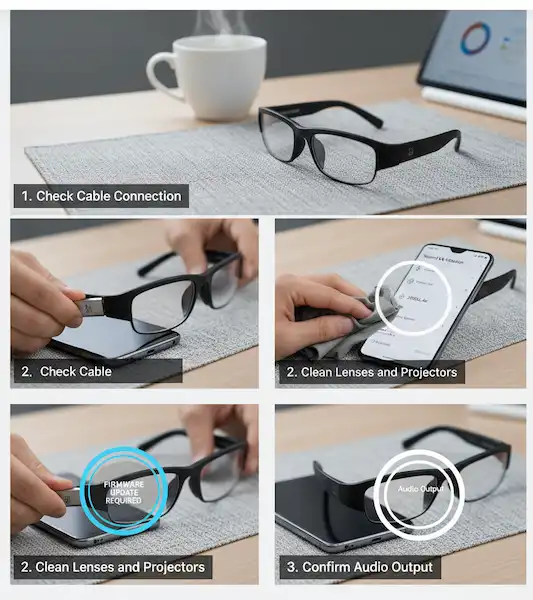
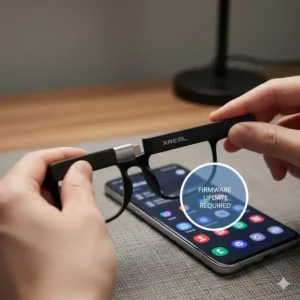
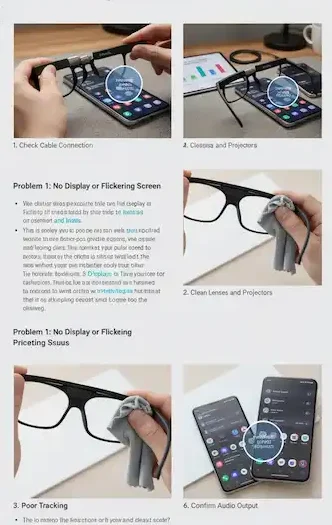
- Check Cable Connection:
- Action: Firmly push both ends of the USB-C cable into the glasses and the connected device. Ensure there’s a satisfying “click.”
- Example: “I thought my Nreal Air wasn’t working, but I just needed to push the cable harder into my Samsung S22!
- Verify Power Source/Device Compatibility:
- Action: Try connecting to a different, fully charged, compatible device. Ensure your device supports DisplayPort Alternate Mode (DP Alt Mode) over USB-C. Many older or budget phones may not.
- Example: “My XREAL Light wasn’t working with my old OnePlus phone. Switched to my friend’s iPhone 15 Pro, and it worked instantly. Turns out my phone didn’t support DP Alt Mode.”
- Helpful Tip: Check XREAL’s official compatibility list on their website.
- Restart Everything:
- Action: Disconnect the glasses, close the Nebula app, restart your connected phone/device, and then reconnect the glasses and relaunch Nebula.
- Example: “The screen was flickering on my Air. A quick phone restart fixed it right up, like magic.”
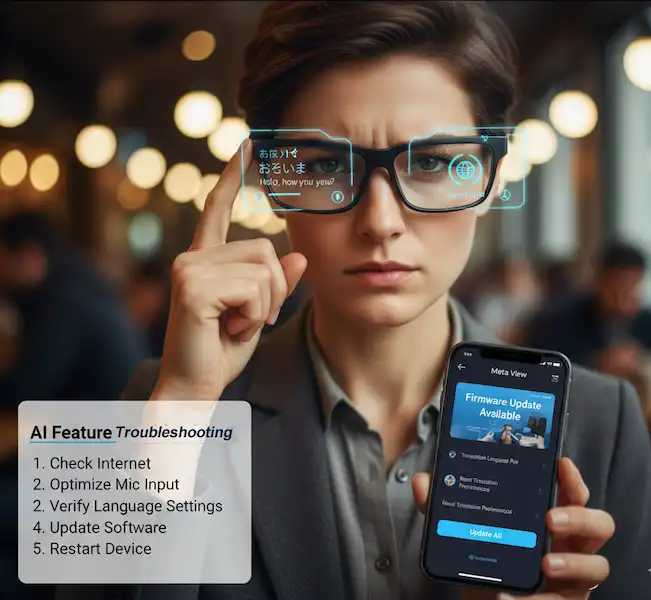
- Check for Updates:
- Action: Ensure both the Nebula app and your glasses’ firmware are up to date. Updates often include bug fixes.
- Example: “I had display issues until I updated the Nebula app. XREAL released a patch that fixed my specific problem.”
- How to Update Firmware: This is usually done through the Nebula app. Connect your glasses, open Nebula, and navigate to settings or the device management section. Follow the on-screen prompts.
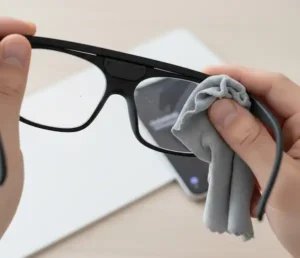
- Clean Lenses and Projectors:
- Action: Gently wipe the inside and outside of the lenses with a microfiber cloth. Ensure no dust or smudges are obscuring the projection path.
- Example: “A tiny bit of dust on the projector made the screen look blurry. A quick wipe, and it was crystal clear again.”
Problem 2: Poor Tracking or Unstable Virtual Environment
The virtual world shaking, drifting, or not aligning correctly with your head movements can ruin the immersive experience.
Possible Causes:
- Insufficient Lighting: Low light conditions can hinder the glasses’ spatial tracking cameras.
- Reflective Surfaces: Shiny surfaces can confuse tracking sensors.
- Fast Movements: Very rapid head movements might temporarily lose tracking.
- Sensor Calibration Issues: The internal sensors might need recalibration.
- Software Glitch: Temporary issues with the tracking algorithms in Nebula.
Solutions:
- Optimize Your Environment:
- Action: Ensure you’re in a well-lit room, avoiding overly dark or overly bright, direct light. Minimize highly reflective surfaces in your immediate vicinity.
- Example: “My virtual screen kept floating away in my dim living room. Turning on more lights fixed the drift.”
- Calibrate Tracking (if available):
- Action: Some XREAL models or Nebula versions offer a recalibration option in settings. Follow the on-screen instructions carefully. This usually involves looking around slowly or performing specific head movements.
- Example: “After a firmware update, my tracking felt off. Found a ‘Recalibrate Spatial Mapping’ option in Nebula, and everything snapped back into place.”
- Restart Nebula/Glasses:
- Action: Disconnect the glasses, force-close the Nebula app, and restart your phone. Reconnect and relaunch.
- Example: “The virtual screen was jittery. A simple restart of the app and phone settled it down.”
- Stable Head Movements:
- Action: While using the glasses, try to make smooth, deliberate head movements rather than jerky ones, especially if you’re experiencing frequent tracking loss.
- Example: “When I’m gaming, I sometimes move my head too fast. Slowing down a bit helps the tracking stay consistent.”
Problem 3: Audio Issues (No Sound or Poor Quality)
Sound is crucial for immersion. If you’re experiencing no audio or crackling sounds, it can be distracting.
Possible Causes:
- Volume Settings: Device volume or in-app volume might be too low or muted.
- Cable Connection: The USB-C cable might not be fully seated, impacting audio signal.
- Default Audio Output: Your connected device might be sending audio to a different output (e.g., its internal speakers, Bluetooth headphones).
- Software Bug: A temporary glitch in Nebula or the device’s audio driver.
- Hardware Fault: (Less common) A problem with the glasses’ internal speakers or audio jack.
Solutions:
- Check Volume Levels:
- Action: Increase the volume on your connected device (phone/computer). Also, check any in-app volume settings within Nebula or the specific application you’re using.
- Example: “I thought my XREAL Air’s speakers were broken, but my phone’s media volume was just turned all the way down!”
- Verify Cable Connection:
- Action: Disconnect and firmly reconnect the USB-C cable to ensure a stable data and audio transfer.
- Example: “A slightly loose cable was causing static in the audio. Pushing it in completely cleared it up.”
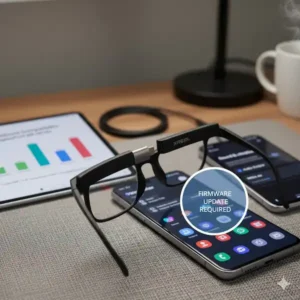
- Confirm Audio Output:
- Action: On your connected device, check the audio output settings. Ensure that the audio is routed to the XREAL glasses and not to another device.
- Example: “My phone was still sending audio to my Bluetooth earbuds even after connecting the XREAL Light. I had to manually switch the output in Android’s sound settings.
- Restart Nebula/Device:
- Action: As with display issues, a full restart of the app and connected device can often clear up audio glitches.
- Test with Headphones (if applicable):
- Action: If your XREAL glasses have a 3.5mm audio jack, try plugging in a pair of wired headphones to see if you get sound. This helps isolate whether the issue is with the internal speakers or the audio signal from the device.
- Example: “The internal speakers weren’t working, but when I plugged in my earbuds, I got sound. It suggested a problem with the glasses’ speakers themselves, so I contacted support.”
Problem 4: Overheating Glasses or Connected Device
While not extremely common, prolonged use or demanding applications can cause the glasses or the connected phone to become warm.
Possible Causes:
- Intensive Use: Running graphically demanding apps or watching high-resolution video for extended periods.
- Poor Ventilation: Obstructing the vents on the glasses or phone.
- High Ambient Temperature: Using the glasses in a hot environment.
- Firmware/Software Issues: Inefficient power management.
Solutions:
- Take Breaks:
- Action: If the glasses or phone feel uncomfortably warm, disconnect them and let them cool down for 10-15 minutes.
- Example: “My phone was getting hot during a long gaming session. I just took a quick break, and it cooled right down.”
- Ensure Proper Ventilation:
- Action: Avoid covering the frames of the glasses or the back of your phone, where heat dissipation occurs.
- Example: “I realized I was holding my phone in a way that blocked the speaker grilles, which was making it hotter than usual.”
- Reduce Brightness/Graphics Settings:
- Action: Lowering the brightness of the glasses’ display or reducing graphics quality in demanding apps can lessen the processing load and heat generation.
- Example: “Playing AR games at max brightness made my XREAL Light warm. Lowering it slightly helped keep it cooler.”
- Update Firmware/Software:
- Action: Ensure both Nebula and your glasses’ firmware are up to date. Manufacturers often release updates that improve power efficiency and thermal management.
Problem 5: Nebula App Crashes or Freezes
The Nebula app is your gateway to the smart glasses experience. If it’s unstable, it can prevent you from using your glasses effectively.
Possible Causes:
- Outdated App: An old version of Nebula might have bugs.
- Incompatible Device: The app might not be fully optimized for your specific phone model or Android/iOS version.
- Insufficient RAM/Storage: Your phone might be struggling to run the app due to limited resources.
- Corrupted Data: Cache or app data might be corrupted.
Solutions:
- Update Nebula:
- Action: Check your device’s app store (Google Play Store or Apple App Store) for the latest version of Nebula and update it.
- Example: “The Nebula app kept crashing on launch until I saw there was an update. Fixed it immediately.”
- Clear Cache and Data:
- Action: Go to your phone’s app settings, find Nebula, and clear its cache and data. Warning: Clearing data might delete any custom settings or downloaded content within the app.
- Example: “Nebula was acting really buggy. Clearing its cache through my phone settings made it stable again.”
. This is a common first step for app-related issues.
- Restart Phone:
- Action: A simple phone restart can often resolve app-related glitches.
- Reinstall Nebula:
- Action: If all else fails, uninstall the Nebula app completely and then reinstall it from the app store.
Additional Helpful Content – XREAL Smart Glasses Troubleshooting
Maintaining Your XREAL Smart Glasses
Proper care can prevent many issues and extend the life of your smart glasses.
- Cleaning: Always use a soft, lint-free microfiber cloth specifically designed for optics. Never use abrasive materials, paper towels, or chemical cleaners.
- Storage: Store your glasses in their protective case when not in use to prevent scratches and dust accumulation.
- Cable Care: Avoid sharp bends or kinks in the USB-C cable, as internal wires can break over time, leading to connectivity issues.
- Environmental Awareness: Avoid exposing your glasses to extreme temperatures, direct sunlight for prolonged periods, or moisture. They are not waterproof.
Understanding DisplayPort Alternate Mode (DP Alt Mode)
Many XREAL (and other smart glasses) require your connected device to support DisplayPort Alternate Mode over USB-C. This is a feature that allows a USB-C port to carry a video signal in addition to power and data.
Why is it important? Without DP Alt Mode, your phone cannot transmit the video signal to the glasses, resulting in a blank display.
How to check for DP Alt Mode:
- Manufacturer’s Specifications: The most reliable way is to check your phone or device’s official specifications on the manufacturer’s website. Look for “USB-C with DisplayPort Alternate Mode” or similar phrasing.
- Online Forums/Community: Users often share compatibility information for various devices.
- XREAL Compatibility List: XREAL provides a list of officially supported devices, which is a great starting point.
Frequently Asked Questions (FAQ) – XREAL Smart Glasses Troubleshooting
Q: My XREAL glasses suddenly stopped working after an update. What should I do? A: First, restart both your connected device and the glasses. Then, check for any new updates for both the Nebula app and the glasses’ firmware. Sometimes, updates require a full system restart to take effect or a subsequent patch is released to fix initial bugs.
Q: Can I use XREAL glasses with my iPhone? A: Yes, XREAL Air supports iPhone connectivity, often requiring a specific adapter (like Apple’s Lightning Digital AV Adapter + an HDMI to USB-C adapter, or XREAL’s own adapter solution). Always check XREAL’s official compatibility and accessory pages for the most up-to-date information.
Q: The image in my glasses looks blurry or distorted on one side. How can I fix it? A: This could be due to several factors: 1. Fit: Ensure the glasses are sitting properly on your nose and face. Adjust the nose pads if your model allows. 2. IPD (Inter-Pupillary Distance): While XREAL glasses often have a large “sweet spot,” some users might benefit from slight adjustments to how they wear the glasses to align the virtual image with their eyes. 3. Smudges: Clean the lenses thoroughly with a microfiber cloth. 4. Prescription Lenses: If you wear prescription glasses, ensure you are using the correct corrective lenses provided or compatible with your XREAL glasses.
Q: My phone battery drains very quickly when using XREAL glasses. Is this normal? A: Yes, it is normal for smart glasses to draw power from the connected device. Running the display projectors and sensors requires significant energy. Using a power bank with your phone or choosing a compatible device with a larger battery can help extend usage time. Some XREAL accessories, like the XREAL Beam, also have internal batteries to extend usage.
Q: Where can I find the official XREAL support resources? A: You can usually find comprehensive support, FAQs, and contact information on the official XREAL website. Look for sections like “Support,” “Help Center,” or “User Manuals.”
Additional Helpful Links – XREAL Smart Glasses Troubleshooting
- How to setup XREAL Air Pro smart glasses – Setup XREAL Air Pro Smart Glasses: Android & iPhone Quickstart Guide
- More details about fixing Bluetooth problems – Smart Glasses Bluetooth Fix: Ultimate Guide to Pairing & Stability
- Compare XREAL smart glasses to Viture – XREAL Air 2 Pro vs Viture Pro: The Ultimate Smart Glasses Battle
External Authoritative Sources
- XREAL Official Website: The primary source for product information, compatibility lists, firmware updates, and direct support. https://www.xreal.com/
- DisplayPort Alt Mode Information: For technical details on DisplayPort Alternate Mode over USB-C.
- VESA (Video Electronics Standards Association): https://vesa.org/ (You might need to navigate their site for specific white papers or information on DisplayPort over USB-C).