
The Real-World Language Translation Guide: My Journey with Phones and Smart Glasses
When I was wandering through a back-alley market in Seoul last year, I found myself staring blankly at a vendor who was passionately explaining something about a vintage watch. I don’t speak a lick of Korean, and he didn’t speak English. Usually, this is where the “awkward phone dance” begins—you know, the one where you frantically pull out your phone, open an app, and shove the screen in someone’s face while praying for a signal. Continue reading to learn how you can use your smart glasses for Real-Time Language Translation.
But I was wearing a pair of smart glasses. I tapped the temple of the frames, and suddenly, I could hear his words in English as he spoke them. It wasn’t just a gadget; it felt like a superpower. That moment changed how I look at travel, and it’s why I want to walk you through how you can set this up for yourself, whether you’re using an Android or an iPhone, or looking at getting a pair of smart glasses.
What is Real-Time Translation Anyway?
If you’ve ever used a traditional dictionary or even early web translators, you know they were… clunky. You’d type a word, get a literal translation, and hope the grammar didn’t make you sound like a robot.
Modern real-time translation—the kind we use on our phones and glasses today—is a different beast. It uses something called Neural Machine Translation (NMT). Think of it like this: instead of looking up words in a list, the software has “read” billions of pages of text and learned how humans actually talk. It looks at the whole sentence to understand the context. So, if you say “I’m feeling blue,” it knows you’re sad, not that you’re literally changing color.
How It Works Behind the Scenes (In Plain English)
Real-Time Language Translation – It’s a bit of a three-step dance that happens in milliseconds:
- Hearing (Speech-to-Text): The microphone picks up the sound and turns it into digital text.
- Thinking (Translation): The system looks at that text, figures out the meaning, and swaps it into your language.
- Speaking (Text-to-Speech): A computerized voice reads that translation back to you, or the text pops up on your screen (or inside your glasses).
Setting Up Your Smartphone for the Journey
Most people don’t realize that the phone in their pocket is already a world-class interpreter. You don’t need a PhD to get it working, but there are some “quality of life” settings I’ve learned the hard way.
For the Android Crowd: Google’s Home Turf
Google Translate is the king here. If you have a Pixel phone, you actually have “Live Translate” baked right into the system settings. It’s a game changer because it works across your whole phone—inside messages, videos, and even your camera.
- The Pro Tip: Go into your settings and download the “Offline” language packs for wherever you’re going. I once got stuck in a mountain village in Italy with zero bars of service. Because I hadn’t downloaded the Italian pack, my “smart” phone was just a very expensive paperweight.
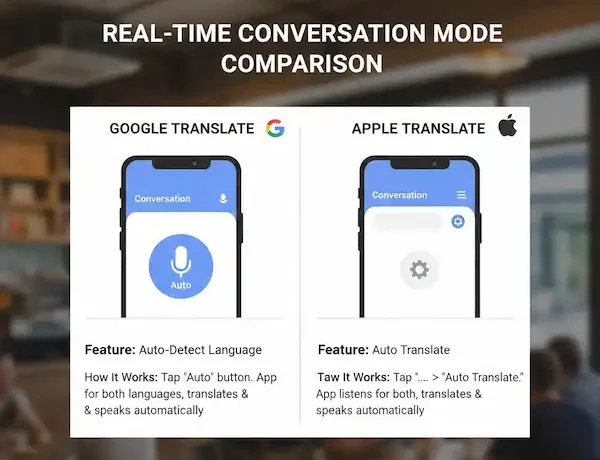
- Interpreter Mode: If you have an Android, try saying, “Hey Google, be my Spanish interpreter.” It opens a dedicated UI that is much friendlier for two-way conversations than the standard app.
- The “Tap to Translate” Trick: You can enable a feature that lets you highlight text in any app—like WhatsApp or a local food delivery app—and a little Google icon pops up to translate it instantly.
For iPhone Users: The Apple Way
Apple has its own Translate app that is surprisingly good and deeply integrated into iOS.
- Conversation Mode: Turn your phone sideways (landscape) while in the app. It splits the screen so you and the person you’re talking to can both see what’s happening. This “Face to Face” view is great because it allows the phone to sit on a table between you, picking up both voices.
- The Action Button: If you have one of the newer iPhones, you can actually map the Action Button to “Translate.” I use this constantly. When I’m at a train station and an announcement comes over the speaker in a foreign language, I just hold the side button, and my phone starts listening immediately.
- Live Text in Camera: If you’re looking at a menu or a street sign, don’t even bother opening the Translate app. Just open your Camera, point it at the text, and tap the little “text” icon that appears in the corner. You can translate it right there on the image.
Entering the World of Smart Glasses
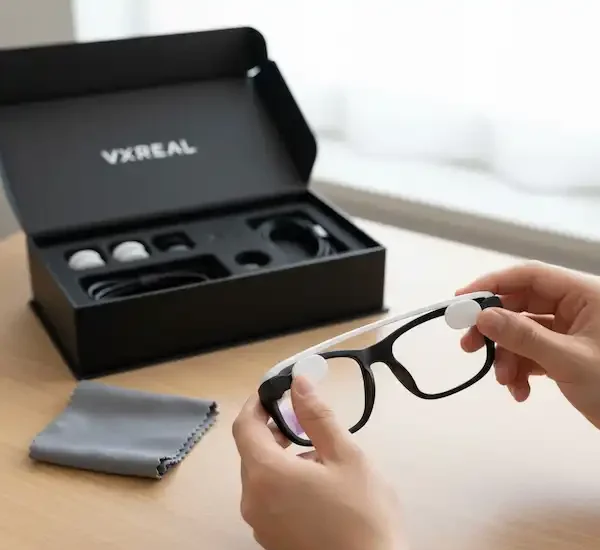
This is where things get really cool. I’ve been testing a few different pairs, from the popular Ray-Ban Meta glasses to more niche translation-specific ones like the Solos AirGo or the Xreal Air 2.
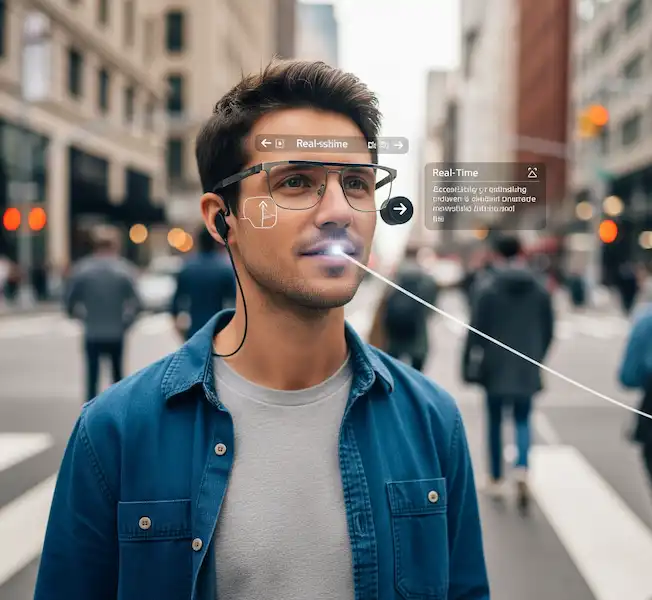
Wearing these feels different than holding a phone. When you’re looking someone in the eye while hearing their language, the barrier actually disappears. You aren’t “using a tool”; you’re just having a conversation using Real-Time Language Translation.
My Experience with the Ray-Ban Meta Glasses
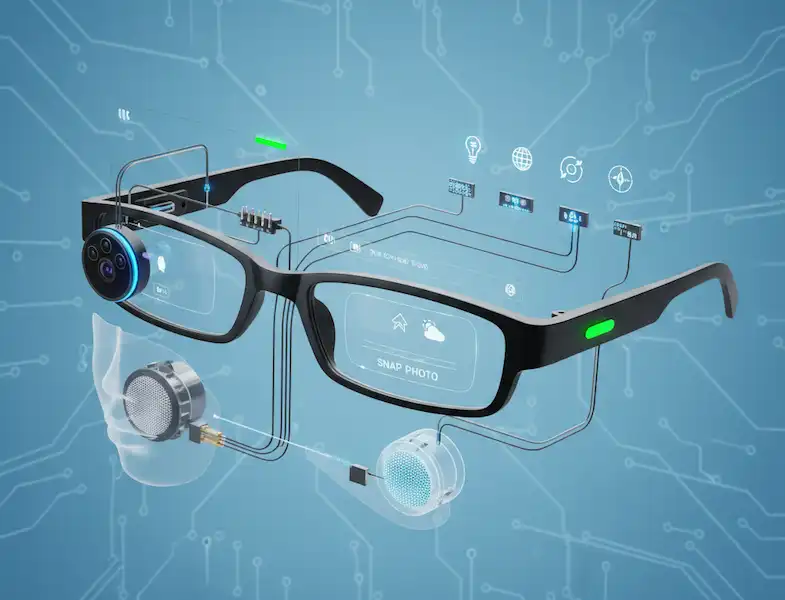
These are probably the most “normal” looking glasses on the market. They don’t have a screen inside the lens; instead, they use high-quality speakers and microphones.
When I used these in Mexico City, I’d engage the “Hey Meta” assistant. I’d ask, “Hey Meta, what did he just say?” and the glasses would replay the translation in my ear. The upside? No one knows you’re using a translator. The downside? You have to listen carefully, as there’s no visual text to fall back on.
The Visual Power of Xreal and Vuzix
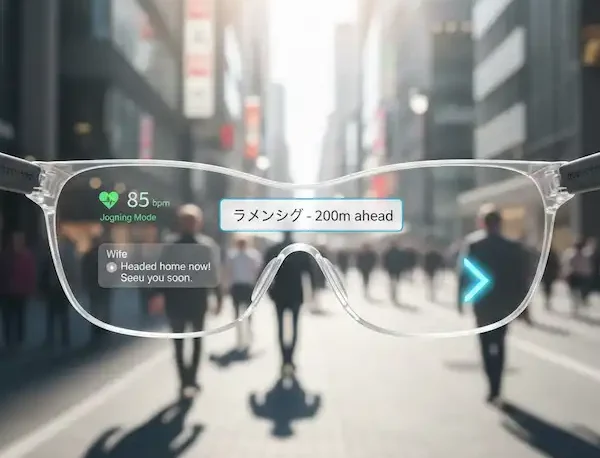
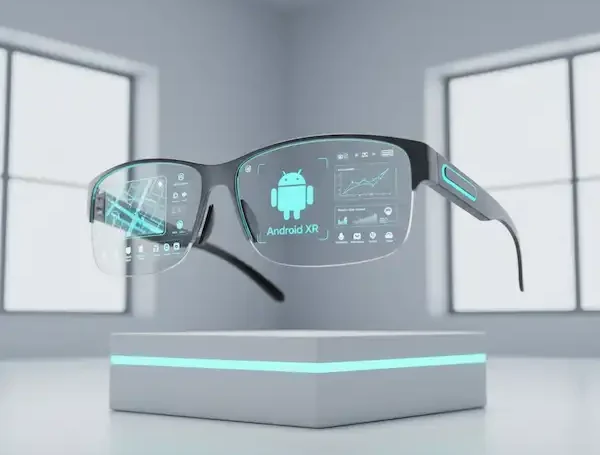
On the other end of the spectrum are glasses with heads-up displays (HUD). These actually project subtitles onto the glass. The best way to do Real-Time Language Translation.
- The Subtitle Effect: Imagine watching a foreign film, but it’s real life. In a loud Japanese Ramen shop, this was the only way I could communicate. The noise was too high for audio translation, but the “captions” appearing in my field of vision allowed me to read what the chef was saying.
- Setup: These usually require a wired connection to your phone or a dedicated “puck” like the Xreal Beam. It’s a bit more “techy” and less fashion-forward, but for pure translation utility, it’s hard to beat.
How to Set Up Your Glasses for Real-Time Language Translation
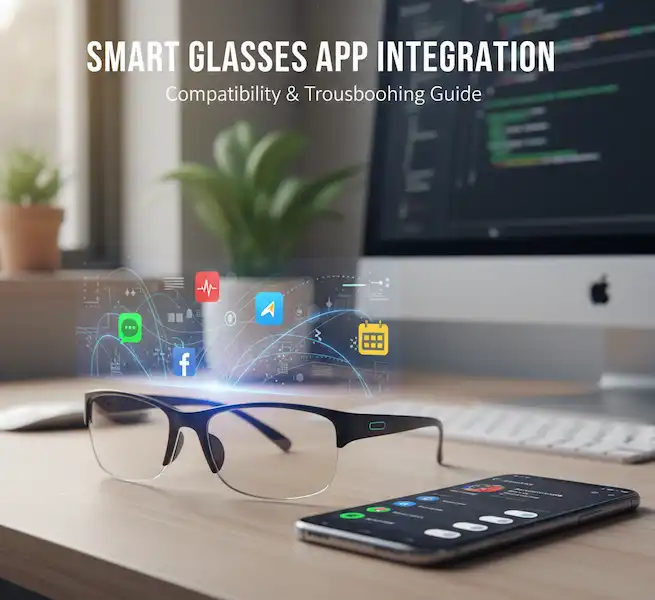
- Pairing: Usually, this is done via Bluetooth through a dedicated app (like the Meta View app or the Solos app).
- Calibration: Make sure the microphones are clear. I once had a bit of lint covering a mic and the translation was hilarious—it thought a French waiter was reciting poetry about a “fuzzy cat” when he was actually asking if I wanted sparkling water.
- Language Selection: In the app, you’ll pick your “Source” (them) and “Target” (you).
- Beta Features: Always check for “Beta” or “Labs” sections in the apps. Translation is moving so fast that the newest, most natural-sounding features are often hidden in these menus.
Real-World Scenarios Where This Shines
The Foreign Market
I used my glasses in a spice market in Marrakesh. If you’ve ever been, you know the energy is high and the talking is fast. Being able to ask about the ingredients in a tagine without looking down at a screen made the vendor much more open and friendly. When you hold a phone up, it creates a physical wall. When you just talk, it creates a connection.
Business Meetings
I’ve seen colleagues use these in multi-lingual boardrooms. It’s less intrusive than having a human interpreter leaning over your shoulder. For these settings, I recommend a pair with “Whisper” mode or very focused directional speakers so the person sitting next to you doesn’t hear your translation.
Learning a Language
Honestly, I use them at home sometimes. I’ll watch a Spanish news broadcast and have the translation running. It helps my brain link the sounds to the meanings faster than any flashcard app ever could. I’ve found that using smart glasses to “shadow” a speaker (repeating what they say after hearing the translation) is the fastest way I’ve ever picked up a new accent.
Technical Deep Dive: Making it Work Better
The Connectivity Struggle
Here is the truth: these devices are only as smart as your internet connection. Most translation happens in “the cloud.”
- Roaming Matters: If you are traveling, get a local SIM or an eSIM (like Airalo). Relying on hotel Wi-Fi will result in lag that makes conversation impossible.
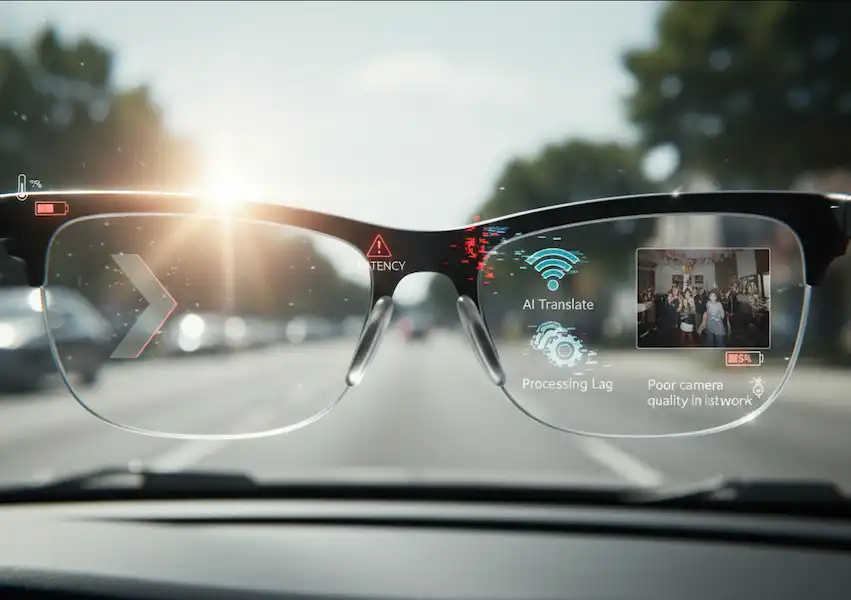
- Low-Latency Settings: Some apps have a “Low Latency” or “Speed” mode. Use this. It might make the translation slightly less “poetic,” but it cuts down that awkward 3-second wait.
Noise Cancellation: The Silent Hero
One thing I didn’t realize until I was in a crowded train station in Berlin is how much ambient noise matters.
- Phone Mic vs. Glasses Mic: Your phone actually has a better microphone than most glasses. If you’re in a roar of a crowd, hold your phone out to catch the audio and have it beam the translation to your glasses. This “hybrid” approach is the pro way to do it.
- Directional Audio: High-end glasses like the Solos AirGo 3 use beamforming microphones that try to ignore everything except what’s directly in front of your face. This is essential for 1-on-1 conversations in busy cafes.
Avoiding the Common Pitfalls
While using Real-Time Language Translation, I’ve made every mistake in the book so you don’t have to:
- The “Loud Bar” Problem: If you’re in a place with thumping music, the AI will struggle. It’s smart, but it isn’t magic. Try to find a slightly quieter corner or point the microphone directly at the speaker’s mouth.
- The Mumble Factor: If the person you’re talking to mumbles or uses heavy slang, the system might trip up. I usually just give a friendly “One more time, please?” and people are generally happy to oblige.
- Battery Drain: Constant translation is heavy lifting for the processor. If you’re using smart glasses for a long day of sightseeing, keep a small power bank in your pocket. I’ve had my glasses die right when I was trying to negotiate a taxi fare—not fun.
- Cultural Sensitivity: In some cultures, wearing dark sunglasses indoors can be seen as rude. I prefer “transition” lenses or clear lenses for translation glasses so people can still see my eyes. It makes the interaction feel more human and less like I’m a cyborg.
Comparing the Options: Which is for You?
| Feature | Smartphone App | Smart Glasses (Audio) | Smart Glasses (Visual/HUD) |
| Best For | Long reading (menus, documents) | Casual chatting, walking around | Loud environments, hearing-impaired |
| Connection | 5G/LTE or Offline Packs | Relies on Phone Data | Relies on Phone/Puck |
| Social Feel | Distracting / Phone-in-face | Very natural | Can look a bit “techy” |
| Battery Life | Excellent (All day) | Moderate (4-6 hours) | Short (2-3 hours active) |
| Cost | Free (mostly) | $200 – $300 | $400 – $600 |
The Ethics and Future of Living with “Auto-Translate”
It’s worth mentioning that some people get a bit spooked by glasses with cameras and mics. I always make it a point to be transparent. If I’m having a long conversation, I’ll say, “Hey, these glasses are translating for me, is that cool?” 99% of the time, people are just fascinated by the tech. They usually end up asking where they can get a pair.
We are entering a world where “language” is no longer a barrier to entry for a culture. But there is a trap here: don’t let the technology stop you from trying to learn. The most rewarding moments I’ve had were when the glasses gave me the confidence to speak a few words of my own. The Real-Time Language Translation tech is a bridge, not a destination.
A Quick Word on “Privacy Mode”
If you’re worried about your data being sent to big tech servers, look for apps that offer “On-Device Translation.” Both Apple and Google have been moving toward doing the processing locally on your phone’s chip. It’s faster, more private, and works even when you’re in a lead-lined basement in Prague.
Wrapping Up
We are living in the “Star Trek” era of communication. Whether you stick with your phone or dive into the world of smart glasses, the wall between languages is crumbling. My advice? Don’t wait for the technology to be “perfect.” It’s already good enough to help you make a new friend in a country where you don’t speak a word of the language.
In my time testing these, I’ve realized that the most important thing isn’t the specs or the battery life—it’s the eye contact. By moving the translation from a screen in your hand to a voice in your ear or a caption on your lens, you’re looking at the world again. And honestly, that’s the whole point of tech—bringing us a little bit closer together.
Frequently Asked Questions (FAQ)
Q: Do I need an internet connection?
A: For the highest accuracy, yes. However, apps like Google Translate and Apple Translate allow you to download offline packs. Some smart glasses also support limited offline translation, but they are most accurate when connected to your phone’s data.
Q: Can it handle slang and idioms?
A: It’s getting better every day. Because modern systems use Large Language Models, they understand context much better than they did five years ago. Still, it’s best to speak clearly and avoid very niche local slang if you want 100% accuracy.
Q: How many languages can these things actually do?
A: Most major apps and glasses support between 30 and 150+ languages. Common ones like Spanish, French, Chinese, and German are usually near-perfect. Rare dialects or regional “patois” are still a work in progress.
Q: Is there a delay?
A: Usually, it’s about 1 to 2 seconds. It feels like a very brief pause in conversation, similar to talking to someone on a satellite phone call. You learn to develop a “rhythm” with it.
Q: Will it work for the hearing impaired?
A: Absolutely. This is one of the best use cases. Many smart glasses can display “Live Captions” on the lens, which is a game-changer for people who struggle to hear in loud environments.
Q: Are they waterproof?
A: Most smart glasses are “water-resistant” (IPX4), meaning they can handle a light drizzle or some sweat. Don’t go swimming in them, or your $300 translator will become a very expensive piece of jewelry.
Q: Can I wear them with my prescription?
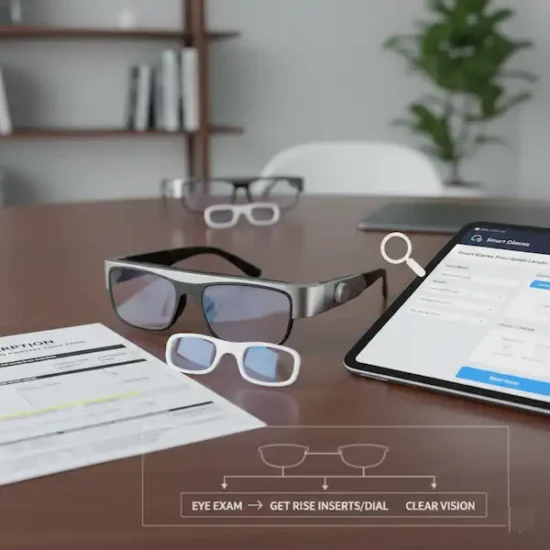
A: Yes! Most companies like Meta or Solos allow you to order prescription lenses. If you use Xreal or similar AR glasses, they usually come with an “insert” that your local optometrist can fit with your prescription.
Additional Helpful Links
- Learn more about using AI for translation – AI Smart Glasses: Real-time Translation & Enhanced Vision
- Read about using smart glasses for international travel – The Best AR Translation Glasses for International Travel
Authoritative Sources and External Links
For the most up-to-date instructions on device-specific features, consult the official support pages:
- Google: Translate a bilingual conversation – Google Help
- Apple: Translate text and voice for conversations across languages using iPhone – Apple Support
- Samsung: Use Live Translate on Galaxy phones and tablets – Samsung Support
- General AI Research: Real-time speech-to-speech translation – Google Research Blog