😎 Your Ultimate Guide: Set Up Ray-Ban Meta Smart Glasses (Android & iPhone)
Finally unboxed your sleek new Ray-Ban Meta smart glasses? Awesome! You’re just a few simple steps away from capturing the world, listening to music, and talking to Meta AI, all hands-free.
Forget confusing tech jargon. We’re going to walk through this setup process together, whether you’re rocking an iPhone or an Android, with lots of easy examples and tips.
Let’s get those smart specs ready to go!
Step 1: The Essential Prep Work (A Quick Checklist)
Before you even touch your phone, a little prep ensures a super smooth Set Up Ray-Ban Meta Smart Glasses.
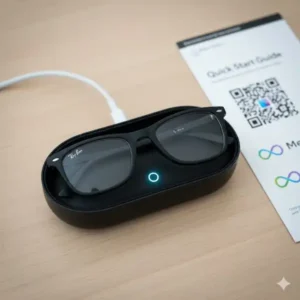
- Check the Charge: Your glasses should have some battery, but it’s always best to start with a good charge. Place them in the charging case and connect the case to a USB-C power source for a few minutes. The case’s LED light will indicate charging status.
- The Right Phone: Make sure your smartphone is up to date. You’ll need Android 10 or higher, or iOS 14.4 or higher.
- Location/Bluetooth ON: Enable Bluetooth and Location Services (or GPS) on your phone. This is crucial for pairing.
- Meta Account Ready: You’ll need a valid Meta account (like the one you use for Facebook, Instagram, or a Quest headset). If you don’t have one, the app will guide you to create one.
Step 2: Download the Meta AI App – Very Important to Set Up Ray-Ban Meta Smart Glasses
The brain for your glasses is the official companion app. Download and install to your smartphone that you connect to your Ray-Ban Meta smart glasses.
- Find the App: Go to the App Store (iPhone) or Google Play Store (Android).
- Search: Search for the Meta AI app. (Note: This replaced the older “Meta View” app.)
- Install: Download and install the app.
- Open & Log In: Open the app and log in using your Meta account credentials. The app will walk you through creating a new one if you need it.
💡 Pro Tip: Look for a QR code inside your glasses box or on the quick-start guide. Scanning this with your phone’s camera often takes you straight to the correct app store page—the fastest way to make sure you get the right one!
Step 3: Put Your Glasses in Pairing Mode
Time to get your glasses and your phone talking to each other.
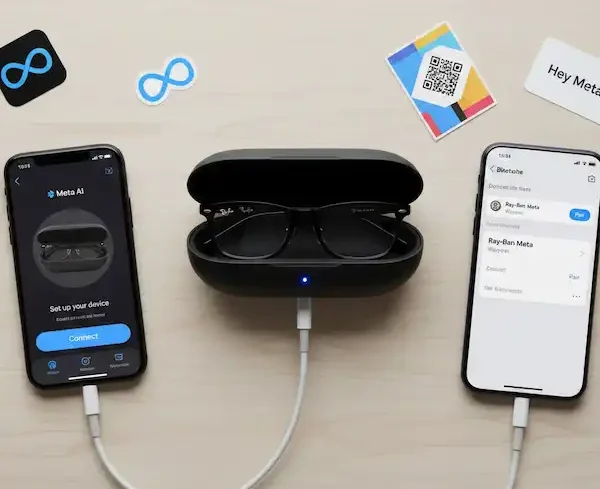
- Open the App: In the Meta AI app, you should see a prompt to Set up a device or a + icon to add new glasses. Tap on it and select your Ray-Ban Meta model.
- Get Ready: Make sure your glasses are inside their charging case.
- Initiate Pairing: Locate the small, circular button on the back of the charging case.
- Press and Hold: Press and hold this button for about 5 to 8 seconds.
- Look for the Light: The LED indicator light on the front of the case will start to flash a pulsing blue color.7 This means the glasses are ready to pair!
Step 4: The Final Connection to Set up Ray-Ban Meta smart glasses
With your glasses blinking blue, your phone can now find them.
- Find Device: Back on your phone, the Meta AI app will automatically start searching for the glasses.8 It should display your glasses’ name (e.g., “Ray-Ban Meta Wayfarer”).
- Tap to Connect: Tap on your glasses’ name.
- Confirm Pairing: Your phone will likely pop up a standard Bluetooth pairing request (you’ll see something like “Pairing Request” with a confirmation code).9 Tap Pair or Connect.
Example: If you’re on an iPhone, a small system pop-up will appear asking to confirm the Bluetooth pairing. Tap “Pair,” and the app will take over.
- Software Update: The app will check for the latest software/firmware for your glasses.10 It’s highly likely there will be an update! Follow the prompts to download and install it. This can take a few minutes, so grab a coffee!
- Tutorial & Onboarding: Once updated, the Meta AI app will run you through a quick, interactive tutorial.11 This is super helpful! You’ll learn:
- How to take a photo (press the button once).
- How to record a video (press and hold).
- How to use the touchpad on the side arm for volume and playback.
- How to use the “Hey Meta” voice command.
- Privacy Review: Review the privacy and safety info (like respecting others’ privacy when recording).
- You’re Done! Tap Done, and you’ll see your device connected with battery life displayed in the app.12
🛠️ Additional Helpful Content – Set Up Ray-Ban Meta Smart Glasses
Troubleshooting: “It’s Not Connecting!”
Don’t panic! Connectivity issues happen with any new gadget. Try these quick fixes if the blue light isn’t showing up or the app can’t find them.
| Problem | Possible Fixes (Try in Order) |
| No Blue Light / Won’t Turn On | Charge it! Put the glasses in the case, connect the case to power, and wait 15-30 minutes. Make sure you removed the tiny plastic pull-tab from the glasses when you first unboxed them. |
| App Can’t Find Glasses | 1. Restart everything: Close the Meta AI app completely, restart your phone’s Bluetooth, and then relaunch the app. 2. Check the Pairing: Repeat the pairing process (Step 3: Press and hold the button on the back of the case until you see the pulsing blue light). |
| Glasses Were Paired, but Disconnected | “Forget Device”: Go into your phone’s main Bluetooth Settings. Find your Ray-Ban Meta glasses in the list, tap the (i) or gear icon, and select “Forget Device” or “Unpair.” Then, start the pairing process again from Step 3. |
| Still Not Working? | Factory Reset: With the glasses on (or in the case), hold the power switch on the inner left temple all the way to the right while simultaneously pressing the capture button on the top of the right temple. Hold until the LED turns solid orange, then release. This is a last resort. |
FAQ: Questions About Set Up Ray-Ban Meta Smart Glasses
Q: Do I need to keep the app open all the time?
A: No! The glasses use standard Bluetooth to stay connected to your phone for things like music and calls.13 You only need to open the app to import photos and videos, manage settings, or update the firmware.
Q: Does it work with Spotify, Apple Music, etc.?
A: Yes! The glasses act like a regular pair of Bluetooth headphones for audio.14 You can also connect services like Spotify or Apple Music directly in the Meta AI app settings for enhanced voice control (e.g., “Hey Meta, play my running playlist on Spotify”).15
Q: Where do the photos and videos go?
A: They are stored on the glasses’ internal memory first. You then use the Meta AI app to import them to your phone’s camera roll (or photo gallery).16 You can even set the app to Auto-Import your captures whenever your glasses are charging in the case!
🔗 Additional Helpful Links
- Learn about common problems and solutions for Ray-Ban Meta Smart Glasses – Ray-Ban Meta Problems Solved: The Ultimate Guide
Authoritative Sources (External Links)
If you need the official word, these sources are the place to go:
- Meta Official Setup and Support Page (This will give you the latest and most detailed instructions and troubleshooting from the manufacturer.)17
- Ray-Ban Official Meta Smart Glasses FAQ (Great for quick answers on specs, features, and warranty.)
Enjoy your new hands-free world of capturing and communication!