😎 Your Big-Screen World: Setup XREAL Air Pro Smart Glasses
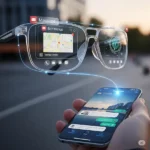
Hey there! Just unboxed your XREAL Air Pro glasses? Congrats! You’re about to unlock a massive, private, virtual screen for gaming, movies, and even work—it’s seriously cool.
The good news? The basic setup for most modern devices is super simple—it’s practically plug-and-play. But since we’re talking about Augmented Reality (AR), there are a few little tricks and essential accessories you might need, especially for older iPhones or dedicated AR apps.
Let’s get your new virtual workspace up and running, whether you’re rocking an Android or an iPhone!
🔍 Setup XREAL Air Pro: What’s in the Box & A Quick Fit Check
Before you plug anything in, let’s make sure those glasses are comfy! A proper fit is key to seeing that gorgeous virtual screen clearly.
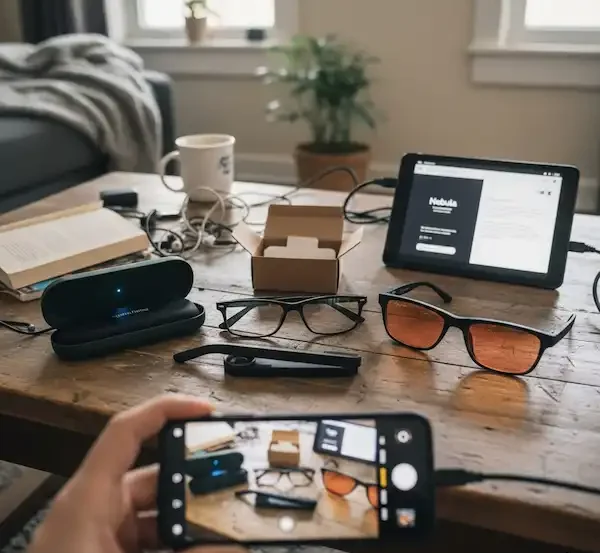
📦 What You Should Have
- XREAL Air Pro Glasses
- USB-C Cable (This is your lifeline!)
- Nose Pads (Usually S, M, L sizes)
- Prescription Lens Frame (for custom lenses)
- Protective Carrying Case and Cleaning Cloth
👓 Getting the Perfect Fit
- Nose Pads: Experiment! Snap on the different sizes (S, M, L) until the virtual screen is centered and you can see all four corners. If the image feels cut off, try a different size or slightly adjust the glasses on your face.
- Temple Adjustment: The arms (temples) of the glasses often have a 3-position hinge. Try clicking them into different positions to ensure a secure and level fit.
- Prescription Lenses (If needed): If you wear glasses, pop your custom-made prescription lenses into the provided frame and attach it inside the Air Pro glasses.
📱 Setup XREAL Air Pro The Plug-and-Play Setup (The Easy Way!)
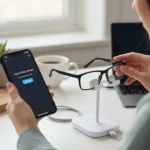
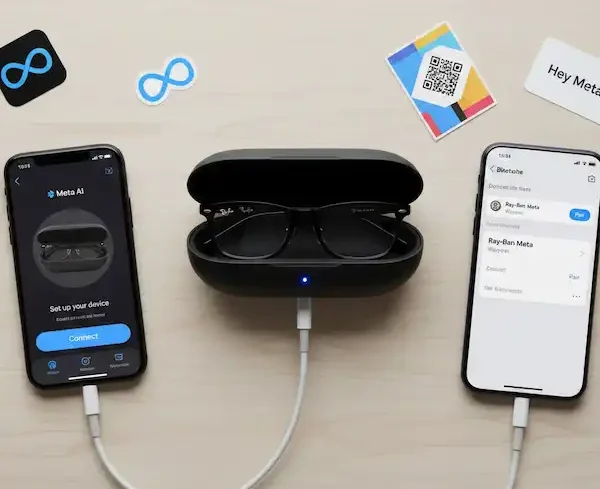
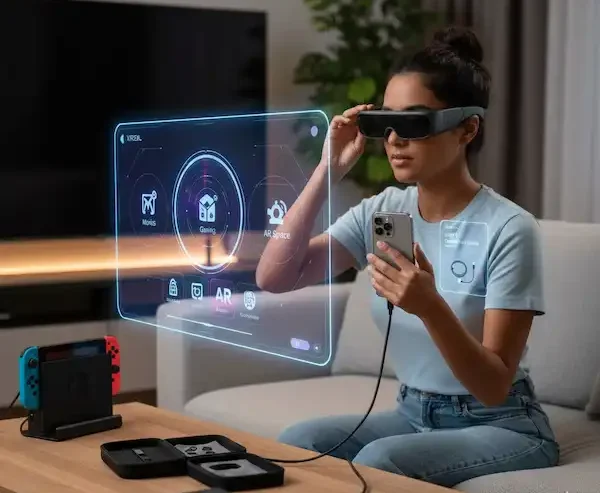
For many modern devices, the XREAL Air Pro works just like a portable monitor. You connect the included USB-C cable to the glasses and the other end to your device.
Done!
This works because the glasses use a feature called DisplayPort (DP) Alt Mode over USB-C to receive the video signal.
✅ Android (The Easiest Connection)
If your Android phone or tablet has a USB-C port that supports DisplayPort (DP) Alt Mode (most flagship Samsung, Google, and other top-tier phones do), you’re set for a direct connection!
| Step | Action | Notes |
| 1. | Connect the USB-C Cable | Plug the elbow connector into the XREAL Air Pro, and the other end into your phone’s USB-C port. |
| 2. | Power On/Mirror | The glasses should automatically power on and begin Screen Mirroring (or Samsung DeX, if applicable). |
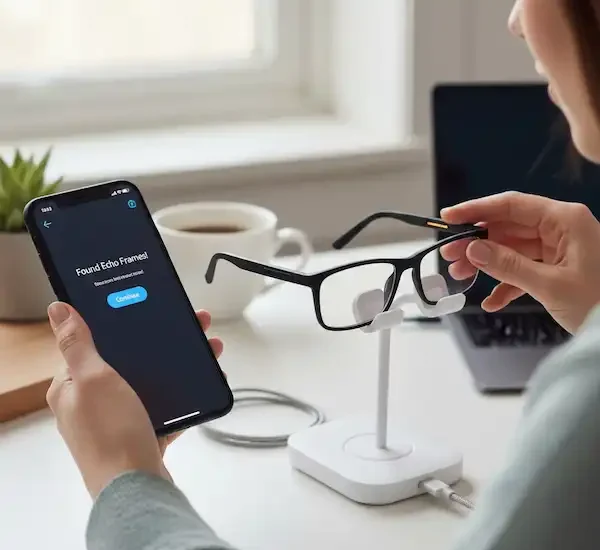
| 3. | App (Optional) | To access XREAL’s full Spatial Display (AR Space), you may need to download the Nebula app (or the specific app for your model, like ‘Control Glasses’). |
⚠️ Pro-Tip for Samsung Users (and other DeX/Desktop Modes): If your phone automatically launches a “desktop” mode (like Samsung DeX), this is often perfect for a multi-window experience! However, if you want the classic screen mirroring, you may need to disable the auto-start feature in your phone’s settings.
🍎 iPhone 15 & Newer (USB-C)
For iPhones that use a USB-C port (iPhone 15 series and later), the process is just as simple as Android:
- Connect the included USB-C cable directly from the glasses to your iPhone 15’s USB-C port.
- The glasses should power on and mirror your phone’s display.
🔌 The Adapter Setup (For Maximum Compatibility)
What if you have an older iPhone, a Nintendo Switch, or a computer without a compatible USB-C port? That’s where essential accessories come in.
🧩 Essential Accessories Table – Setup XREAL Air Pro
| Device | Required Accessory | Purpose |
| Older iPhone (Lightning Port) | Apple Lightning Digital AV Adapter + XREAL Adapter/Hub | Converts Lightning to HDMI, which then converts to USB-C video. |
| Nintendo Switch | XREAL Beam (Recommended) or a Dock/Adapter with USB-C video output | The Switch’s USB-C port doesn’t reliably power the glasses, so an intermediate device is needed. |
| PS5 / Xbox / PC (HDMI-Only) | XREAL Beam or a third-party HDMI-to-USB-C Adapter | Converts the HDMI signal to the USB-C DP Alt Mode the glasses need. |
| Non-DP Alt Mode Android | XREAL Beam | Allows phones without native DisplayPort to access the virtual screen and advanced features. |
💫 Introducing the XREAL Beam (The Game-Changer)
The XREAL Beam is an optional (but highly recommended) palm-sized adapter. It solves almost all compatibility issues and gives you access to the advanced Spatial Display features like:
- 3DoF (3 Degrees of Freedom): The virtual screen stays fixed in space even when you move your head. You can “anchor” it to a spot in your room.
- Smooth Motion: Stabilization features to make the viewing experience more comfortable.
Setup with XREAL Beam
- Connect your source device (Phone, Switch, PS5 adapter, etc.) to the Input USB-C port on the XREAL Beam.
- Connect the XREAL Air Pro glasses to the Output USB-C port on the XREAL Beam.
- Power on the Beam and use its built-in controls to adjust your display (size, distance, 3DoF mode).
⚙️ Quick Start: Setup XREAL Air Pro – Using the Glasses Controls
Once the screen is on, you control basic features directly from the right temple arm of the glasses.
| Button/Action | Function | Description |
| Power Button | Power / Wake | Press to power on. |
| X Button | Open Menu (Double-Click) | Opens the on-screen menu for advanced settings (Display, Sound, etc.). |
| +/- Button | Volume / Navigate | Adjust volume or move through menu options. |
| Electrochromic Dimming | (Air Pro only) | Quickly cycle between Clear Mode, Shade Mode, and Theatre Mode for different environments. |
💡 Additional Helpful Content – Setup XREAL Air Pro
Optimizing Your Experience
- Cable Management: The cable can be a nuisance. Run it down the back of your ear and down the inside of your shirt to keep it out of the way, especially if you’re moving around.
- Audio: The glasses have built-in stereo speakers. They usually become the default audio output when plugged in. For a truly private experience, you may want to connect wireless earbuds to your host device (phone/PC) via Bluetooth.
- Battery Life: The glasses draw power directly from your connected device (or the Beam). Be mindful that continuous use will drain your phone’s battery faster! Using the XREAL Beam can help as it has its own battery.
❓ FAQ: Solving Common Issues – Setup XREAL Air Pro
| Problem | Possible Solution |
| Black Screen / No Display | 1. Ensure the cable is fully seated in both the glasses and your device. 2. Verify your device supports USB-C DisplayPort Alt Mode (check the XREAL compatibility list). 3. If using an adapter (like an HDMI adapter), ensure it is powered. |
| Image is Blurry or Cut Off | 1. Adjust the Nose Pads for better vertical alignment. 2. Check the on-screen menu (double-click the X Button) to ensure the screen size isn’t set too large or too close for your eyes. |
| No Audio | 1. Check your device’s volume. 2. Go to your device’s Sound Settings and ensure “XREAL” or a similar name is selected as the output device. |
| Screen Keeps Moving (Follow Mode) | If you want the screen to stay fixed in space, you need the XREAL Beam (or the Nebula app on a compatible PC/Android phone) to enable 3DoF/Anchor Mode. |
🔗 Additional Helpful Links
- XREAL Troubleshooting and Support guide – XREAL Smart Glasses Troubleshooting: Common Problems & Solutions
Authoritative Resources & Support
For the most up-to-date compatibility lists and detailed support, always check the official sources:
- XREAL Official Compatibility List: XREAL Main Page
- XREAL Support/User Manuals: XREAL User Guide