👓 Get Started with A Simple Guide to Set up Amazon Echo Frames
Thinking about stepping into the future with a pair of Amazon Echo Frames smart glasses? These smart glasses are a game-changer, giving you hands-free access to Alexa, music, calls, and more, all while keeping your ears open to the world around you!
Don’t worry, setting them up isn’t like assembling flat-pack furniture. Whether you’re an Android enthusiast or a devoted iPhone user, the process is quick and easy, all thanks to the trusty Alexa app.
Let’s walk through it together—you’ll be talking to Alexa through your glasses in minutes!
⚡ Step 1: Set Up Amazon Echo Frames – Power Up Your New Smart Glasses
Before you can pair, you need some juice!
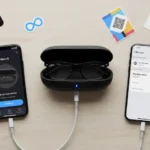
- Charge Them Up: Connect the included charging stand to a power outlet using the USB-A to USB-C cable (note: the wall adapter is often sold separately, so you’ll need your own 5W USB power adapter).
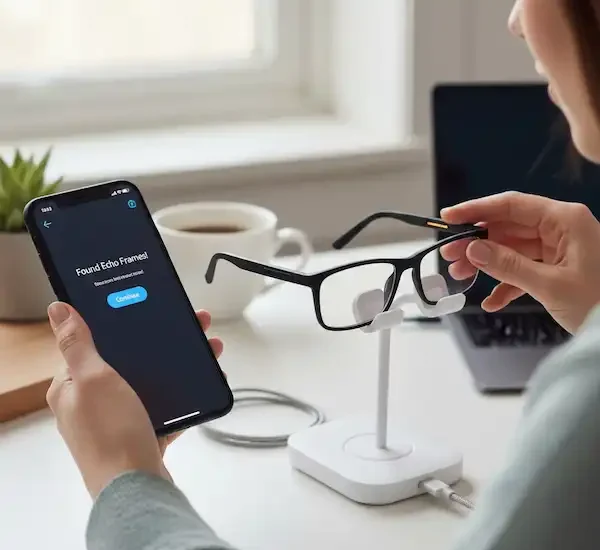
- Place the Frames: Set your Echo Frames onto the stand with the lenses facing up. The light on the stand should pulse white to show it’s detected them. Once charging properly, the light will turn a solid color (usually green when full, which takes about 2.5 hours).
- Check Compatibility: Make sure your phone is running a recent operating system. For the newest (3rd Gen) Echo Frames, you’ll need Android 9.0 or greater or iOS 14.0 or greater.
📱 Step 2: Set Up Amazon Echo Frames Smart Glasses – Grab the Alexa App
This is the central hub for your Echo Frames.
- Download: If you don’t already have it, download the Amazon Alexa app from the Google Play Store (for Android) or the Apple App Store (for iPhone).
- Log In: Open the app and log in with your Amazon account credentials.
✨ Step 3: Put on the Frames and Start Pairing
Now for the magic part—Set Up Amazon Echo Frames smart glasses by connecting them to your phone!
- Power On: Take the fully charged Echo Frames off the charging stand and put them on. They should power on automatically.
- Enter Pairing Mode: Press and hold the front and back action buttons on the right temple for about 3 seconds. Release the buttons when you see the status light blink orange (this light is usually located on the inner side of the right temple). This means they’re ready to find a device!
- Open the App: In the Alexa app, navigate to the ‘Devices’ tab (usually at the bottom).
- Add a New Device: Tap the ‘+’ icon (top right corner), then select ‘Add Device’.
- Select Your Device: Scroll down and choose ‘Glasses’ (or sometimes ‘Amazon Echo’ then ‘Echo Frames’ depending on the app version).
- Follow the Prompts: The Alexa app will now guide you through finding and connecting to your Echo Frames. Select the Frames when they appear in the list.
Example: You might see a screen that says, “Found Echo Frames!” and then you’ll just tap ‘Continue’ to finish the pairing and registration process to your Amazon account.
💡 Step 4: Finishing Touches and Customization to Set Up Amazon Echo Frames
Once paired, the real fun begins! You can customize your experience in the Alexa app under your Echo Frames’ settings:
| Feature | What it Does | Why You Should Set It Up |
| VIP Filter | Choose which contacts and apps can trigger a notification read-out. | Avoid constant interruptions! Only hear notifications from your boss, family, or critical apps. |
| Change Wake Word | Switch from saying “Alexa” to “Echo.” | Personal preference, especially if you have other Echo devices nearby! |
| Auto Volume | Automatically adjusts media volume based on your surroundings. | Perfect for going from a quiet office to a busy street without reaching for the volume button. |
| Voice ID | Get personalized responses and access to private features. | Enhanced privacy and a more tailored Alexa experience. |
❓ FAQ: Quick Fixes – Set Up Amazon Echo Frames
| Issue | Quick Fix/Troubleshooting |
| Frames aren’t pairing to the app | Make sure your phone’s Bluetooth is on and the frames’ status light is blinking orange. Try toggling your phone’s Bluetooth off and on, or restart your phone and the Alexa app. |
| Alexa isn’t responding | Check if the microphones are muted (double-press the action button to toggle on/off). Check your phone’s internet connection. |
| Sound is too quiet or tinny | Gently adjust the fit of the frames—the open-ear speakers need to be near your ears. You can also adjust the volume with the rocker button on the frames. |
| Frames aren’t charging | Ensure the frames are seated correctly on the charging stand (lenses facing up). If the light blinks red, slightly reposition them until the pulsing white light appears. |
Video – How to Adjust Your Echo Frames
This video provides a visual guide on how to properly adjust the fit of your Echo Frames, which is crucial for optimal audio quality after you’ve completed the setup.
🔗 Additional Helpful Links – Set Up Amazon Echo Frames
- How to solve problems with Amazon Echo Frames – Amazon Echo Frames Problems & How to Fix Them
Helpful Content & Authoritative Sources
The setup process is simple, but your smart glasses can do so much more! Here are some links to dive deeper:
- How to adjust the fit of your Echo Frames (3rd Gen) & Carrera Smart Glasses (YouTube)
- Amazon’s official Echo Frames Support Page (For the latest user guides, product information, and safety documentation).