Smart Glasses Setup Guide
Getting your first pair of smart glasses is a bit like stepping into a sci-fi movie, but the actual “unboxing to first-use” pipeline can feel more like a tech support nightmare if you don’t have a roadmap. I’ve spent the last year rotating between the Amazon Echo Frames, the sleek Ray-Ban Metas, and the high-immersion XREAL Air 2 Pros. Each one has its own personality—and its own specific “gotchas” during smart glasses setup.
In this guide, I’m breaking down exactly how to get these units up and running, plus a “Universal Guide” for those off-brand glasses you might have snagged on sale. Let’s get you connected without the headache.
The Master Guide to Setup: Echo, Ray-Ban, XREAL, and Beyond
1. Amazon Echo Frames (The “Alexa Everywhere” Experience)
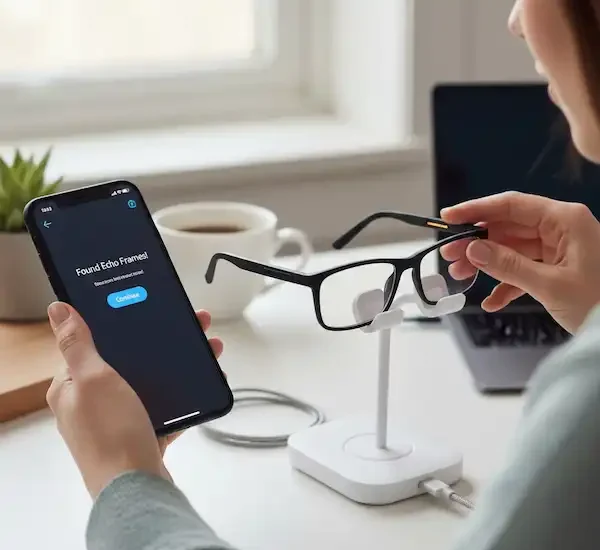
The Echo Frames are designed for people who want a hands-free assistant without looking like a cyborg. Setting these up is usually the smoothest of the bunch because Amazon has the Alexa ecosystem down to a science.
The Step-by-Step:
- Juice Up: Don’t try to pair them straight out of the box. Charge them until the LED turns green. I learned this the hard way—trying to update firmware on 10% battery is a recipe for a frozen device.
- The App: Download the Amazon Alexa app. If you already have it, make sure it’s updated to the latest version.
- Pairing Mode: If they don’t automatically pop up, press and hold the action button (the short one on the right temple) until the light flashes blue and red.
- Connect: In the Alexa app, go to More > Add a Device > Amazon Echo > Echo Frames. Follow the prompts.
- The “Fit” Test: This is crucial. Use the Amazon Fit Guide to adjust the temple tips. You can actually bend the ends slightly to hook better behind your ears. If they slide down your nose, Alexa’s “Auto Volume” will be off because the speakers won’t be aligned with your ears.
Personal Pro-Tip: Turn on the “VIP Filter.” It keeps the glasses from chirping every time you get a junk email, only letting through the notifications you actually care about.
2. Ray-Ban Meta Smart Glasses (The Content Creator’s Choice)
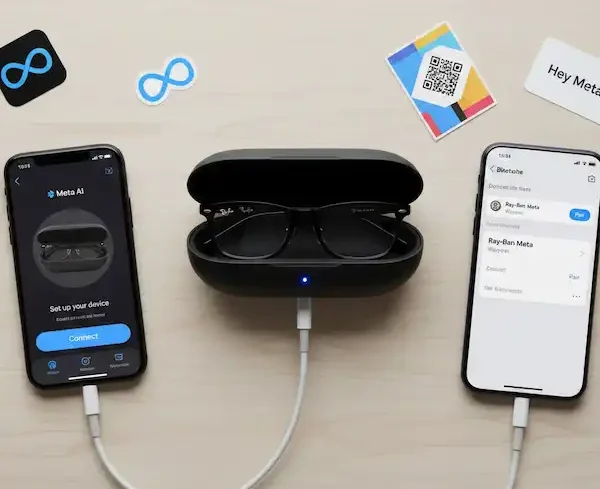
These are my favorites for capturing quick memories. They feel like real sunglasses, but the Smart Glasses Setup requires a bit of “social media” integration.
The Step-by-Step:
- The Case is Key: Keep the glasses in the charging case for the initial pairing.
- App Setup: Download the Meta View app. You’ll need a Meta (Facebook/Instagram) account to use these.
- The “Pull the Tab” Moment: Make sure you’ve removed the plastic protective tab inside the case. I once spent ten minutes wondering why they wouldn’t charge, only to realize I’d missed a tiny piece of plastic.
- Pairing: Hold the button on the back of the charging case for 5 seconds until the LED pulses blue.
- Firmware Update: Expect a 10-minute wait here. The app will likely want to update the glasses immediately. Don’t close the app or walk away from your phone during this.
My Experience: The first time I used the voice command “Hey Meta, take a photo,” I was worried about privacy. The glasses have a physical LED that blinks when recording—respect that! It’s not just a feature; it’s essential for privacy compliance.
3. XREAL Air 2 & Air 2 Pro (The Portable Cinema)
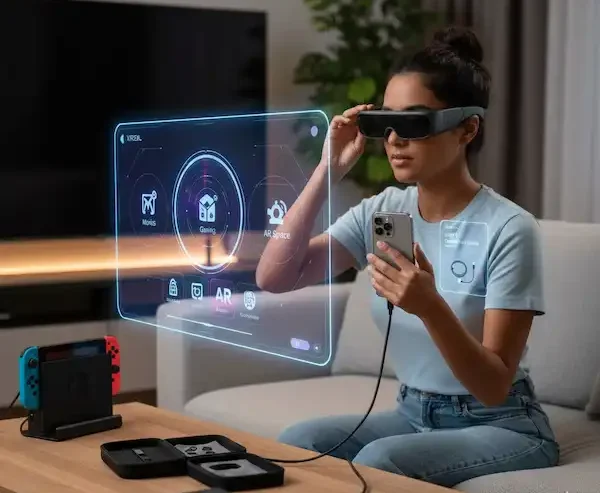
These aren’t just “smart glasses”; they are wearable displays. Because they often require a wired connection, the Smart Glasses Setup is a different beast.
The Step-by-Step:
- Wired Connection: Plug the USB-C cable into the glasses and the other end into your device (Steam Deck, iPad, or a phone with DP Alt Mode support).
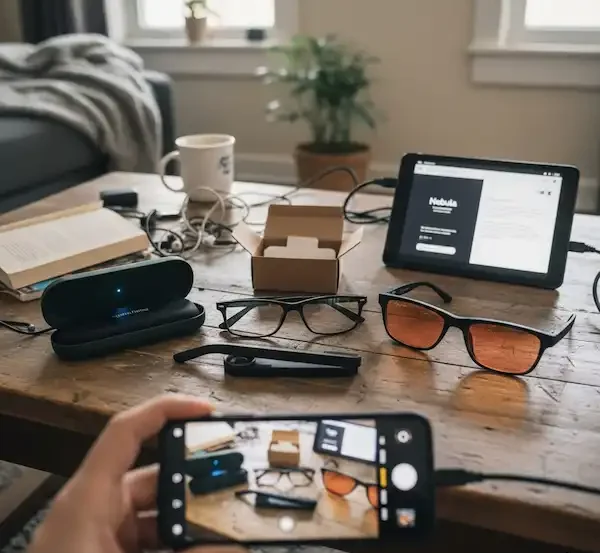
- Nebula App: For Android or Mac users, download the Nebula app. This is what allows for “AR Space” (where windows float in the air around you).
- Update the Firmware: Go to the XREAL OTA update page on a Chrome browser. XREAL is notorious for needing “MCU” and “DP” firmware updates to work with the latest consoles.
- Electrochromic Dimming (Pro Model): If you have the Pro, there’s a button on the right temple. Tap it to cycle through 0%, 35%, and 100% tint.
Troubleshooting Note: If you see “No Signal,” 90% of the time it’s because the USB-C cable isn’t pushed in all the way. These ports are tight—give it a firm click.
4. The Generic/Off-Brand “Universal” Setup
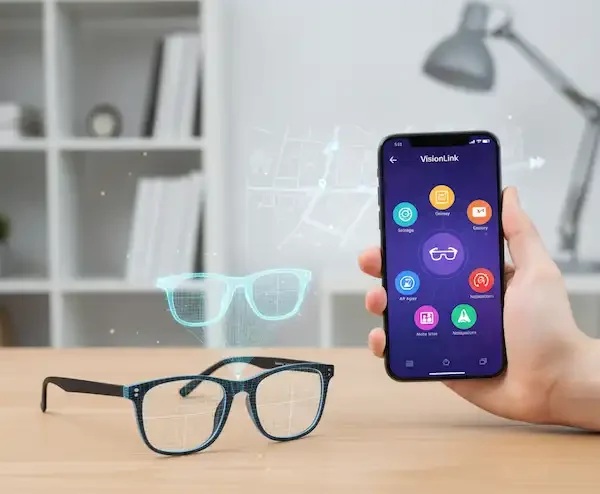
Found a pair of Bluetooth audio glasses on a deal site? Most of them follow a very similar logic to standard Bluetooth earbuds and Smart Glasses Setup.
- Charge via Magnetic Pins: Most generic brands use a proprietary magnetic USB cable. Ensure the pins are clean; a tiny bit of skin oil can prevent a connection.
- The “Long Press” Pair: Most use a 5-to-8 second hold on the power button (usually located on the underside of the right arm) to enter pairing mode. Look for a flashing Red/Blue light.
- Bluetooth Settings: Look for names like “Smart_Glass,” “Audio_Eyewear,” or “Eyewear_BT” in your phone’s Bluetooth menu.
- Dual Pairing: Many generic chips don’t support “Multipoint,” meaning if you pair them to your laptop, you’ll have to manually disconnect them before they’ll talk to your phone again.
Comparing the Big Three: Smart Glasses Brands
| Feature | Echo Frames | Ray-Ban Meta | XREAL Air 2 Pro |
| Primary Use | Productivity / Alexa | Content / Social | Gaming / Movies |
| Connection | Bluetooth | Bluetooth / Wi-Fi | USB-C (Wired) |
| Battery Life | ~6 hours (mixed) | ~4 hours | Powered by Device |
| App Needed | Amazon Alexa | Meta View | Nebula (Optional) |
FAQ: Everything You’re Wondering About Glasses Setup
Q: Can I put my prescription lenses in these?
A: Yes for all three, but the process differs. Echo Frames can be taken to most opticians. Ray-Ban Metas are best ordered with lenses directly, though some labs can retro-fit them. XREAL uses a prescription insert that sits behind the lenses.
Q: Are they waterproof?
A: Generally, no. Most are IPX4 rated, which means they can handle a light splash or sweat. Do not wear them in the shower or go swimming. I learned this the hard way when a heavy rainstorm in NYC nearly bricked my Gen 1 Echo Frames.
Q: Why is the audio so quiet?
A: It’s likely a fit issue. Smart glasses use “open-ear” speakers. If the arms aren’t sitting right against your temples, the sound won’t funnel into your ear canal. Check your alignment!
Q: Do I need a special phone for XREAL?
A: Your phone must support DisplayPort Alt Mode over USB-C. Most flagship Samsung and Apple (iPhone 15 and up) devices do, but many mid-range Androids do not. Check your phone’s specs on [suspicious link removed] before buying.
Final Thoughts from the Field About Glasses Setup
The biggest hurdle with smart glasses isn’t the hardware—it’s the habit. After the setup, the first week is all about remembering to charge them every night alongside your phone. If you’re using the Echo Frames, practice your “Alexa” whisper so you don’t look like you’re talking to yourself in line at the coffee shop. If you’re on the XREALs, get a right-angle USB-C adapter; it makes the cable much more manageable when you’re lying in bed watching Netflix.
Smart glasses aren’t just gadgets anymore; they’re becoming the primary way we interface with our digital lives. Welcome to the future—try not to smudge the lenses!
Additional Helpful Information
Learn more about how to use smart glasses – How to Use Smart Glasses? – A Beginners Guide