How to do Rokid Glasses Setup for AR and AI Rokid Glasses
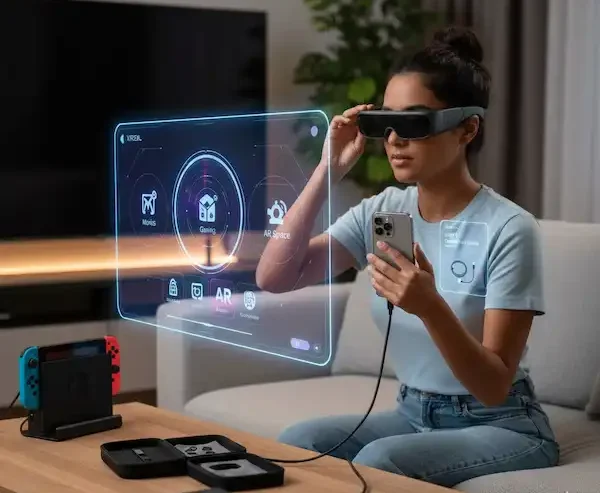
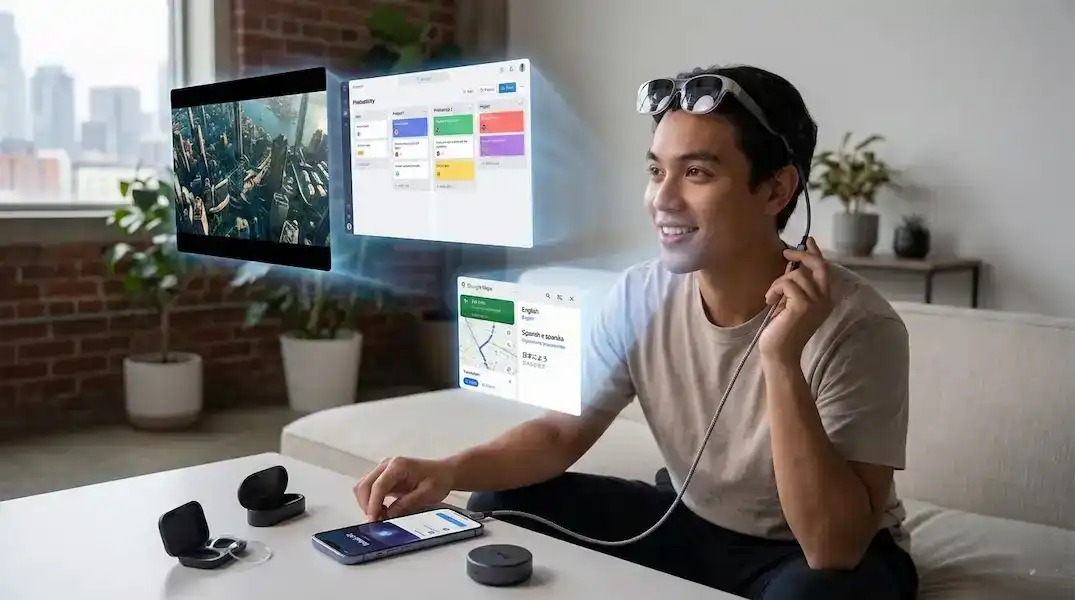
When I pulled a pair of AR glasses out of my bag on a cross-country flight, the person sitting next to me looked at me like I was from the future—or perhaps like I was just wearing very chunky sunglasses indoors. But once I plugged them in and that 120-inch virtual screen appeared in my field of vision, I wasn’t in a cramped middle seat anymore; I was in my own private cinema.
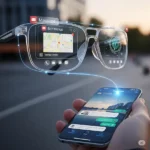
The world of wearable tech has moved fast. We’ve transitioned from the bulky “face-puters” of a few years ago to the sleek, dual-pathway lineup we see today from Rokid. Whether you are looking at the Rokid Max 2 (the big-screen entertainment powerhouse) or the new Rokid AI Glasses (the stylish, camera-equipped daily assistants), getting them to play nice with your phone is the first hurdle.
In this guide, I’m going to walk you through the nuances of the Rokid glasses setup for both iPhone and Android, drawing on a few years of “in-the-trenches” experience with these gadgets.
The Two Flavors: Which Rokid Are You Wearing?
Before we dive into the cables and apps, we have to clarify which device you’re actually holding, because the Rokid glasses setup varies wildly between the two.
1. Rokid AR Glasses (The “Screen” Series)
These include the Rokid Max and Rokid Max 2. Think of these as a high-end wearable monitor. They use “Birdbath” optics to project a massive, high-definition screen in front of your eyes. They are wired, they have diopter adjustments for people like me who are nearsighted, and they are built for movies, gaming, and productivity.
2. Rokid AI Glasses (The “Assistant” Series)
New for 2025 and 2026, these are display-free or use “Waveguide” tech (like the Rokid AI Glasses Style). They look like regular Ray-Bans. They don’t give you a giant movie screen; instead, they have a camera, speakers, and AI integration (ChatGPT or DeepSeek). They connect via Bluetooth and are meant for “heads-up” living—capturing POV video, real-time translation, and AI queries.
The Master Rokid Glasses Setup: Step-by-Step
For Android Users (The “Easy” Path)
Android users generally have it easiest because most modern flagship phones support DisplayPort Alt Mode over USB-C. This means your phone can send video signals directly through the cable.
- Check Compatibility: Ensure your phone is on the official compatibility list. Generally, Samsung S-series, Google Pixels (8 and newer), and OnePlus flagships work great.
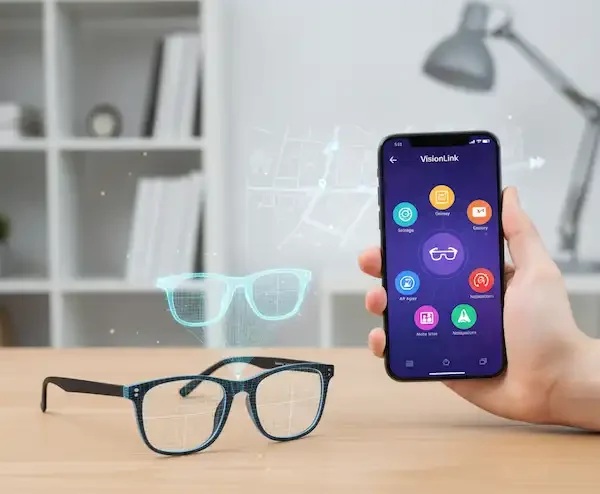
- The “Hi Rokid” App: Download the Rokid AR app from the Google Play Store or the Rokid official site.
- Physical Connection: * For AR Glasses: Plug the USB-C cable into your phone. The glasses should wake up immediately, mirroring your screen.
- For AI Glasses: You don’t need a cable for daily use. Turn the glasses on, open the app, and pair via Bluetooth.
- Firmware Updates: This is the “insider” tip—never skip the first firmware update. I’ve seen countless users complain about “blurry edges” or “audio lag” that were fixed in a 2-minute update within the app.
For iPhone Users (The “Adapter” Path)
If you are on an iPhone 15 or 16, life is grand. Since Apple finally moved to USB-C with DisplayPort support, you can just plug the AR glasses in and go.
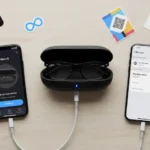
However, if you are on an older iPhone with a Lightning port, you need the Rokid Wireless Adapter or a series of “dongles” (Lightning to HDMI + HDMI to USB-C).
- Pro Tip: If you’re using the Lightning-to-HDMI route, you’ll likely need a power source for the adapter. It’s a mess of wires, which is why I almost always recommend the Rokid Station for iPhone users. It’s a dedicated Android TV “puck” that bypasses the phone connection entirely for media.
Setting Up the Rokid AI Glasses (Style Series)
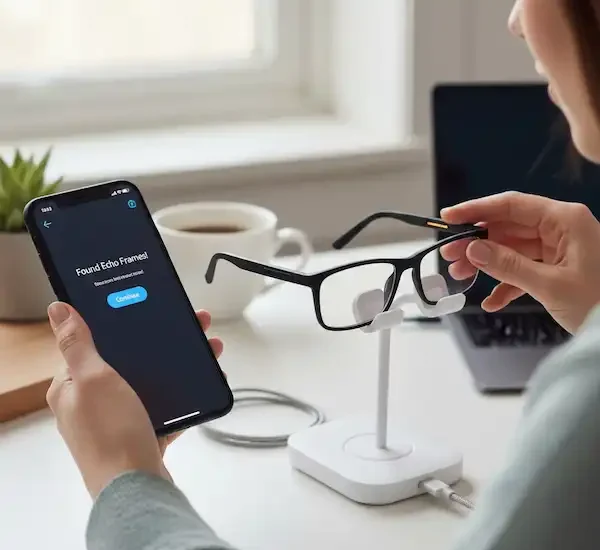
The Rokid glasses setup for the AI-focused glasses is more akin to pairing a pair of AirPods than a monitor.
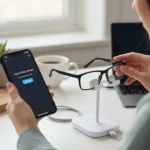
- Charge First: Use the proprietary magnetic charging cable.
- Pairing Mode: Usually involves holding a button on the temple for a few seconds until the LED flashes.
- AI Configuration: Inside the app, you’ll choose your “Brain.” In 2026, Rokid allows you to toggle between different LLMs depending on your region.
- Calibration: If your glasses have the monochrome waveguide display, the app will walk you through a calibration to ensure the text sits right in your line of sight.
Real-World Use Cases
As someone who spends way too much time in digital worlds, I’ve found that the Rokid glasses setup you choose depends entirely on your lifestyle.
The “Digital Nomad” Rokid Glasses Setup
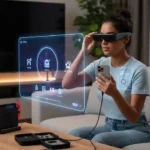
I frequently use my Rokid Max 2 as a secondary monitor. Using an app like Ginger or the native desktop mode on Android, I can have three virtual screens floating in front of me while I sit in a coffee shop. It’s the ultimate privacy hack—nobody can see what I’m writing, and I don’t have to hunch over a laptop.
The “Traveler’s Savior”
The Rokid AI Glasses shine during international travel. Last month in Tokyo, I used the real-time translation feature. The glasses “heard” the Japanese audio through the microphones and projected English subtitles right onto the lens. It’s not 100% perfect—slang still trips it up—but it’s a massive leap over holding a phone up to someone’s face.
The “Hands-Free Creator”
The 12MP camera on the AI Style glasses is a game-changer for POV content. If you’re a cyclist or a home cook, being able to say “Hi Rokid, record video” and getting a stabilized 3K shot of exactly what you see is incredibly liberating.
Insider Knowledge: What the Manual Won’t Tell You
After months of tinkering, here are the “insider” secrets to a better Rokid glasses setup:
- The “Nose Pad” Secret: The fit is everything for image clarity. If the bottom of the screen looks blurry, you likely need to “pinch” the nose pads to sit the glasses higher. Rokid usually includes several sizes in the box—don’t be afraid to swap them.
- The “Station” Hack: If you use the Rokid Station, you can sideload apps. While it comes with a curated store, getting a file explorer on there lets you run almost any Android APK, including specialized media players that handle 3D (Full SBS) content better than the default ones.
- Battery Management: Using AR glasses drains a phone battery fast (we’re talking 30-40% per hour). If you plan on a long session, look for a “V-shaped” USB-C splitter that allows for “Power Delivery” (PD) charging while you play.
Technical Troubleshooting & Maintenance
If your Rokid glasses setup goes sideways, 90% of the time it’s one of three things:
- The Cable: AR glasses require high-bandwidth cables. If you use a random “charging cable” from a gas station, you won’t get a picture. Use the one that came in the box.
- HDCP Issues: Some streaming apps (like Netflix or Disney+) are picky about “external displays.” If you get audio but no video, try restarting the app after the glasses are plugged in.
- Overheating: If the temples get hot, the glasses might throttle the brightness. Give them a 5-minute break.
Frequently Asked Questions (FAQ)
Do I need the Rokid Station for the glasses to work?
No. If your phone supports USB-C DisplayPort, you can plug directly into the glasses. However, the Station provides a “cleaner” experience with a dedicated remote and its own battery, which saves your phone’s life.
Can I wear these with my prescription glasses?
For the Rokid Max series, you don’t need to! They have built-in diopter dials (-6.00D to 0.00D). For the Rokid AI Glasses, they support magnetic prescription inserts that you can order through partners like Lensology.
How long does the battery last?
The AR Glasses don’t have a battery; they pull power from your phone. The AI Glasses (display-less) usually last about 6–8 hours of intermittent use or about 2 hours of continuous video recording.
Are they waterproof?
Most Rokid models are rated IPX4, meaning they are fine for a light drizzle or sweat, but please, do not take them into the pool.
Does the AI translation work offline?
Generally, no. The AI processing (especially for GPT-5 or DeepSeek integration in 2026) happens in the cloud, so you’ll need a stable 5G or Wi-Fi connection on your paired phone.
Final Thoughts
Setting up your new tech shouldn’t feel like a chore. Whether you’re aiming for a cinematic Rokid glasses setup for your next flight or a smart assistant to help you navigate a foreign city, the key is understanding the connection between your hardware and the software.
The jump from “cool toy” to “essential tool” happens the moment you stop thinking about the glasses and start enjoying the content.
Additional Helpful Information
- Read about the Rokid Glasses Comparison – Rokid Smart Glasses Comparison vs Ray-Ban Meta