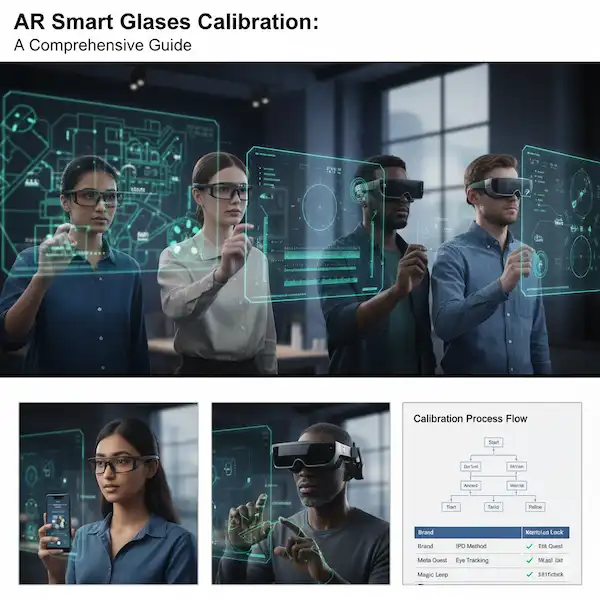
Your Guide to a Perfect Mixed Reality View With AR Smart Glasses Calibration
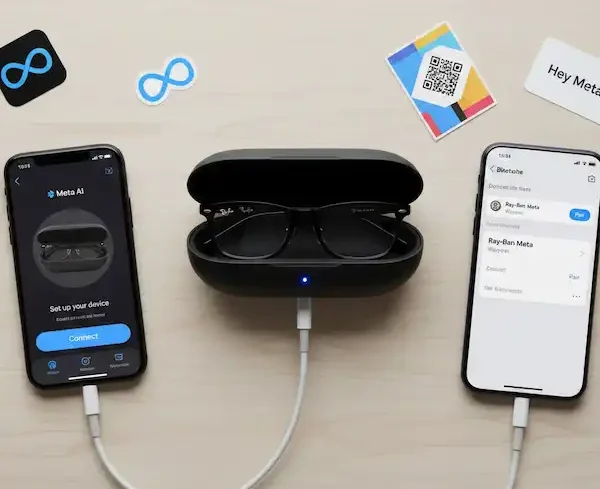
Getting your AR smart glasses to look just right can feel like trying to solve a Rubik’s cube while wearing oven mitts. We’ve all been there: you unbox your shiny new Xreal, Viture, or Meta Ray-Bans, slide them on, and instead of a crisp digital oasis, you get a blurry mess or a screen that looks like it’s sliding off your face.
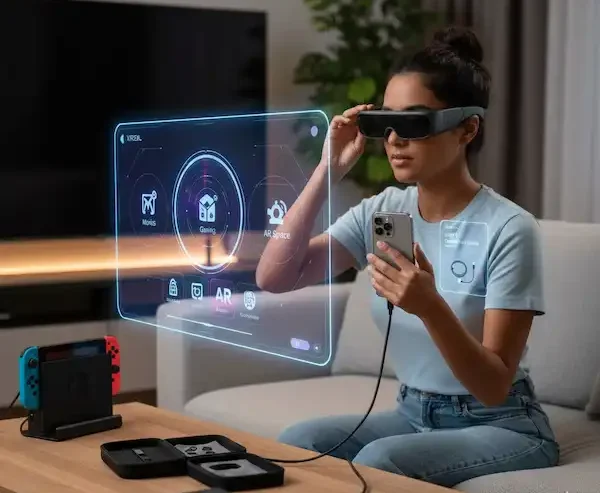
AR Smart Glasses Calibration isn’t just a “one and done” technical chore; it’s the difference between a headache-inducing gadget and a seamless digital workspace. I’ve spent the last year living in these things—from working on trains with an iPhone to gaming on Android tablets—and I’ve learned that the “secret sauce” is almost always in the calibration.
Here is the deep-dive guide on how to do AR Smart Glasses Calibration for both Android and iPhone, filled with the stuff the manuals usually skip.
Why AR Smart Glasses Calibration Matters (The “Why is my head spinning?” Factor)
Before we get into the “how,” let’s talk about why you’re likely reading this. Most people experience one of three things:
- The “Ghosting” Effect: You see a faint double image of text.
- Drift: You look at a virtual screen, and five minutes later, it’s moved three feet to the left.
- Blurry Edges: The center of the screen is sharp, but you can’t read the corners.
The first time I tried the Xreal Air 2s, I almost sent them back. I couldn’t read the clock in the corner of my virtual desktop. I realized later that my Interpupillary Distance (IPD)—the distance between my pupils—didn’t match the default settings. Once I adjusted the physical fit and the software, it was like putting on a fresh pair of prescription lenses.
How To Do Calibration
1. Hardware AR Smart Glasses Calibration: The Foundation
You can’t fix a crooked frame with software. Before you even open an app on your iPhone or Android, you need to handle the physical setup.
Adjusting the Nose Pads
Most AR glasses like the Viture Pro or Rokid Max come with multiple nose pad sizes. Don’t settle for the ones already on the glasses. * Tip: If the bottom of your virtual screen is cut off, you need the glasses to sit lower on your face (shorter nose pads).
- Tip: If the top is cut off or blurry, you need them to sit higher (longer or wider nose pads).
The Temple Tilt
Many glasses (like Xreal) have a three-position hinge on the “arms” or temples. If your screen feels tilted forward or backward, click those hinges into a different notch. I found that for my face shape, having the left arm one notch higher than the right actually made the screen perfectly level.
2. Calibrating on Android: The “Freedom” Route
Android users generally have it easier because most AR brands (Xreal’s Nebula, Rokid’s App, RayNeo’s Mirror) are built natively for the Android file system.
Step-by-Step Calibration (IMU & Gyroscope)
The IMU (Inertial Measurement Unit) is what tells the glasses where they are in space. If your screen is “drifting,” you need an IMU AR Smart Glasses Calibration.
- Connect and Open the App: Plug your glasses into your USB-C DP Alt Mode compatible phone (like a Samsung Galaxy S24 or Pixel 8).
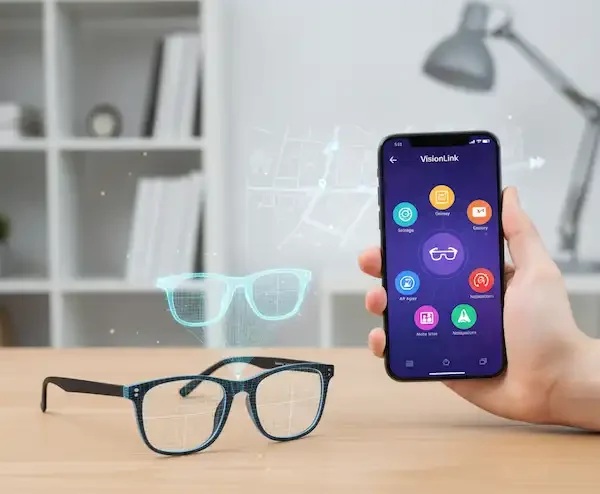
- Find the Calibration Menu: In apps like Nebula or Viture, go to Settings -> Device Management -> Calibration.
- The “Level Surface” Rule: This is where most people fail. You cannot hold the glasses in your hand. Place them on a flat, vibration-free table.
- Start the Process: Click “Calibrate” and do not touch the table for 30–60 seconds.
Android-Specific Perks: ARCore
If you’re using glasses that support Google ARCore, your AR Smart Glasses Calibration is also tied to your phone’s camera. Ensure your phone lens is clean, as the “Spatial Tracking” often uses the phone’s sensors to anchor the glasses’ digital objects.
3. Calibrating on iPhone: The “Adapter” Challenge
iPhone users (especially those on iPhone 14 and older using Lightning) have a slightly different path. If you have the iPhone 15 or 16 with USB-C, it’s much closer to the Android experience.
Using the Viture or Xreal Adapters
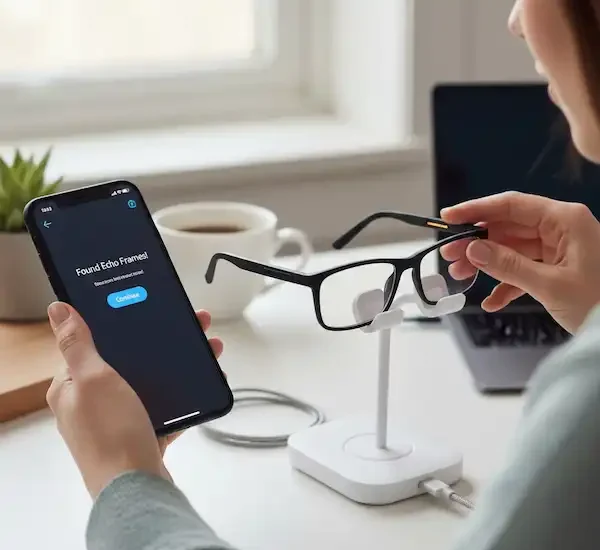
If you’re using an adapter (like the Xreal Beam or Viture Mobile Dock), the AR Smart Glasses Calibration often happens on the adapter itself.
- The Beam “Re-Center”: On the Xreal Beam, hold the “Side Button” while looking straight ahead. This is a “soft calibration” that resets your view.
- iOS Spatial Video: If you are using an iPhone 15 Pro/16 to watch Spatial Video, ensure your glasses are updated to the latest firmware via a Mac or PC first. Apple’s ARKit handles some of the heavy lifting, but it relies on the glasses having accurate firmware.
4. Fixing the Blurry Vision: IPD and Diopter Adjustments
This is the most “human” part of AR Smart Glasses Calibration. No two sets of eyes are the same.
Diopter Dials (For the Near-Sighted)
Glasses like the Rokid Max have built-in diopter dials (usually 0 to -6.00).
- My Experience: I have a -2.5 in my left eye and -2.25 in my right. If I set both dials to “2,” the screen looks okay, but I get a headache after 20 minutes. I spent five minutes fine-tuning each eye individually while closing the other. Do this while looking at fine text, like a browser window.
IPD (Interpupillary Distance)
If your glasses don’t have physical IPD sliders, you have to rely on “eye-box” positioning.
- Open a calibration image (like a grid) on your phone.
- Shift the glasses slowly left and right.
- If you can’t get both eyes clear at once, you might need “Prescription Inserts.” Companies like Lensology make custom inserts that clip into the glasses, which solves 99% of blur issues.
5. Dealing with “Drift” (The Ghost in the Machine)
Drift is when your virtual screen slowly moves away from where you’re looking. It’s incredibly annoying.
- Magnetism Check: I once spent two hours trying to calibrate my glasses only to realize I was sitting next to a massive desktop speaker with a magnet. Magnets mess with the internal compass of AR glasses. Move to a different room and try again.
- Temperature: If your glasses get too hot, the sensors can “drift.” If you’ve been gaming for three hours, give them a five-minute break.
The “Airplane Calibration” Fail
Last month, I was on a flight to London trying to use my Viture Pro glasses with my iPad. Because the plane was constantly vibrating and banking, the “3DoF” (3 Degrees of Freedom) tracking was going crazy. The screen kept flying into the overhead bin.
The fix? I switched to “0DoF” or “Head-Follow” mode. In this mode, the screen is “locked” to your face. While it’s not as “cool” as having a screen floating in mid-air, it’s the only way to use AR glasses in a moving vehicle. Most apps have a toggle for this. On Xreal, it’s often a button on the arm; on Viture, it’s in the neckband or app settings.
Advanced Tips for Pro Users
- The Mirror Test: If you suspect your glasses are physically bent, lay them upside down on a flat table. The arms should be perfectly symmetrical. If one side is higher, your “calibration” will always be off because the IMU thinks you’re tilting your head.
- Firmware is King: Always check for firmware updates via a PC or Mac. Most manufacturers (like Xreal or Viture) have web-based update tools. A firmware update fixed a persistent 2-degree tilt I had for months.
- Lighting Matters: If your glasses use “Inside-Out” tracking (like the Meta Quest 3 or high-end AR), they need light to see the room. If you’re in a dark room, the calibration will fail.
Frequently Asked Questions (FAQ)
Q: Why is one side of my AR glasses screen blurry? A: This is usually a fit issue. Your eye isn’t sitting in the “sweet spot” of the lens (the Eye Box). Try adjusting the nose pads or tilting the arms of the glasses. If you have astigmatism, you likely need prescription inserts.
Q: Can I use AR glasses with my iPhone 14? A: Yes, but you’ll need a Lightning-to-HDMI adapter AND the manufacturer’s specific HDMI-to-USB-C adapter. It’s a bit of a “dongle-hell” situation. Upgrading to an iPhone 15 or 16 (USB-C) makes the connection much more stable.
Q: How do I calibrate the “3DoF” (spatial) tracking? A: Most glasses require you to set them on a flat, still surface while connected to their native app (Nebula, Viture, etc.) and run the “IMU Calibration” tool found in settings.
Q: Does screen brightness affect calibration? A: Not the positional calibration, but it affects visual clarity. In bright rooms, use the “blackout shields” that come with your glasses. This makes the digital image pop and reduces the “eye-searching” strain that can feel like a calibration error.
Q: How often should I recalibrate? A: I usually do a quick “soft reset” (re-centering the screen) every time I put them on. I only do a full “flat-surface IMU calibration” once a month or if I notice significant drifting.
Additional Helpful Links
- Getting started with your smart glasses – How to Use Smart Glasses? – A Beginners Guide
Authoritative External Links
- Microsoft HoloLens Documentation: The official source for HoloLens setup and calibration. https://learn.microsoft.com/en-us/hololens/ (Use the search function for “calibration”)
- Meta Quest Support: Official support pages for Meta Quest devices, including mixed reality setup. https://www.meta.com/help/quest/ (Search for “IPD” or “eye tracking”)
- Magic Leap Documentation: Official guides and support for Magic Leap devices. https://developer.magicleap.com/en-us/learn/guides (Look for “Calibration” or “Setup”)
- Journal of Eye Tracking, Visual Cognition and Emotion: For a deeper dive into the science behind eye tracking and its calibration. https://www.frontiersin.org/journals/psychology/sections/eye-tracking-visual-cognition-and-emotion (Academic resource)
- Understanding IPD and Why It Matters (AllAboutVision)
- How IMU Sensors Work in Wearables (CircuitDigest)
- The Science of Digital Eye Strain (Mayo Clinic)
- Official Xreal Support & Firmware
- Viture Academy: Calibration Guides