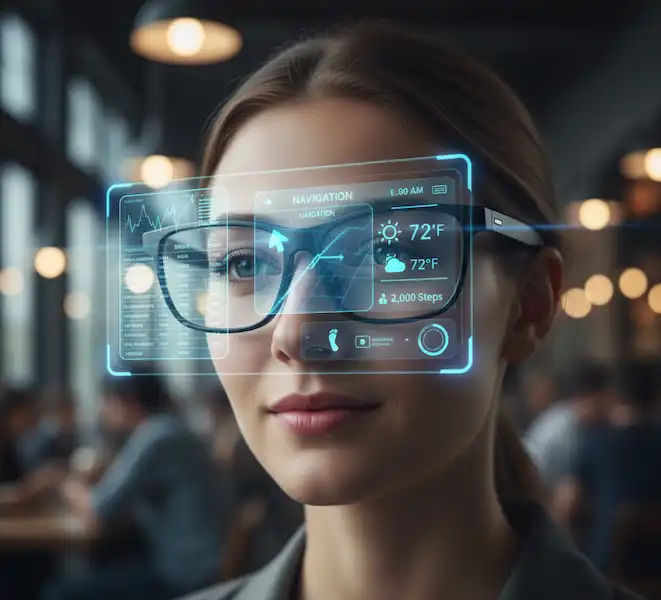
Customize Your Smart Glasses Display with Widgets, Text Size, and AR Overlays
The magic of unboxing my new smart glasses lasted exactly ten minutes. That was how long it took to realize that the stunning hardware was being let down by some seriously erratic display settings. It was a constant battle of extremes: one second, a notification would sear my retinas in a dark room; the next, the midday sun would completely wash out my navigation cues. It was a “sci-fi” experience, sure, but more of a digital rollercoaster than a smooth ride. Continue reading to learn more about how to Customize Your Smart Glasses Display.
Whether you’re rocking the latest Ray-Ban Meta, the XREAL Air series, or a professional pair of Vuzix, the secret to making these gadgets actually useful (and not just an expensive headband) lies in how you Customize Your Smart Glasses Display. Here is my personal deep dive into how you can tweak your smart glasses display on both Android and iPhone to make them feel like a natural extension of your eyes.
The First Step: It’s All About the Hub App
Before you even touch the frames, you have to get the “brain” of the operation onto your phone. Most smart glasses act as peripherals, meaning they rely on a companion app to handle the heavy lifting of settings. Open Google Play or Apple Store and download and install the companion app for your smart glasses to your smartphone.
- For Meta Ray-Ban: You’ll need the Meta View app.
- For XREAL: Grab the Nebula app (the Android version is notably more robust, but the iOS version is catching up).
- For Vuzix: It’s usually the Vuzix Connect app.
Pro Tip from Experience: The very first thing I do is check for a firmware update. I once spent an hour trying to fix a flickering display on my XREALs, only to realize a 2-minute firmware patch via the app fixed the refresh rate instantly.
How To Customize Your Smart Glasses Display:
1. Mastering Brightness: Your Eyes Will Thank You
This is the most frequent adjustment you’ll make. If the screen is too dim, it’s useless; too bright, and you’ll get a headache faster than you can say “augmented reality.”
On Android (The Power User Way)
Android usually gives you more granular control to Customize Your Smart Glasses Display. In the Nebula app for XREAL, for instance, you can often toggle between “Air Casting” and “AR Space.”
- Auto-Brightness: Most high-end glasses have an ambient light sensor. I recommend turning this OFF if you are moving between indoor and outdoor spaces frequently. I’ve found that manual control prevents that annoying “breathing” effect where the screen brightness pumps up and down as you walk past windows.
- Control via Buttons: Many glasses have physical buttons on the temples. On the XREAL Air, I use the rocker on the right arm to tap-adjust brightness without ever pulling my phone out.
On iPhone (The Streamlined Way)
Apple’s ecosystem is a bit more rigid, but often more stable. You can Customize Your Smart Glasses Display:
- Control Center: If your glasses are mirroring your iPhone screen (AirPlay/Wired), you can often slide the brightness bar in your iPhone’s Control Center.
- Meta View Settings: For the Ray-Ban Meta, head into the Meta View app > Settings > Glasses Settings. There is a specific toggle for “Auto Brightness.” I personally keep this ON for my Ray-Bans because the display is a small HUD (Heads Up Display) rather than a full-screen immersion, and it handles transitions much smoother than others.
2. Screen Positioning and “Pinning” (Spatial Customization)
One of the coolest things about modern AR glasses like the XREAL or VITURE is the ability to choose where the screen lives in your vision.
Anchor Mode vs. Follow Mode
- Follow Mode: The screen stays directly in front of your nose. If you turn your head, the movie follows you. This is great for laying in bed.
- Anchor (Spatial) Mode: The screen stays fixed in a “physical” spot in the room. If you look away, the screen stays behind. I used this while cooking recently—I “pinned” a YouTube recipe video over my stove. I could look at my ingredients, then look back at the video in the exact same spot.
Personal Anecdote: If you’re prone to motion sickness (like I am), Anchor Mode is a lifesaver. Having the digital screen “locked” to the real world reduces that disconnect between your inner ear and your eyes that causes nausea.
3. Notification Overload:
If you don’t customize your notifications, your smart glasses will become a source of anxiety. Imagine a giant “SPAM” email popping up right while you’re trying to cross a busy street.
- The Filter: Go into your companion app and disable everything except the essentials. For me, that’s Calls, Texts (from VIPs only), and Calendar alerts.
- Text Size: Most apps allow you to change the font size. If you’re over 30 like me, bumping that text size to “Large” makes those quick-glance notifications much easier to read without straining.
4. Dark Mode and High Contrast
Because smart glasses use transparent displays (OLED or Micro-LED), black pixels are actually transparent. If you want a “cleaner” look where the digital info doesn’t block your view, use Dark Mode on your phone. On my Android, I set my system-wide theme to Pitch Black. This makes the background of apps disappear in my glasses, leaving only the white or colored text “floating” in mid-air. It looks better and is far less distracting.
5. Dealing with Prescription Needs
I wear contacts, but many of my friends don’t. If you’re a glasses wearer, customization isn’t just about software—it’s about the optics.
- Diopter Adjustments: Some glasses (like the VITURE Pro) have built-in dials on top to adjust for myopia.
- Prescription Inserts: For the XREAL or Ray-Ban Meta, you’ll need to order custom inserts. Don’t skip this. Trying to wear smart glasses over your regular glasses is uncomfortable and ruins the focal distance of the internal display.
The “Secret” Calibration: IPD (Interpupillary Distance)
If the edges of your screen look blurry, it’s probably your IPD. This is the distance between your pupils.
- Software Tweak: Some Android apps have an IPD calibration tool that shifts the image left or right by a few millimeters.
- Physical Tweak: Many glasses come with different-sized nose pads (S, M, L). If the display feels too high or low, swapping the nose pad is often the “setting” you actually need to change. I spent weeks frustrated with a cut-off top edge before realizing the “Large” nose pad dropped the glasses just enough to see the whole screen.
Thoughts from a Wearable Junkie
Customize your smart glasses display isn’t a “one and done” task. Every time I get a new pair, I spend the first few days constantly tweaking. My advice? Start in a dark room to get your brightness and IPD right, then head outside to test your notification legibility. Once you find that “sweet spot” where the digital world blends seamlessly with the real one, you’ll never want to look at a handheld screen again.
By taking the time to customize your smart glasses display, you can transform them from a novel gadget into an indispensable tool that seamlessly integrates into your digital and physical world. The future is here, and it’s personalized.
FAQ: Everything You’re Probably Wondering
Q: Can I use my smart glasses as a primary monitor for work? A: Yes, especially with Android devices that support “Desktop Mode” (like Samsung DeX). On iPhone, you’re mostly limited to mirroring, which is okay for emails but tough for heavy spreadsheets.
Q: Why does my display look “ghostly” or transparent? A: That’s the nature of AR optics! If it’s too transparent, try using a “Light Shield” (the plastic covers that come with most AR glasses) to block out external light. This makes the colors pop and the blacks look deeper.
Q: Will these drain my phone battery? A: Absolutely. Smart glasses pull power directly from your phone’s USB-C or Lightning port. If I’m planning a long movie session, I use a “Charging Hub” or the XREAL Beam to charge my phone while the glasses are plugged in.
Q: Does the display work in direct sunlight? A: It’s tough. Even with 5,000 nits of brightness, the sun is brighter. You’ll definitely want a pair of “clip-on” shades or glasses with Electrochromic Dimming (like the XREAL Air 2 Pro) which can darken the outer lens with the press of a button.
Q: Can I watch Netflix on them? A: On Android, usually yes. On iPhone, Netflix and some other apps block “screen mirroring” due to DRM (Digital Rights Management). You may need a dedicated adapter or a device like the XREAL Beam or Apple TV to get around this.
Additional Helpful Links
Learn about making your smart glasses more comfortable – Smart Glasses Comfort: Fit, Ergonomics & Wearability
External Links for Authoritative Sources
- Meta View App Support (for Ray-Ban Meta Smart Glasses): https://www.meta.com/help/ray-ban-stories/
- XREAL Official Website & Support: https://www.xreal.com/
- Google Glass Enterprise Edition 2 Documentation: https://developers.google.com/glass (This link is for developers and IT professionals, as the EE2 is an enterprise product).
- Augmented Reality Overview (Microsoft): https://www.microsoft.com/en-us/research/project/augmented-reality/
- Wearable Technology Industry Statistics (Statista): https://www.statista.com/markets/423/wearable-technology/