A Guide to Smart Glasses Prescription Lens Integration
The Prescription Challenge for Smart Glasses
Smart glasses, especially those like Xreal Air and VITURE One/Pro that project a virtual screen (often referred to as XR or AR glasses), offer incredible portable display technology. However, if you rely on vision correction, getting a clear, focused image requires integrating your Smart Glasses Prescription. This guide breaks down the two main solutions and provides step-by-step instructions.
Section 1: The Two Paths to Prescription Clarity
For smart glasses prescription support falls into two main categories:
Path A: Diopter Adjustment Dials (Internal Correction)
Some models, like the VITURE One/Pro/Luma Pro and Rokid Max, feature built-in adjustable focus dials (diopter adjustments).
| Model Example | Correction Type | Adjustment Range (Myopia/Nearsightedness) | Best For |
| VITURE Luma Pro | Built-in Dials | Up to approx. $-5.0$ Diopters ($\text{D}$) | Users with mild to moderate myopia (nearsightedness) and no or very mild astigmatism. |
| Rokid Max | Built-in Dials | Up to approx. $-6.0$ Diopters ($\text{D}$) | Users with myopia only. |
Diopter and Myopia Adjustment: Troubleshooting and Use
The built-in diopter dials adjust the focal length of the virtual screen, simulating the effect of a corrective lens for nearsightedness.
How to Use Effectively:
- Start at Zero: Put on the glasses and ensure both dials are set to the neutral/zero position.
- Focus One Eye: Close one eye (e.g., your left eye) and look at the screen display with the open eye (e.g., your right eye).
- Adjust the Dial: Slowly turn the corresponding dial (in this case, the right dial) until the text and image on the virtual screen are as sharp as possible.
- Repeat for the Other Eye: Close the first eye (right) and repeat the process for the other eye (left).
- Final Check: Open both eyes. The image should be crisp and comfortable.
Limitations of Diopter Dials:
- No Astigmatism (Cylinder/CYL) Correction: Dials only correct spherical error (SPH). If your prescription includes a significant Cylinder value, the screen may still be blurry, necessitating custom lens inserts (Path B).
- Limited Farsightedness (Hyperopia/Plus) Correction: Most built-in dials only correct negative (myopia) prescriptions.
Path B: Custom Prescription Lens Inserts
This is the most common and versatile solution, used by glasses like Xreal Air, Meta Ray-Ban, and many others that lack built-in dials.
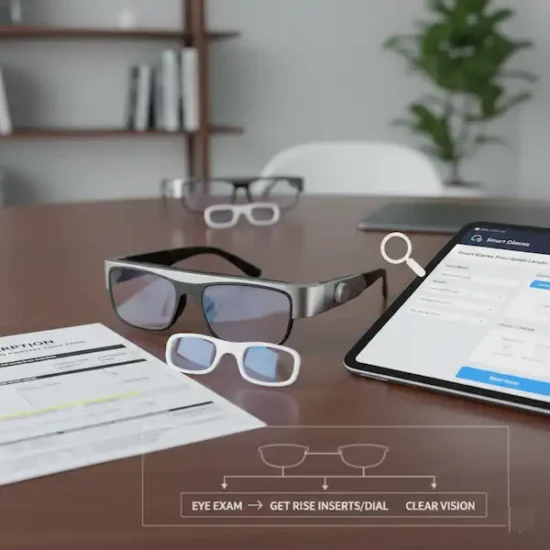
Smart Glasses Prescription lens inserts are custom-made lenses that snap or clip into the smart glasses frame, sitting between your eye and the display optics.
Section 2: Ordering and Installation Guides (Path B)
The process is generally consistent across major brands like Xreal and Viture (if you require astigmatism correction).
Step-by-Step Ordering Instructions
1. Obtain an Up-to-Date Eye Smart Glasses Prescription
- You need a recent prescription (less than 1-2 years old). Ensure it includes:
- Sphere (SPH): Myopia (-) or Hyperopia (+).
- Cylinder (CYL) & Axis (AXS): For astigmatism correction.
- Pupillary Distance (PD): The distance between the centers of your pupils. A correct PD is critical for alignment and comfort.
2. Choose Your Prescription Lens Provider
- Smart glasses manufacturers often partner with a dedicated lens company (e.g., HONSVR for Xreal, VR-Rock for Viture/Xreal) or have official third-party options.
- Authority Tip: Always prioritize the manufacturer’s official partner for guaranteed compatibility and warranty support.
3. Select Your Smart Glasses Model
- Be precise! Inserts for an Xreal Air 2 are different from those for an Xreal Air.
4. Enter Your Smart Glasses Prescription Details
- Carefully enter the SPH, CYL, AXS, and PD for your Right Eye (OD) and Left Eye (OS). Double-check for plus/minus signs.
| Example Smart Glasses Prescription Format |
| Eye |
| Right (OD) |
| Left (OS) |
| Total PD: $63.5$mm |
5. Choose Lens Options (Coatings)
- We strongly recommend choosing Anti-Reflective and Anti-Scratch coatings. Blue Light Filtering may be optional but is often beneficial for prolonged screen time.
6. Complete Order and Wait for Delivery
Installation Instructions
Custom inserts usually come pre-installed in a thin carrier frame that is designed to clip perfectly into the smart glasses.
- Locate the Insert Slot: On most AR/XR glasses, the insert frame is designed to clip directly onto the nose bridge area or sit flush inside the display optics.
- Align and Clip: Hold the lens insert frame and align the top edge with the glasses’ inner rim.
- Gently Press: Apply gentle, even pressure until you feel or hear a soft ‘click’ indicating the frame is seated securely.
- Confirm Alignment: The prescription lenses should sit centered in front of the display optics and not shift easily.
Section 3: Limitations and Advanced Considerations
Maximum Smart Glasses Prescription Strength Limits
This is one of the most critical limitations, as extremely high prescriptions can cause distortion or simply exceed what the insert manufacturers can safely produce for these frames.
| Device Type | Example Manufacturer Limits (General Range) | Sphere Limit (SPH) | Cylinder Limit (CYL) |
| Smart Display Glasses (Xreal, Viture Inserts) | HONSVR/VR-Rock | $-8.00$ to $-12.00$ (Myopia) | $-2.00$ to $-4.00$ (Astigmatism) |
| Smart Camera/Audio Glasses (Meta Ray-Ban) | Official Lab | $-6.00$ to $+4.00$ (Varies by lab) | Typically $\pm2.00$ to $\pm4.00$ |
- ACTION: If your prescription exceeds $\pm8.00$ SPH or $\pm4.00$ CYL, you MUST contact the lens provider’s customer service before ordering to confirm support and discuss high-index lens options (thinner lenses for stronger prescriptions).
Vision Type Caveat: Near vs. Far Prescription
Smart glasses project their virtual screen at a set optical distance (e.g., $10$ feet for Xreal).
- Recommendation: If you have separate Smart Glasses Prescription for reading (near) and distance (far), you should generally use your distance prescription for the smart glasses. The projected screen is far enough away that a reading prescription will make the virtual screen blurry.
Frequently Asked Questions (FAQ) – Smart Glasses Prescription
Q: Do I still need my regular glasses if I use the inserts?
A: No. The lens inserts fully correct your vision for the virtual screen, replacing your standard distance glasses while using the smart glasses.
Q: I have astigmatism. Can I use the built-in diopter dials?
A: No. Built-in dials only correct sphere (SPH). If your prescription includes a cylinder (CYL) value, you must order custom lens inserts (Path B) for a clear image.
Q: How long does it take to get the prescription lenses?
A: Standard processing and shipping typically take $\mathbf{1 – 3}$ weeks, depending on the complexity of your prescription (e.g., high-index lenses) and your shipping location.
Q: What is the benefit of a Blue Light Filter coating on the inserts?
A: Given that you are looking directly at a digital display (Micro-OLED), a blue light filter may help reduce digital eye strain and improve comfort during extended use.
Additional Helpful Links
- Here are details about how to customize your smart glasses display – Customize Your Smart Glasses Display
- More details about preseciption lens for smart glasses – Adjustable Focus Smart Glasses: The Ultimate Guide to Tunable Eyewear
Authoritative External Links
- The Vision Council: https://thevisioncouncil.org (Authoritative source for eye health and vision correction standards.)
- Manufacturer Support Pages: Always refer to the official support pages for your specific smart glasses model (e.g., Xreal/VITURE/Meta) for the most accurate and up-to-date prescription ordering links and compatibility information.