
Solos Air Smart Glasses: Your Ultimate Setup, Troubleshooting & Best Apps Guide
Hey there! If you’re reading this, you’ve just taken the plunge into the world of smart eyewear with the Solos Air, and trust me, you’re in for a treat. I’ve been wearing these things almost daily since I got them, and they’ve completely changed how I handle audio and phone calls on the go. They look just like my old specs, but they’re packed with hidden tech.
When I first unboxed them, I felt a little lost trying to figure out the best way to use them. This guide is basically the cheat sheet I wish I had on day one. Let’s get you set up, troubleshoot those little headaches, and find the killer apps that make these glasses truly indispensable.
1. Unboxing & First Impressions (The “Aha!” Moment)
The packaging for the Solos Air is sleek, which immediately made me feel like I bought something premium. I love that the charging case is small enough to slip into my jacket pocket—it doesn’t feel like carrying a bulky gadget.
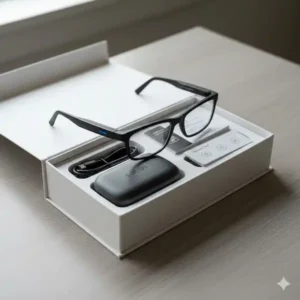
- Solos Air Smart Glasses: Your main device.
- Charging Case: Essential for charging and protecting your glasses.
- USB-C Charging Cable: For charging the case and glasses.
- Cleaning Cloth: To keep your lenses smudge-free.
- Quick Start Guide & User Manual: Important documentation.
2. Let’s Get Started: My Simple Setup Process
Setting up smart devices can sometimes be a nightmare, but I found the Solos Air process surprisingly smooth.
Step 1: The First Charge
I always recommend charging any new gadget fully before you use it. It optimizes the battery health from the get-go.
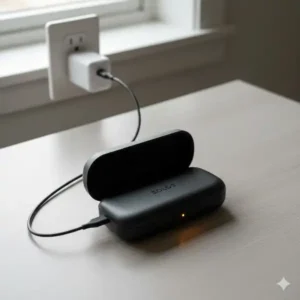
- Tuck ’em In: Place the glasses snugly into the charging case. You’ll hear a satisfying little click when the charging contacts line up correctly.
- Plug and Wait: Plug the case into the wall. I always look for that little LED indicator on the case. It starts glowing orange or red while charging, and once it turns green, you know you’re good to go. Pro tip: Get this charging out of the way overnight!
Step 2: Grabbing the Companion App
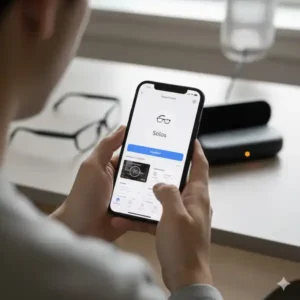
This step is non-negotiable. The Solos App is the brain for your glasses—you need it for connecting, updating the firmware (which is crucial for performance!), and fine-tuning settings.
Step 3: Pairing—Don’t Overthink It!
This is where the magic happens.
- Open the App & Bluetooth: Launch the Solos App and ensure your phone’s Bluetooth is on.
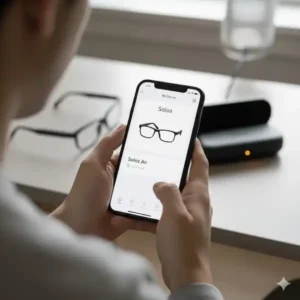
- Wake Them Up: Take the Solos Air glasses out of the case. They’re designed to immediately start looking for a connection when you remove them. You should see a tiny, friendly blinking LED light.
- Connect: The app will quickly find “Solos Air.” Tap it, confirm, and boom—you’re connected.
My Anecdote: The first time I connected, I accidentally had my work laptop’s Bluetooth running, and the glasses tried to pair with that instead. If you have trouble connecting, just turn off the Bluetooth on any other nearby devices for a minute!
Mastering the Controls
The beauty of the Solos Air is that the controls are totally invisible to the world. It makes you feel like a secret agent.
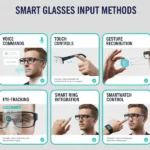
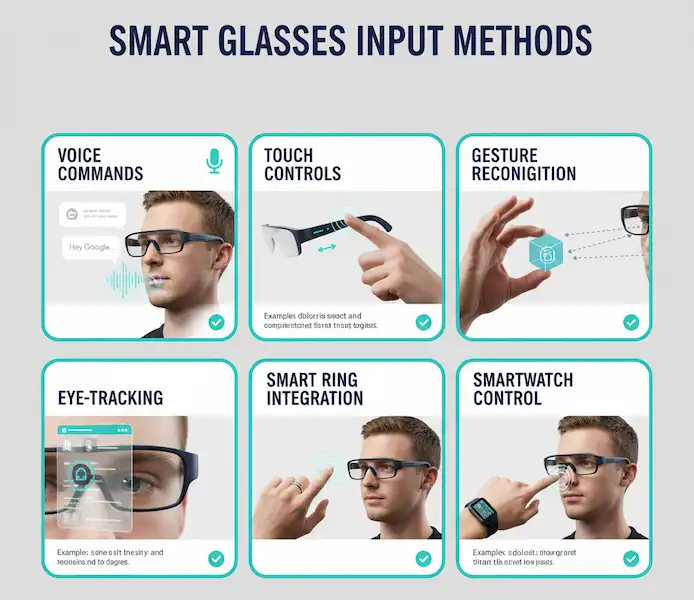
Control Overview:
| Feature | Control Method | Action |
| Power On/Off | Long press on temples / Auto | On: Remove from case. Off: Place in case. |
| Play/Pause | Single tap on either temple | Toggles audio playback. |
| Next Track | Double tap on right temple | Skips to the next song. |
| Previous Track | Double tap on left temple | Goes back to the beginning of the current/previous song. |
| Volume Up | Swipe forward on right temple | Increases audio volume. |
| Volume Down | Swipe backward on right temple | Decreases audio volume. |
| Answer/End Call | Single tap on either temple | Answers an incoming call, or ends an active call. |
| Reject Call | Long press on either temple | Rejects an incoming call. |
| Voice Assistant | Triple tap on either temple | Activates your phone’s voice assistant (Siri, Google Assistant). |
4. The Troubleshooting Corner (We All Need It)
Okay, let’s be real. Smart tech sometimes throws a tantrum. Here are the simple fixes I’ve used when my Solos Air acts up.
Issue: “Why Won’t They Turn On?!”
- The Obvious: Are they charged? Put them back in the case, wait for the green light, and try again. 90% of the time, that’s the fix.
Issue: The Stubborn Pairing Problem
- The Nuclear Option (for Bluetooth): Go to your phone’s Bluetooth settings and manually select “Forget This Device” for the Solos Air. Then, restart your phone and the glasses (by casing them and uncasing them). It forces a fresh start.
Issue: Audio Sounds Weak or Cuts Out
The Fix: Make sure your phone isn’t too far away (Bluetooth range is usually 30 feet, but walls degrade that fast). If it’s still choppy, check for firmware updates—Solos constantly improves connection stability through updates.
My Opinion on Sound: Look, these aren’t noise-canceling headphones. The open-ear design is fantastic because I can hear traffic and talk to people, but it means high-fidelity music can sound a bit thin in noisy environments.
Best Apps to Enhance Your Solos Air Experience
While Solos Air handles basic audio and calls brilliantly, these apps can take your smart glasses experience to the next level.
Essential Audio & Communication Apps
- Spotify / Apple Music / YouTube Music: (Music Streaming)
- Why it’s great: Seamlessly stream your favorite playlists, podcasts, and albums directly to your Solos Air glasses. The open-ear audio design means you can enjoy your content while remaining aware of your surroundings.
- Integration: Use the Solos Air touch controls for play/pause, skip, and volume.
- Podcast Apps (e.g., Apple Podcasts, Google Podcasts, Overcast): (Podcast Playback)
- Why it’s great: Catch up on news, stories, and educational content hands-free. Perfect for walks, chores, or commutes.
- Integration: Standard media controls apply.
- WhatsApp / Telegram / Signal: (Messaging & VoIP Calls)
- Why it’s great: Handle calls and listen to message notifications privately through your glasses. Use your phone’s voice assistant (activated by triple-tapping) to dictate replies.
- Integration: Call management via single tap, notifications heard discreetly.
Productivity & Smart Assistant Apps
- Google Assistant / Siri: (Voice Assistant)
- Why it’s great: Your built-in smart assistant is your best friend. Triple-tap to ask questions, set reminders, check the weather, control smart home devices, or make calls – all without touching your phone.
- Integration: Direct activation from the glasses.
- Google Maps / Apple Maps: (Navigation)
- Why it’s great: Receive turn-by-turn navigation instructions privately in your ear, leaving your eyes free to focus on the road or path. No more fumbling with your phone for directions.
- Integration: Audio prompts delivered directly.
Fitness & Wellness Apps
- Strava / Runkeeper / Nike Run Club: (Fitness Tracking)
- Why it’s great: Get audio cues on your pace, distance, and heart rate (if using a connected HR monitor) during your runs or rides. Listen to your workout playlist simultaneously.
- Integration: Background audio cues, music controls.
- Meditation/Mindfulness Apps (e.g., Calm, Headspace): (Guided Meditation)
- Why it’s great: Enjoy guided meditations and soothing soundscapes with crystal-clear audio, helping you find focus and relaxation in any environment.
- Integration: Immersive audio experience.
Optimizing Your Solos Air Smart Glasses Experience
Here are some tips to get the most out of your smart glasses.
- Firmware Updates: Regularly check the Solos app for firmware updates. These often bring performance improvements, new features, and bug fixes.
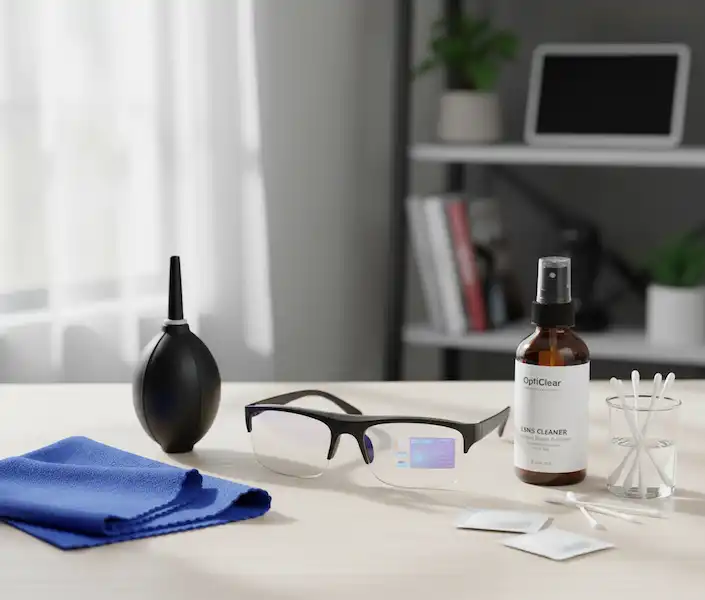
- Keep Lenses Clean: Use the provided cleaning cloth to keep your lenses clear for optimal vision.
- Adjust Volume Appropriately: The open-ear design means others might hear your audio at very high volumes. Be mindful of your surroundings.
- Experiment with Voice Assistant: Get comfortable using your phone’s voice assistant via the glasses. It’s a powerful tool for hands-free interaction.
- Charge Regularly: Get into the habit of placing your glasses in their charging case when not in use to ensure they’re always ready.

- Audio Quality: The sound quality for music and calls is generally clear, optimized for personal listening while maintaining situational awareness. It won’t have the deep bass isolation of in-ear headphones but offers a balanced sound for its open-ear design.
- Privacy: While the open-ear design allows you to hear your surroundings, at moderate volumes, the audio is primarily directed towards your ears. At higher volumes, people nearby might faintly hear what you’re listening to, similar to open-back headphones.
Solos Air Smart Glasses vs. Traditional Audio Devices: A Comparison Chart
| Feature | Solos Air Smart Glasses | Traditional Bluetooth Earbuds/Headphones |
| Audio Delivery | Open-ear bone conduction/directional audio | In-ear or over-ear |
| Situational Awareness | High (hear surroundings clearly) | Low (can block out surroundings) |
| Primary Use | Audio, calls, voice assistant, eyewear | Audio, calls |
| Form Factor | Integrated into eyeglasses | Separate devices |
| Battery Life | 4-6 hours (glasses), plus case charges | Varies widely, often 4-8 hours per charge |
| Comfort | Like wearing regular glasses | Can cause ear fatigue for some |
| Discreetness | Blends in as regular glasses | Clearly identifiable as audio devices |
Final Thoughts & Optimizing Your Experience
- The Battery Routine: I’ve found the stated 4–6 hours of battery life to be accurate for continuous use. I just drop them in the case whenever I take them off—it’s now a completely natural habit, and they are always charged when I need them.
- Lenses: If you wear these all day like I do, invest in a good anti-fog or scratch-resistant coating when you get your prescription fitted. They’re too valuable to risk damage!
- Firmware is Gold: I check the Solos app once a month for updates. These small software patches are what fix bugs and improve the overall audio quality and reliability.
Solos Air Smart Glasses vs. My Old Earbuds
I ditched my old wireless earbuds for the Solos Air, and here’s why in a quick comparison:
| Feature | Solos Air Smart Glasses | Traditional Bluetooth Earbuds/Headphones | Why I Switched |
| Awareness | High (Essential for city walking!) | Low (I felt too isolated.) | Safety and communication are key. |
| Form Factor | Integrated into eyeglasses | Separate devices | Less to carry/lose! |
| Call Quality | Excellent Mic (Clear voice pickup) | Good, but often muffled outside. | People hear me better on calls with Solos Air. |
| Comfort | Zero ear fatigue. | My ears used to hurt after two hours. | I can wear these for an entire workday. |
Frequently Asked Questions (FAQ) – Solos Air Smart Glasses
Q: Can I take calls on them?
A: Absolutely! That’s one of their strongest features. The microphone placement on the temples does a fantastic job of picking up your voice clearly, even in slightly breezy conditions.
Q: What if I need prescription lenses?
A: This is why I bought them! You must check with Solos, but they almost always facilitate getting your prescription put into the frames, usually by working with an authorized optician.
Q: Are they tough enough for the gym or rain?
A: They handle sweat and light rain perfectly fine. They have a good splash resistance rating (check the box for the specific IP rating), but please don’t shower or swim with them—they aren’t fully waterproof!
Q: Do people around me hear my music?
A: Not unless the volume is really cranked up! At normal listening levels, the sound is primarily directed right into your ear canal. You’ll hear ambient noise, and others won’t hear your private podcast. It’s truly a neat technological trick.
Additional Helpful Links – Solos Air Smart Glasses
- Read about smart glasses for athletes – Smart Glasses for Athletes: Strava & Garmin Integration
External Links for Authoritative Sources
- Solos Official Website: https://www.solos.com/ (For product details, latest firmware, and support)
- Bluetooth SIG (Special Interest Group): https://www.bluetooth.com/ (For understanding Bluetooth technology standards)
We hope this comprehensive guide helps you fully enjoy your Solos Air Smart Glasses. They’re a fantastic blend of style, technology, and convenience, designed to seamlessly integrate into your daily life.