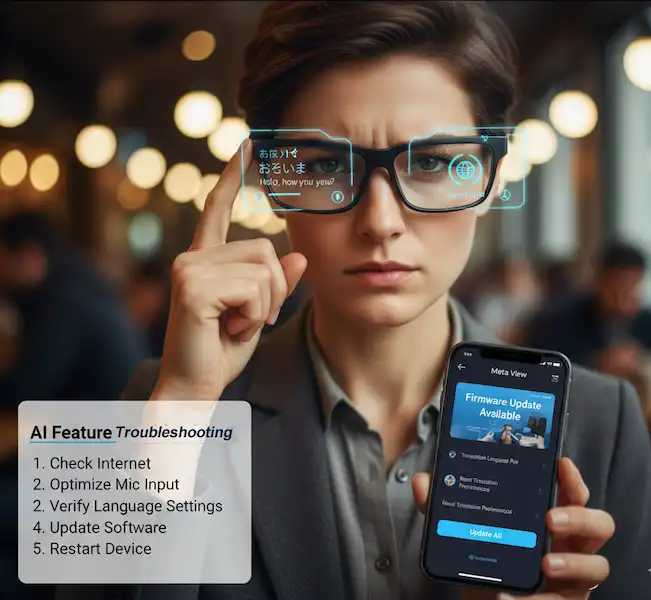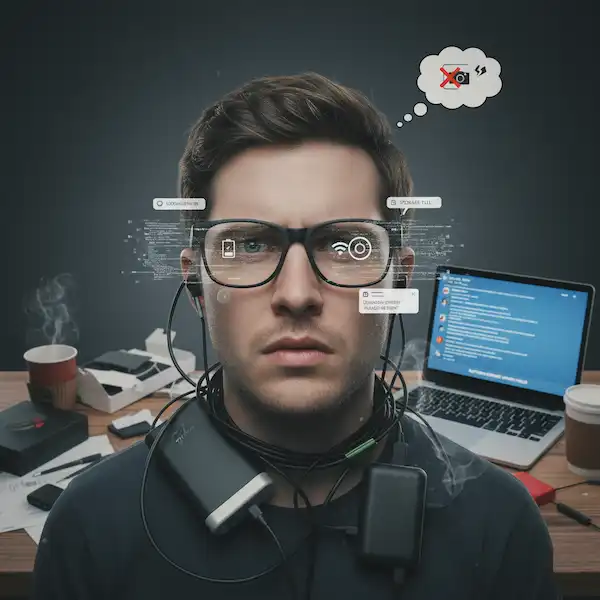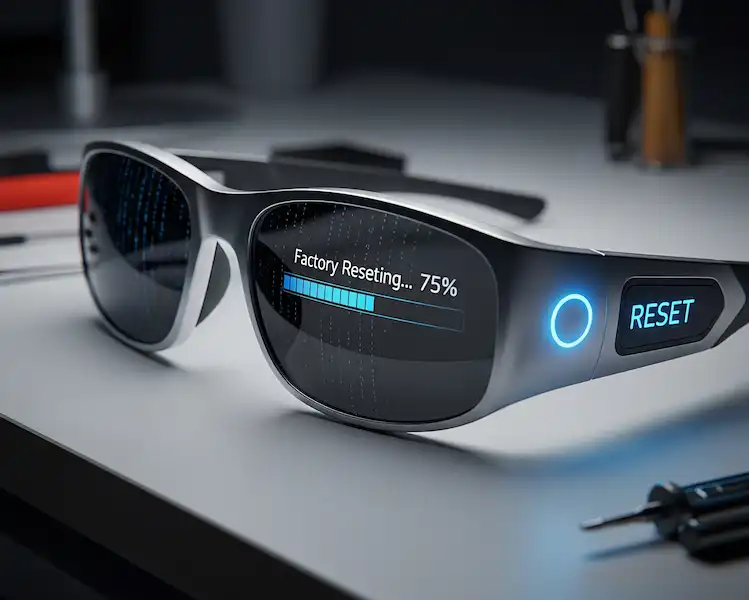
Vuzix Smart Glasses Troubleshooting: Common Problems & Solutions
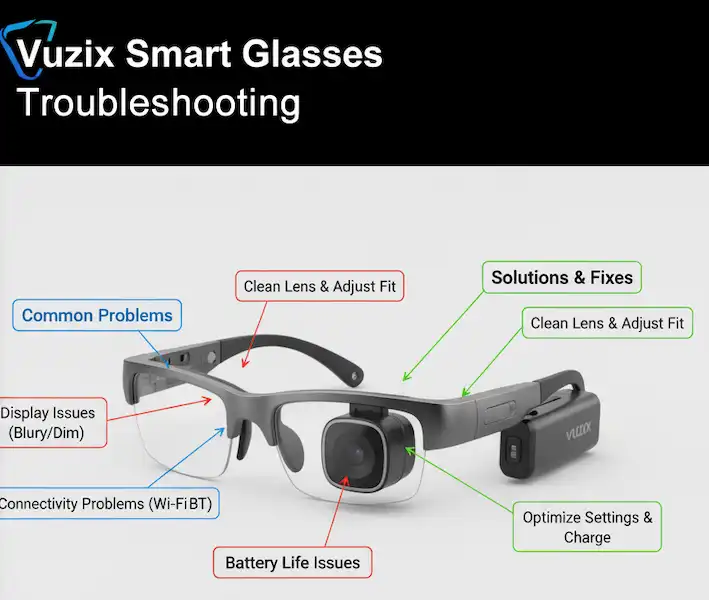
Vuzix Smart Glasses are at the forefront of wearable technology, offering a hands-free computing experience that can revolutionize various industries, from logistics and manufacturing to healthcare and field service. However, like any sophisticated piece of technology, users may occasionally encounter issues. This in-depth guide aims to provide practical solutions to common problems faced by Vuzix Smart Glasses users, ensuring a smooth and productive experience.
Understanding Your Vuzix Smart Glasses
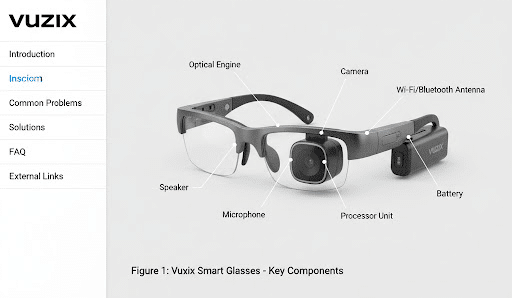
Before diving into troubleshooting, it’s helpful to understand the basic components and functionalities of your Vuzix Smart Glasses. These devices typically consist of:
- Optical Engine: Projects information onto your field of view.
- Processor: The “brain” of the glasses, running the operating system and applications.
- Camera: For capturing images and videos, and often for augmented reality applications.
- Microphone & Speaker: For voice commands and audio feedback.
- Battery: Powers the device.
- Connectivity: Wi-Fi, Bluetooth, and sometimes cellular for data transfer.
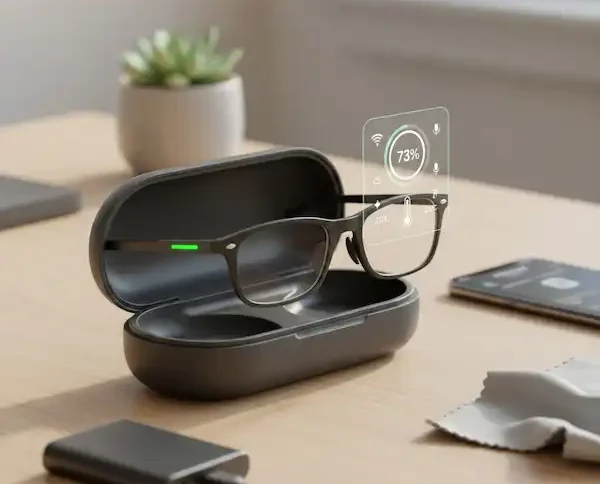
Let’s take a look at a typical Vuzix Smart Glasses device:
Vuzix Smart Glasses Troubleshooting – Common Problems and Solutions
Here’s a breakdown of frequently encountered issues and their corresponding solutions, complete with examples.
1. Display Issues (Blurry, Dim, or No Image)
This is one of the most common complaints. The display is crucial for any smart glass user.
Problem Examples:
- “My display is blurry, and I can’t read text clearly.”
- “The image on my glasses is too dim, even in a dark room.”
- “There’s no image at all, just a black screen.”
Possible Causes:
- Improper Fit/Adjustment: The optical engine isn’t aligned correctly with your eye.
- Dirty Lens/Prism: Smudges or dust on the display surface.
- Software Glitch: Temporary error in the display driver.
- Low Battery: Insufficient power for full display brightness.
- Hardware Malfunction: Less common, but possible.
Solutions:
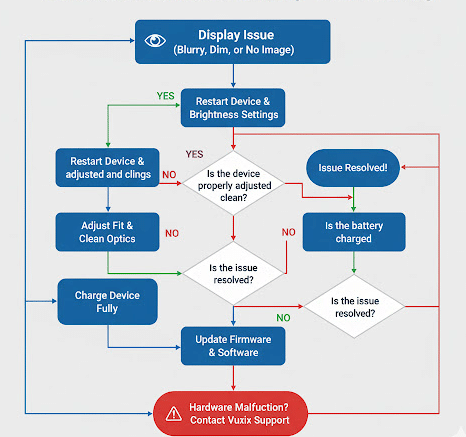
- Adjust Fit: Carefully adjust the glasses on your face to ensure the optical engine is centered with your dominant eye. Many Vuzix models offer adjustable nose pads or temples.
- Clean the Lens/Prism: Use a microfiber cloth specifically designed for optics. Gently wipe the display surface. Avoid harsh chemicals.
- Restart the Device: A simple restart can often resolve software glitches. Turn the glasses off completely and then back on.
- Check Battery Level: Ensure the device is adequately charged. Low battery can sometimes cause dim displays to conserve power.
- Adjust Brightness Settings: Navigate to the display settings within the Vuzix operating system and increase the brightness.
- Update Firmware: Outdated firmware can sometimes lead to display anomalies. Check the Vuzix website or companion app for the latest updates.
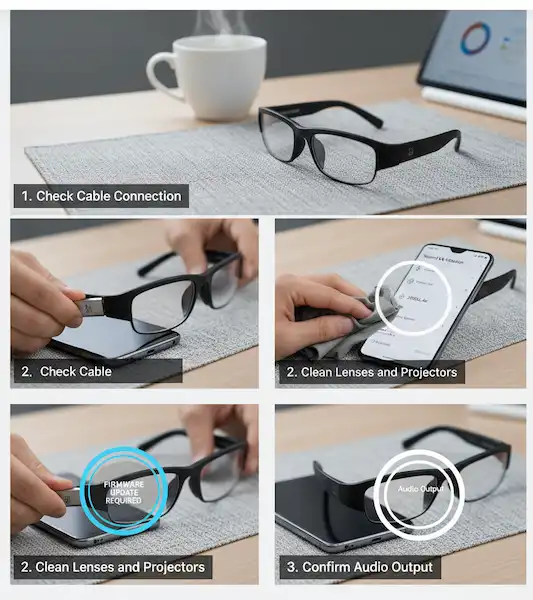
Troubleshooting Flowchart: Display Issues
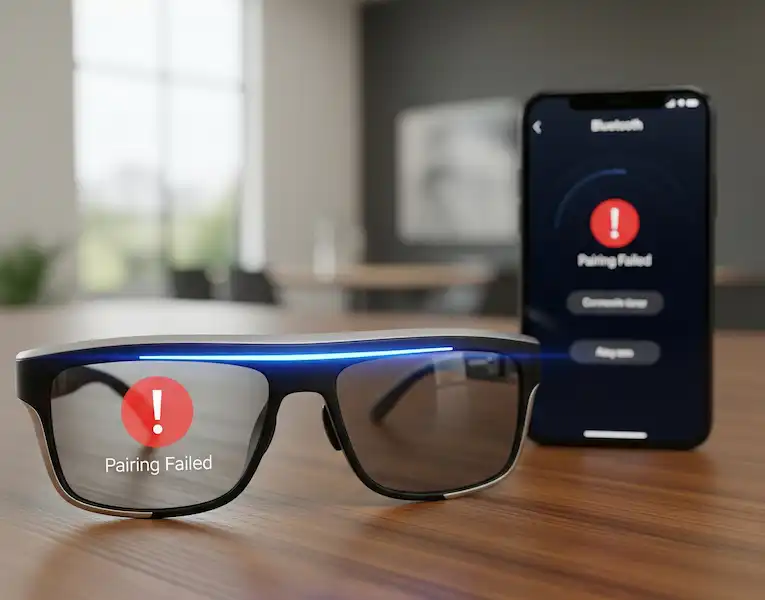
2. Connectivity Problems (Wi-Fi & Bluetooth)
Seamless connectivity is vital for Vuzix Smart Glasses, whether for accessing cloud data, receiving remote assistance, or pairing accessories.
Problem Examples:
- “My glasses won’t connect to the company Wi-Fi network.”
- “I can’t pair my Bluetooth headset with my Vuzix glasses.”
- “The Wi-Fi connection keeps dropping unexpectedly.”
Possible Causes:
- Incorrect Credentials: Wrong password for Wi-Fi or incorrect pairing code for Bluetooth.
- Out of Range: Too far from the Wi-Fi router or Bluetooth device.
- Interference: Other electronic devices interfering with the signal.
- Software Bug: Temporary issue preventing connection.
- Network Restrictions: Firewalls or security settings on the Wi-Fi network.
Solutions:
- Verify Credentials: Double-check Wi-Fi passwords and Bluetooth pairing codes. Ensure Caps Lock is off for passwords.
- Move Closer: Bring the glasses closer to the Wi-Fi access point or the Bluetooth device you’re trying to pair with.
- Restart Network Devices: Reboot your Wi-Fi router and the smart glasses. For Bluetooth, turn the glasses’ Bluetooth off and on again, and do the same for the accessory.
- Forget and Reconnect: In the Wi-Fi or Bluetooth settings of your Vuzix glasses, “forget” the problematic network or device and then attempt to reconnect from scratch.
- Check for Interference: Move away from other devices that might be causing interference (e.g., microwaves, cordless phones, other Wi-Fi devices).
- Consult IT (for Enterprise Users): If connecting to an enterprise network, your IT department might need to whitelist your device’s MAC address or configure specific network settings.
3. Battery Life Issues
Poor battery life can significantly impact productivity, especially in demanding work environments.
Problem Examples:
- “My glasses only last a couple of hours on a full charge.”
- “The battery seems to drain very quickly, even when not in heavy use.”
- “My glasses aren’t charging properly.”
Possible Causes:
- High Usage Applications: Running resource-intensive apps (e.g., video streaming, complex AR applications).
- High Brightness/Volume: Max display brightness and high audio volume consume more power.
- Constant Connectivity: Always-on Wi-Fi and Bluetooth searching.
- Aging Battery: Batteries degrade over time.
- Faulty Charger/Cable: Damaged charging accessories.
Solutions:
- Optimize Settings:
- Reduce display brightness when not necessary.
- Lower audio volume.
- Disable Wi-Fi and Bluetooth when not in use.
- Close unnecessary background applications.
- Use Power-Saving Modes: If available, enable any power-saving features in the device settings.
- Check Charger & Cable: Ensure you are using the original Vuzix charger and cable, or a certified compatible alternative. Inspect them for damage.
- Charge Fully: Always charge the device to 100% and avoid letting it drain completely if possible.
- Battery Replacement: If the glasses are older and battery life has significantly degraded, contact Vuzix support for potential battery replacement options.
Battery Life Optimization Chart – Vuzix Smart Glasses Troubleshooting:
| Feature/Setting | Impact on Battery Life | Recommendation |
| Display Brightness | High | Adjust to lowest comfortable level. |
| Wi-Fi/Bluetooth | Moderate | Turn off when not actively connected. |
| GPS/Location Services | Moderate | Disable if not required by applications. |
| Background Apps | Moderate | Close apps not in active use. |
| Video Streaming/AR Apps | High | Use sparingly or only when necessary for tasks. |
| Speaker Volume | Low | Keep at a reasonable level or use connected headphones/earbuds for efficiency. |
4. Application Performance Issues (Lagging, Crashing)
Apps are the core of smart glasses functionality, and their smooth operation is paramount.
Problem Examples:
- “The application I’m using keeps freezing or crashing.”
- “There’s significant lag when I try to navigate through menus or apps.”
- “Some apps won’t even open.”
Possible Causes:
- Outdated App Version: Bugs in older app versions.
- Insufficient Resources: Too many apps running simultaneously, or a very demanding app.
- Low Storage: Not enough free space on the device.
- Firmware Incompatibility: App not optimized for the current glasses firmware.
- Corrupted App Data: Cached data causing issues.
Solutions:
- Update Applications: Ensure all your applications are updated to their latest versions. Check the Vuzix App Store or your organization’s app deployment platform.
- Close Background Apps: Many smart glasses operating systems allow you to see and close running applications. Free up RAM by closing those you’re not actively using.
- Clear App Cache: In the settings for individual applications, there’s often an option to clear the cache. This can resolve issues caused by corrupted temporary data.
- Free Up Storage: Delete unnecessary files, videos, or unused applications to free up internal storage.
- Restart the Device: Again, a simple restart can clear temporary memory and resolve minor software conflicts.
- Reinstall App: If an app is consistently problematic, try uninstalling and reinstalling it.
- Check Firmware Compatibility: Ensure your glasses’ firmware is compatible with the app. Some apps require a minimum firmware version.
5. Audio Problems (No Sound, Distorted Audio, Mic Not Working)
Clear audio input and output are critical for voice commands, communication, and notifications.
Problem Examples:
- “I can’t hear any sound from my glasses.”
- “The audio sounds crackly or distorted.”
- “People can’t hear me when I use voice commands or make calls.”
Possible Causes:
- Muted Volume: Volume turned down or muted.
- Bluetooth Headset Conflict: Audio being routed to a connected (but perhaps inactive) Bluetooth device.
- Blocked Microphone: Debris or clothing covering the microphone.
- Software Glitch: Temporary audio driver issue.
- Hardware Damage: Less common, but possible damage to speaker or microphone.
Solutions:
- Check Volume Levels: Increase the volume using the physical buttons on the glasses or through the software settings. Ensure it’s not muted.
- Manage Bluetooth Audio: If you have a Bluetooth headset paired, ensure audio is routed to the correct output (either the glasses’ speakers or the headset). Disconnect and reconnect the headset if needed.
- Clear Microphone: Ensure the microphone hole is clean and unobstructed.
- Restart the Device: A restart can often fix temporary audio driver problems.
- Test with Different Apps: See if the audio issue persists across all applications or only specific ones. This helps determine if it’s a device issue or an app-specific bug.
- Run Diagnostics: Some Vuzix models might have built-in diagnostic tools that can test audio components.
Additional Helpful Content
Maintaining Your Vuzix Smart Glasses for Longevity
Prevention is always better than cure. Following these best practices can significantly extend the life and performance of your Vuzix Smart Glasses:
- Regular Cleaning: Gently clean lenses and the device body with a microfiber cloth. Avoid harsh chemicals or abrasive materials.
- Proper Storage: When not in use, store your glasses in a protective case to prevent scratches and accidental damage.
- Avoid Extreme Temperatures: Do not expose your glasses to extreme heat or cold, as this can damage internal components and battery life.
- Keep Software Updated: Regularly check for and install firmware and application updates to benefit from bug fixes and performance improvements.
- Handle with Care: These are precision instruments. Avoid dropping them or subjecting them to excessive force.
- Use Authorized Accessories: Stick to Vuzix-approved chargers and accessories to prevent damage and ensure optimal performance.
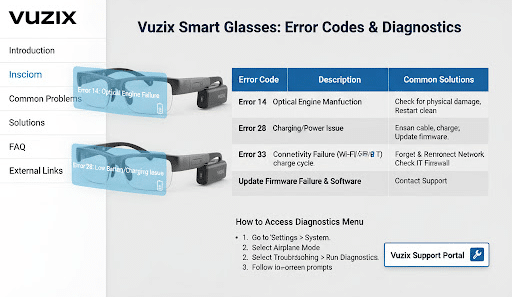
Understanding Error Codes (if applicable)
Some Vuzix models might display specific error codes. If your device presents an error code, note it down and refer to the Vuzix official documentation or support website. These codes are designed to help diagnose specific problems quickly.
When to Contact Vuzix Support
If you’ve tried all the troubleshooting steps and your problem persists, it’s time to contact Vuzix customer support. Be prepared to provide:
- Your Vuzix Smart Glasses model.
- The firmware version.
- A detailed description of the problem and the troubleshooting steps you’ve already taken.
- Any error codes displayed.
Frequently Asked Questions (FAQ) – Vuzix Smart Glasses Troubleshooting:
Q1: How do I perform a factory reset on my Vuzix Smart Glasses?
A1: The exact steps vary slightly by model. Generally, you can find the “Factory Reset” option within the “System” or “Backup & Reset” settings menu. Warning: A factory reset will erase all user data and settings, restoring the device to its original state.
Q2: Can I use my Vuzix Smart Glasses with prescription lenses?
A2: Many Vuzix models offer prescription inserts or are designed to fit over existing prescription glasses. Check the specifications for your particular model or consult Vuzix support for compatible solutions.
Q3: How often should I update the firmware on my Vuzix glasses?
A3: It’s recommended to update firmware whenever a new version is released. Updates often include bug fixes, performance enhancements, and new features. You’ll typically be notified via the device or a companion app.
Q4: My Vuzix glasses are getting warm. Is this normal?
A4: It’s normal for electronic devices to generate some heat, especially during intensive use (e.g., streaming video, running complex AR applications). However, if the device becomes excessively hot to the touch or displays overheating warnings, stop using it and contact support.
Q5: Can I develop my own applications for Vuzix Smart Glasses?
A5: Yes, Vuzix provides an SDK (Software Development Kit) for developers to create custom applications for their smart glasses platforms. Visit the Vuzix developer portal for more information.
Additional Helpful Links
- More information about common smart glasses problems – 5 Common Smart Glasses Problems: Fixes & Solutions
External Links for Authoritative Sources
Official Vuzix Resources
- Vuzix Official Website: https://www.vuzix.com
- Vuzix Product Support & Manuals: https://www.vuzix.com/pages/product-support(Select your specific model here to find user guides and firmware updates.)
- Vuzix Developer Center: https://www.vuzix.com/pages/developers
- Vuzix GitHub Repository (SDKs & Sample Code): https://github.com/Vuzix
Independent Reviews & Industry Analysis
- PCMag: Vuzix Z100 Smart Glasses Review: https://www.pcmag.com/reviews/vuzix-z100-smart-glasses
- TechRadar: Vuzix Blade Hands-on Review: https://www.techradar.com/reviews/vuzix-blade
- XR Today: Vuzix Blade 2 AR Smart Glasses Review: https://www.xrtoday.com/augmented-reality/vuzix-blade-2-ar-smart-glasses-review/
Technical & Academic Research
- IEEE Xplore Digital Library: https://ieeexplore.ieee.org/