😎 The VXREAL Air 2 Pro Setup: My Honest-to-Goodness Setup, Survival Guide, and App Favorites
Listen, I’ve been through the trenches with these things. Smart glasses, especially something as slick as the VXREAL Air 2 or the Pro model, feel like total future tech. But like anything new, getting started can be a little clunky.
Remember when you got your first smartphone and couldn’t figure out the settings? This is kinda like that, but with a massive virtual screen floating in front of you.
This is the guide I wish I had when I first unboxed mine. Let’s get you set up, troubleshoot those annoying little glitches, and find the killer apps that make these glasses worth every penny.
📦 What’s In the Box (And Why You Need the Right Nose Pad)
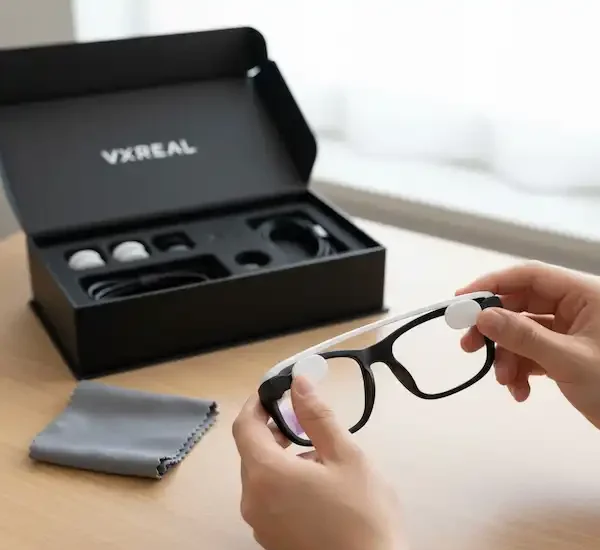
Seriously, the unboxing is always exciting. You get the sleek glasses, the USB-C cable that seems way too fancy, and a little pile of nose pads.
- The Glasses: Look cool, feel light.
- The Cable: Your lifeline. Don’t lose it.
- Nose Pads: Crucial! This isn’t just about comfort; it’s about picture quality.
My Personal Anecdote: I initially grabbed the medium nose pad and spent 15 minutes thinking the screen was slightly blurry. I switched to the smallest pad, which let the glasses sit higher, and BAM! Crystal clear picture. Moral of the story: Spend three minutes trying all the pads.
🔌 Section 1: Plug-and-Play (Mostly)
The beauty of the VXREAL Air 2/Pro is that they’re basically just an external monitor you wear. You don’t need to charge them because they sip power right from your device.
Step 1: The Comfort Check
- Pad Swap: As mentioned, find your perfect nose pad.
- Clean ‘Em Up: Those tiny lenses smudge if you just look at them. Give them a quick swipe with the provided cloth.
- Pro Tip (Air 2 Pro only): If you have the Pro model, you can slightly bend the arms (the temples). This lets you really customize the angle. Get it right, and you’ll forget you’re wearing them.

Step 2: Making the Connection
This is the only tricky part. Your source device (phone, laptop, tablet) needs a USB-C port that supports DisplayPort Alternate Mode (DP Alt Mode).
If Your Device is Modern and High-End: You’re probably good. Plug the cable from the glasses directly into your phone (like a Samsung Galaxy S series, or a new MacBook/iPad Pro).
If You Have a Gaming Device or a PC:
- Steam Deck: Plugs right in. Amazing.
- Nintendo Switch: You’ll need a third-party adapter (usually a hub that supports video out).
- Older PCs/iPhones: If your PC only has HDMI, or you have an older iPhone, you’ll need a special adapter chain. It can be a hassle, so check your phone/laptop specs first!
The Moment of Truth: Plug it in. The glasses should just light up and start mirroring your phone or laptop screen. If they don’t, jump to the next section!
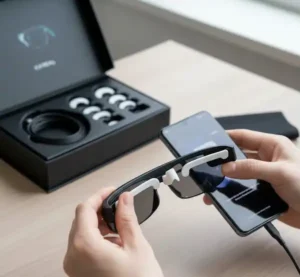
The glasses should automatically power on and mirror your device’s display or enter an extended display mode.
Step 3: Getting the Companion App
While the glasses work as a simple screen without it, the VXREAL companion app (often called “VXREAL XR Space” or similar) is where the real magic happens.
- Why you need it: This app often gives you the ability to launch multiple virtual screens and use features like a fixed, anchored screen (so the screen stays put in the room even if you turn your head). It’s the key to turning your glasses into a productivity powerhouse.
- Action: Find it on the Google Play Store or the official VXREAL website and install it.
🛑 Section 2: Troubleshooting – Don’t Panic, It’s Just Tech
We’ve all been there: You plug in your awesome new gadget, and nothing happens. Before you throw the box across the room, try these simple fixes.
| If the Problem Is… | Don’t Blame the Glasses Yet! Check This… |
| Black Screen/No Power | 1. The Cable: Unplug and replug firmly at both ends. Seriously, sometimes it’s just a tiny nudge. 2. The Device: Does your phone/laptop have enough battery? Using the glasses sucks power. 3. Compatibility: Is your phone listed as compatible? If not, you might be missing that crucial DP Alt Mode. |
| Image is Blurry/Double | 1. Fit: This is almost always the wrong nose pad. Move the glasses slightly up or down your nose until it’s sharp. 2. Smudges: Clean the lenses again! Fingerprints are the enemy. |
| Screen Flickers Like Crazy | 1. The Cable: Try a different USB-C cable if you have a spare high-quality one. The included cable is great, but things happen. 2. Restart: A quick phone or laptop restart usually fixes random video glitches. |
| I Hear Nothing! | Audio Settings: When you plug in the glasses, your device sees them as an external speaker. Go to your phone’s volume/sound settings and make sure the audio output is set to the “VXREAL Air” device. |
My Nightmare Scenario: Once, I was trying to show a friend a demo, and the screen kept turning off. I spent 20 minutes fiddling. Turns out, the phone case was just slightly blocking the USB-C plug from seating all the way in. Always check the simple things!
🤩 Section 3: The Best Apps and When to Use Them
Okay, now for the fun part. The reason you bought these things! The VXREAL Air 2/Pro is basically a massive 130-inch (or larger) screen floating a few feet away.
🎥 Entertainment: Your Private Cinema
This is the most obvious use case, but it’s incredible.
- Binge-Watching on a Plane/Train: Forget those tiny airplane screens. Plug into your phone and watch Netflix or Disney+ on a huge display. It’s truly isolating in the best way.
- The Go-Anywhere Console: Connect to your Steam Deck. Playing Elden Ring on a 130-inch screen while sitting in a coffee shop is ridiculously cool.
- 3D Movies: If you have 3D side-by-side content, the glasses often support it. It’s an instant IMAX experience.
💻 Productivity: Escape the Office
This is where the companion app shines. Being able to access multiple virtual screens is transformative.
- The Coffee Shop Setup: Connect the glasses to your laptop. Set the laptop screen for emails and Slack, and use the glasses for a massive virtual external monitor to hold your code, documents, or design tools. Instant dual-monitor setup anywhere.
- The Phone Desktop: If your Android phone (like a Samsung) has a desktop environment (like DeX), the glasses give you the perfect monitor for it. Use a Bluetooth keyboard and mouse, and your phone becomes a fully functional workstation.
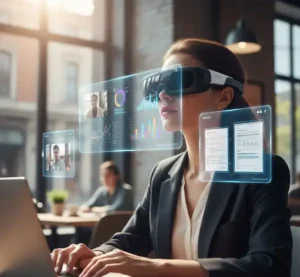
- Standard Office Apps: Use your glasses to view documents, spreadsheets, and presentations from Microsoft Office, Google Workspace, or Apple iWork. The large virtual screen significantly improves readability.
- Coding/Development: Developers can benefit from an extended display to write code, review documentation, and test applications without being tied to a physical monitor.
Entertainment & Media Consumption
Turn any location into a private cinema.
- Video Streaming: Watch Netflix, YouTube, Disney+, Hulu, and more on a massive virtual screen. The immersive experience makes travel or waiting times much more enjoyable.
- Gaming: Connect to your Steam Deck, Nintendo Switch, or even your smartphone to play games on a large display. For mobile games, the VXREAL glasses can provide a more engaging visual experience.
- Local Media Players: Use VLC, MX Player, or your device’s native video player for local video files.
- 3D Content (if supported): Some smart glasses support side-by-side 3D video content, offering an extra layer of immersion for compatible movies.
🚀 Augmented Reality (AR)
While the glasses can simply mirror your phone (2D mode), they are designed for AR/XR (Extended Reality).
- VXREAL XR Space: Use the companion app to enter this dedicated 3D environment. Here, you can place multiple floating apps around you, browse the web, and watch videos in a truly immersive virtual space.
- Gaming: Look for AR-enabled mobile games. They use the glasses’ tracking capabilities to blend the game with the real world around you.
Creative & Design
- Graphic Design/Video Editing: While not a replacement for high-end monitors, the large virtual screen can provide valuable additional screen real estate for reviewing work or placing toolbars.
- 3D Modeling Viewers: View 3D models and designs in a more immersive way, allowing for better spatial understanding.
Key Considerations for App Usage:
- Device Compatibility: Always check if an app is optimized for smart glasses or if it simply mirrors your phone’s screen.
- Control Methods: Many apps will still require interaction with your connected phone/laptop as a trackpad or controller.
- Battery Life: Using the glasses will consume power from your connected device, so keep an eye on battery levels, especially during long sessions.
Additional Helpful Content – VXREAL Air 2 Pro Setup
Maintaining Your VXREAL Air 2/Pro
- Storage: When not in use, store your glasses in their protective case to prevent dust and scratches.
- Cleaning: Only use the provided microfiber cloth for cleaning lenses. For stubborn smudges, a tiny amount of lens cleaning solution designed for optics can be applied to the cloth (never directly to the lenses).
- Cable Care: Avoid sharp bends or kinks in the USB-C cable to prolong its lifespan.
- Temperature: Avoid exposing your glasses to extreme temperatures, as this can damage internal components.
Understanding DisplayPort Alternate Mode (DP Alt Mode)
DP Alt Mode is a functional mode of USB-C that allows the transmission of DisplayPort video and audio signals over a USB-C cable.4 It’s crucial for smart glasses like the VXREAL Air 2/Pro to function as a display. If your device’s USB-C port doesn’t support DP Alt Mode, you’ll need an adapter or a different source device.
Frequently Asked Questions (FAQ) – VXREAL Air 2 Pro Setup
Q: Do the VXREAL Air 2/Pro glasses have their own battery?
A: Typically, no. They draw power directly from the connected source device via the USB-C cable. This keeps the glasses lightweight.
Q: Can I use the VXREAL Air 2/Pro with an iPhone?
A: iPhones use a Lightning port (older models) or USB-C (iPhone 15 series and newer, and some iPad models). For iPhone models with a Lightning port, you would need a Lightning to HDMI adapter, and then an HDMI to USB-C (with DP Alt Mode) adapter, which can be cumbersome and may not always work reliably. Newer USB-C iPhones should be compatible, but always verify DP Alt Mode support. iPads with USB-C are generally compatible.
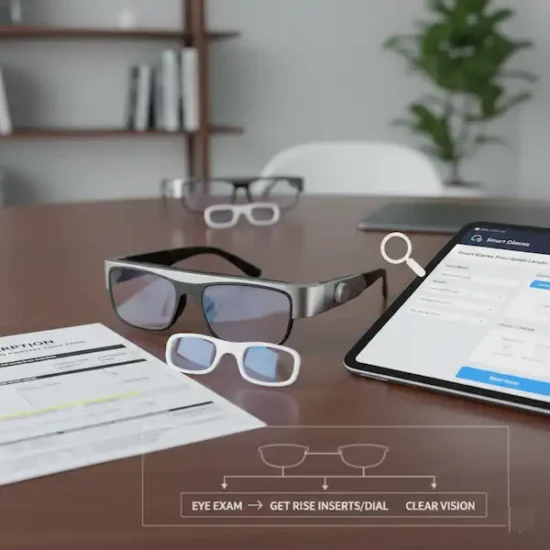
Q: Can I wear my prescription glasses with the VXREAL Air 2/Pro?
A: The design of the VXREAL Air 2/Pro often allows for some prescription lens inserts. Check the official VXREAL website or product specifications for details on compatible prescription inserts or if they fit over some standard prescription frames.
Q: How do I control the display when connected to my phone?
A: Your connected phone typically acts as the input device. You’ll use its touchscreen, trackpad functionality, or any connected Bluetooth mouse/keyboard to navigate the virtual display.
Q: Are these glasses suitable for outdoor use in bright sunlight?
A: While they can be used outdoors, very bright sunlight can wash out the display, making it harder to see. They are generally best suited for indoor or shaded outdoor environments. The Air 2 Pro model may offer electrochromic dimming, which can help in brighter conditions.5
Q: What’s the difference between the Air 2 and Air 2 Pro?
A: The “Pro” version often includes additional features such as electrochromic dimming (to adjust transparency for different light conditions), potentially better audio, and more robust build quality or ergonomic adjustments.6 Always compare the official specifications for the most accurate differences.
Additional Helpful Links
- Take a look at how the XREAL compares to the Viture Pro – XREAL Air 2 Pro vs Viture Pro: The Ultimate Smart Glasses Battle
- Here is a comparison of XREAL and Ray-Ban – Ray-Ban Meta vs XREAL Air Pro: Smart Glasses Comparison
External Links for Authoritative Sources
- VXREAL Official Website: Always the best source for product specifications, firmware updates, and support.
https://www.vxreal.com - USB-IF (USB Implementers Forum): For technical details on USB-C, DisplayPort Alternate Mode, and power delivery.
https://www.usb.org/ - DisplayPort Official Website: Information on DisplayPort technology.
https://www.displayport.org/
By following this guide, you should be well-equipped to set up, troubleshoot, and fully enjoy your VXREAL Air 2 or Air 2 Pro smart glasses!